
To launch an Assessment, Self-Study or eLearning course, you must first be enrolled as a student in that course. If you are enrolled, review these step-by-step instructions to learn more about launching courses.
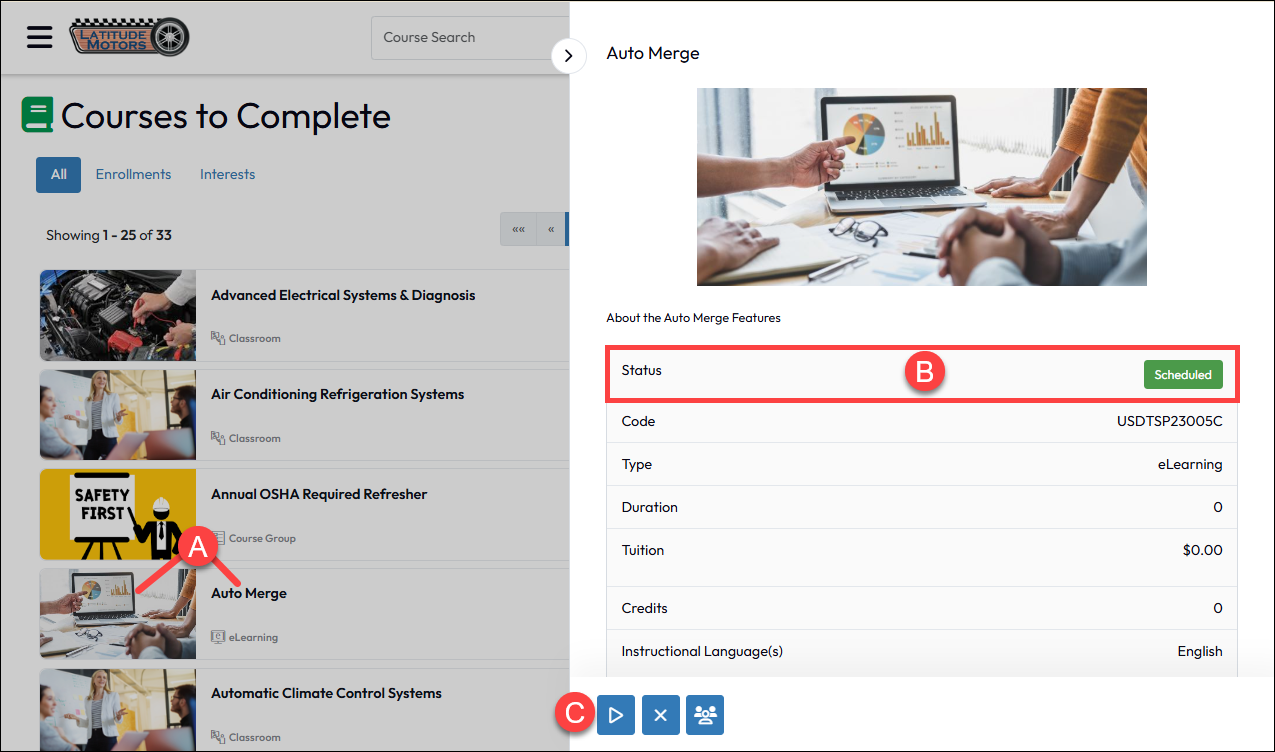
If you have registered for an self-paced course, you can find it in a number of ways depending on how your portal administrator has designed your portal, including the Courses To Complete and My Learning pages. You can also search for the course in the Catalog search and launch it from there. From wherever you find the course:
There are two very different scenarios for course re-launch: 1) when you have completed the course and want to only review the content and 2) when you launched the course, did not complete it at the time, and wish to launch it again to finish it for a score.
Relaunch a Completed Course: This option depends on whether the course was configured with Can Relaunch enabled. If enabled, you can launch the content again, but it does not constitute a new enrollment. When this is disabled, you would not have access to a Launch button for eLearning and Self-study courses that have already been completed with statuses Attend(Pass), Attend No Bill, and Fail. The setting which impacts the ability to take the course again for new credit and a new transcript is the Enrollment Restrictions (Unlimited, Once Only, etc).
Relaunch to Finish a Course: The Can Relaunch setting has no impact on this. If the course is not yet completed and remains in the Launched status, the user can relaunch the course to complete it. How they resume in the content is a function of how the course was authored. For instance, eLearning may designed to bookmark to a user’s earlier progress, but self-study videos may need to be repeated fully.
If you have problems finding the Launch button for a course in which you believe you are enrolled, there are a few possible causes. Some courses require prerequisites or managerial approval to complete the enrollment process, and yours may be pending one or more of these requirements. If it is a course you have taken before, it may also be subject to relaunch/enrollment restrictions set by the portal administrator.
If you click Launch or Launch Content and cannot view the course, you may be encountering issues with browser compatibility or software settings. Please check the following settings before contacting your portal administrator for support.
Launch Self-Study Courses with AI Content
The Self-study type of course in the LMS offers portal administrators an option to generate supplementary course content using generative AI tools. When launching a Self-Study for which these tools have been enabled, you may see not only the primary content designated for launch or download, but additional tools such as a study guide, a course coach chatbot, and an internal self-study-based assessment to determine passing status.
Learn more about these tools: Launch Self-Study Courses with AI Tools