The My Training Plan page displays the logged in user’s individualized training plan, with a detailed list of certification and/or course assignments. Students with access to the Navigation page My Training Plan icon will notice a goal assignment counter, as pictured here. They can watch their to-do list move from Assigned to Achieved as they complete all required training activities.
There are two charts that summarize a student’s training goals: One by Status and the other by Assignment Due Date. Number totals display inside of each graph, while hover text provides percentage details.
Goals – Chart displays all goals by status: Achieved, Assigned, Waived
Assigned – Chart shows number of assigned goals by Due Date: No Due Date, More than 30 Days, Less than 30 Days, Past Due
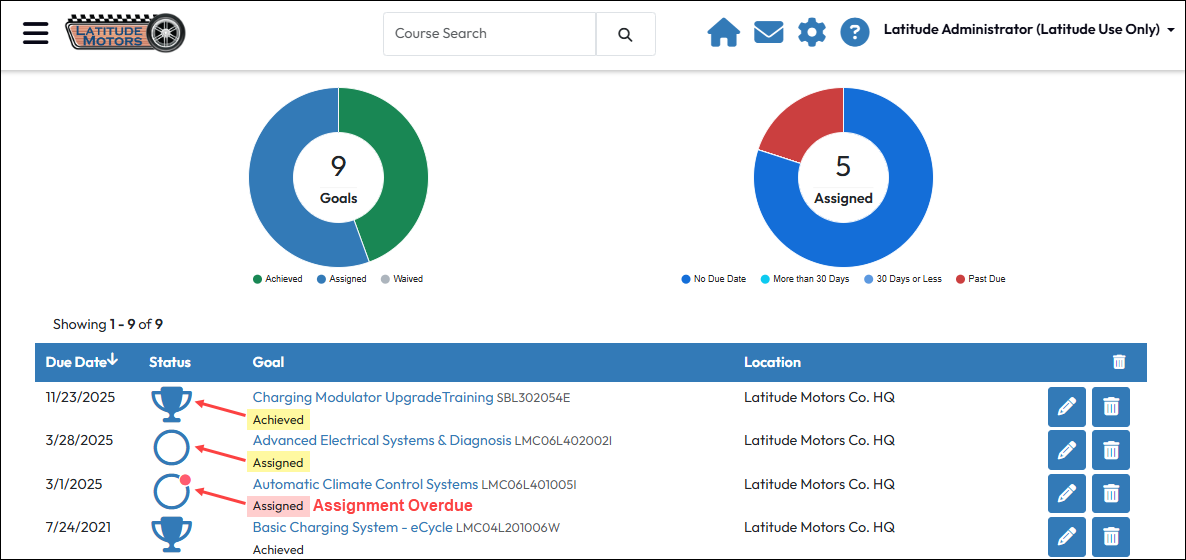
Goal details and action buttons provide a simple way for students to manage their own training plan, and track progress at a glance. If the Self Assign Goals feature is enabled by the Portal Administrator in the LMS Information settings, students will see a +Goals button displayed in upper right corner. Only users who assigned themselves a training goal will see action options listed.
Note that students are not allowed to delete or edit goals assigned by rule or by their manager. Although you may see the Delete All icon in the results header, the LMS will only allow you to delete self-assigned goals.
Important
When you are assigned a goal and you enroll in the related courses or your portal administrator has the LMS automatically enroll you in goal-assigned courses, if the ad hoc or rule-based goal is deleted, any enrollments that already exist because of that goal are NOT removed or cancelled automatically.
As a student, if you are certain the goal is deleted or in the case of a goal rule, it will never run again, you can cancel your enrollments in the relevant courses to get them off your Courses to Complete.
As an administrator, you can cancel enrollments in the following ways: