
From the Navigation page, click the Training History icon. Note: This function requires Adobe Reader or a similar .pdf reader program. (Download free: Adobe Reader)
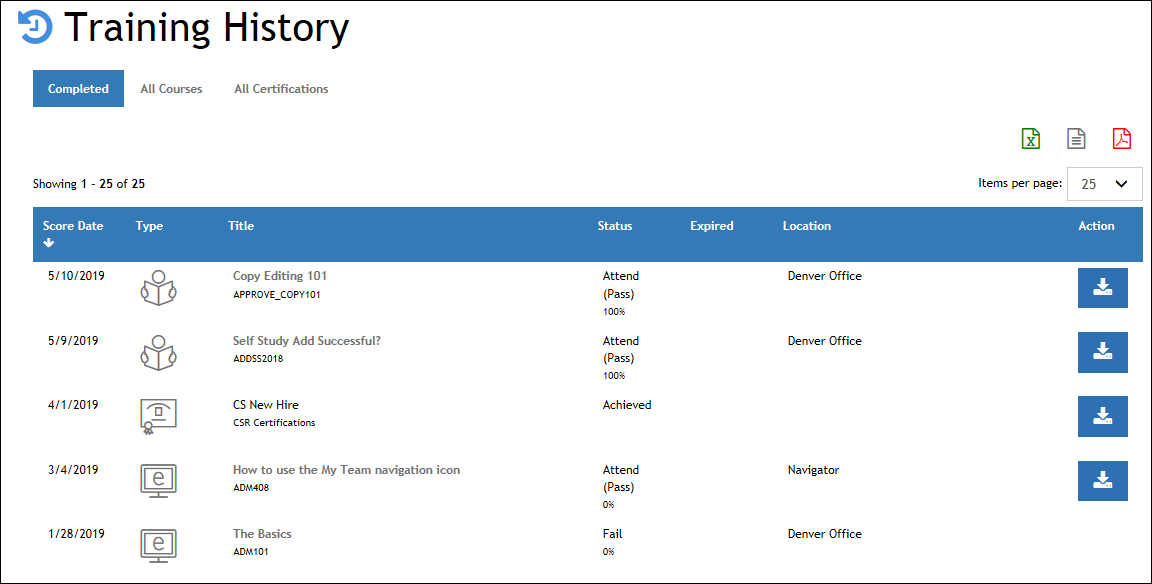
By default, the Training History page displays your course and certification transcripts in completed status.
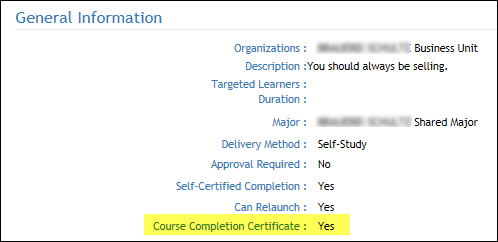
Before you take a course, you can determine if it will provide a Certificate of Completion.
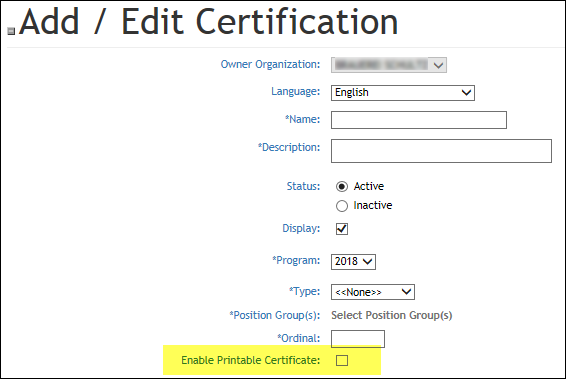
Portal Administrators can add a Printable Certificate option for Certifications from the Administration page under Accreditation> Accreditations > +Accreditation If creating a new accreditation or check to see if an existing Accreditation provides a Completion Certificate by searching for and reviewing an Accreditation under Accreditation> Accreditations.
Whether your LMS uses the default standard certificates provided by LatitudeLearning or has engaged Latitude to customize them, it is important to understand what you can expect to print on a certificate. Some key points to know:
Managers and administrators may access employee/student completion certificates and download them on the My Team – People page, by clicking the History icon under the Actions column next to the appropriate person in the list. This expands offers access to the user’s Training History and the Download options on that page. The download option appears the same as it would under the Student view.