
Set Up Curriculum Skill Profiles

A Curriculum is a competency-based training program organized into Skill Profiles that define, as a matrix, one or more areas of expertise (Skill Areas) and the varying competency levels within those areas (Skill Levels). 

Feature Overview and Requirements

A focal feature of Curriculum-based Accreditations is the use of Skill Profiles that define, as a matrix, one or more areas of expertise (Skill Areas) and the varying competency levels within those areas (Skill Levels). Students assigned a curriculum will achieve lower level skills first, then build competency as they move through additional levels toward mastery.

The help make the Curriculum type of accreditation well-suited for gamification of learning by challenging students to achieve new levels of competency.

The following is an example of a very simple Skill Profile with multiple subordinate Skill Areas and Skill Levels, per area.

Skill Profile: Technician

  • Skill Area: Engine Repair
    ○  Skill Levels: Foundational, Practitioner, Master
  • Skill Area: Brakes
    ○  Skill Levels: Foundational, Practitioner, Master
  • Skill Area: Heating and Air Conditioning
    ○  Skill Levels: Foundational, Practitioner, Master

Note: You can use existing Skill Profiles in multiple certifications or curriculums.

You should build your relevant Skill Profiles prior to configuring your Curriculum.
Step by Step Procedure and Field Description

Build a New Skill Profile

  1. From the Administration page, select Accreditations > Skill Profiles.
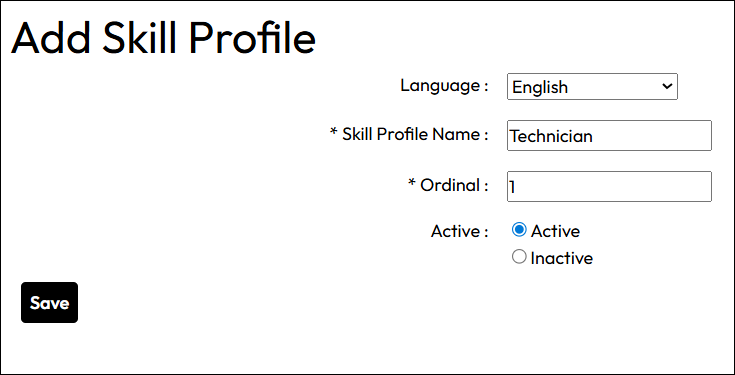
  2. Click +Skill Profile. On the “Add Skill Profile” page, enter information in each field as described below. Fields designated with an asterisk are required.
  3. Language: Default to English. To use another language, create and save an English version first, then edit the Skill Profile to use a different language, providing translations for all the fields in the additional language.
  4. Skill Profile Name: Enter the name of the Skill Profile you wish to use.
  5. Ordinal: Enter a number to indicate the order in which skill profiles should appear on pages in which more than one are displayed.
  6. Active: Select Active to make the Skill Profile available for curriculum configuration or Inactive to hide it temporarily or permanently.
  7. Click Save. The Skill Profile Details page will display.

The Skill Profile Details tab is display only. The General Information tab allows you to make updates to the information you created above when establishing the Skill Profile. To continue building the matrix, continue with Skill Areas.
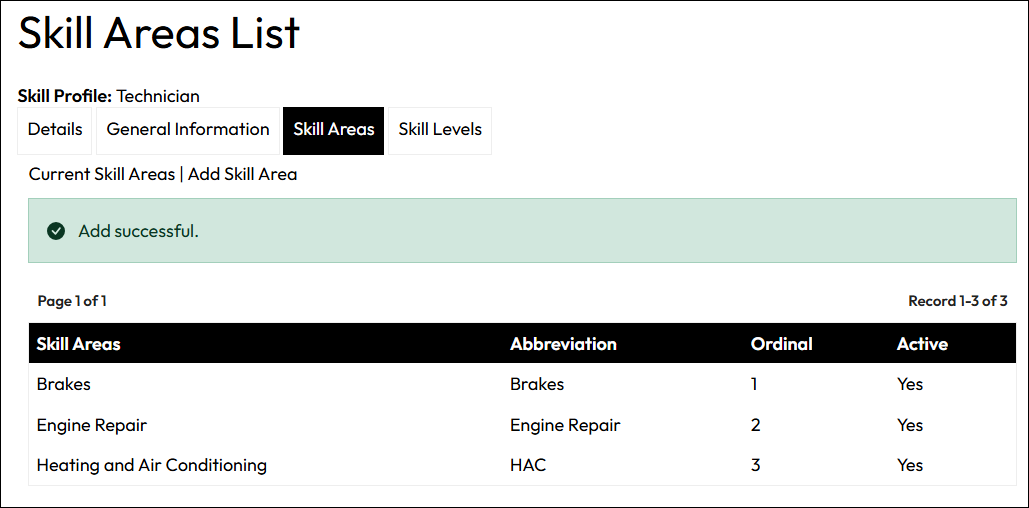
  1. Open the Skill Areas tab. For new Skill Profiles, you will need to add areas. When editing existing Skill Profiles, you can modify current skill areas or set up additional ones.
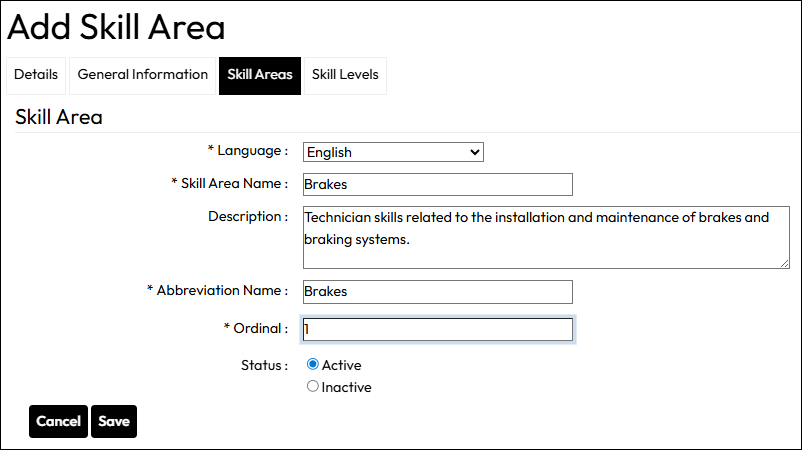
  2. To add a new skill area, click Add Skill Area. Fill out the form as described below.
  3. Language: Defaults to English. To use another language, create and save an English version first, then edit the Skill Area to use a different language, providing translations for all the fields in the additional language.
  4. Skill Area Name: Enter the name of the Skill Area you want to establish.
  5. Description: Optionally provide a description of this particular Skill Area.
  6. Abbreviation Name: Provide a shortened name for the Skill Area. (Can be the same as the overall name)
  7. Ordinal: Enter a number to indicate the order in which skill area should appear on pages in which more than one are displayed.
  8. Active: Select Active to make the Skill Area available for curriculum configuration or Inactive to hide it temporarily or permanently.
  9. Click Save
  10. Repeat as needed for additional Skill Areas. 

 To continue building the matrix, continue with Skill Levels, which determine the competency levels within each individual skill area.
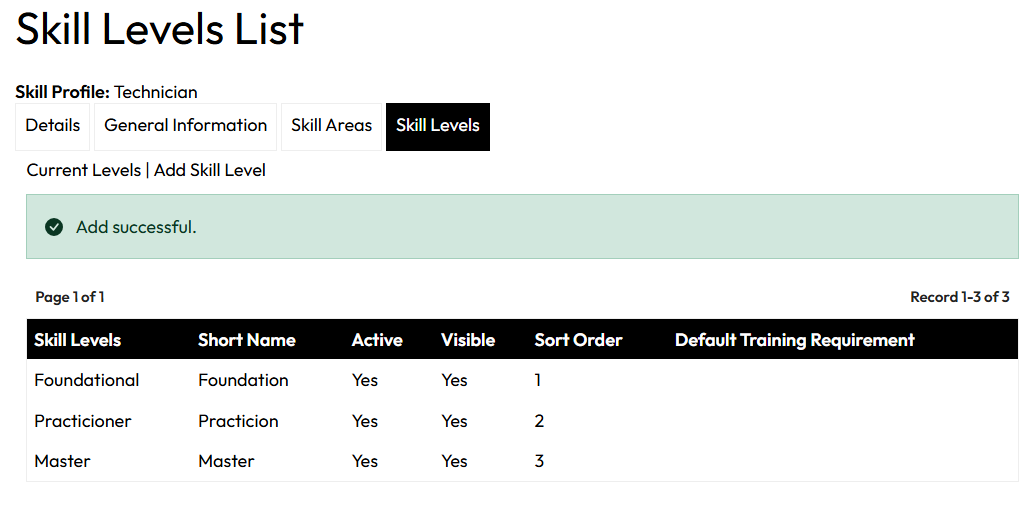
  1. Open the Skill Levels tab. Existing Skill Levels can be modified under Current Skill Levels.
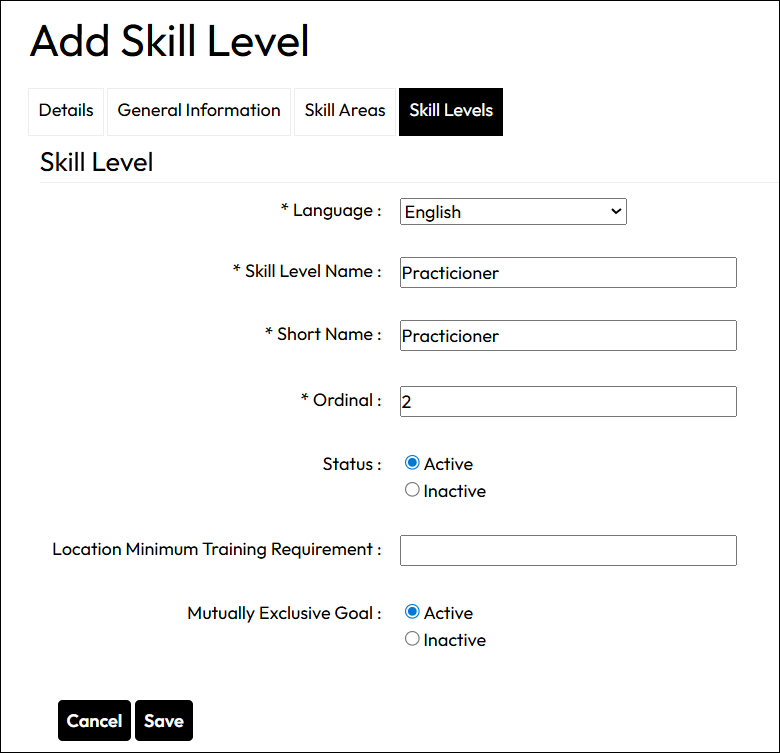
  2. To add a new Skill Level, click Add Skill Level. Fill out the form as described below.
  3. Language: Defaults to English. To use another language, create and save an English version first, then edit the Skill Level to use a different language, providing translations for all the fields in the additional language.
  4. Skill Level Name: Enter the name of the Skill Level you want to establish.
  5. Short Name: Provide a shortened name for the Skill Level. (Can be the same as the overall name)
  6. Ordinal: Enter a number to indicate the order in which skill level should appear on pages in which more than one are displayed.
  7. Status: Select Active to make the Skill Level available for curriculum configuration or Inactive to hide it temporarily or permanently.
  8. Location Minimum Training Requirement (MTR): Optional. This field let you identify the minimum number of users required in a location to meet the requirements associated with the skill profile component. The default global MTRs are set in a skill profile. There is an MTR Import tool to override the global settings and set them specifically for designated locations.
  9. Mutually Exclusive Goal: Please disregard this setting; it is obsolete and is being removed from the system.
  10. Click Save
  11. Repeat as needed for additional Skill Levels.