Launch Self-Study Courses with AI Tools

Some courses under the Self-Study delivery method may contain auxiliary Study Guide content generated by Latitude’s AI learning tools. This quick overview shows what you may see and how you can use it.

AI Tools in Self-Study Courses

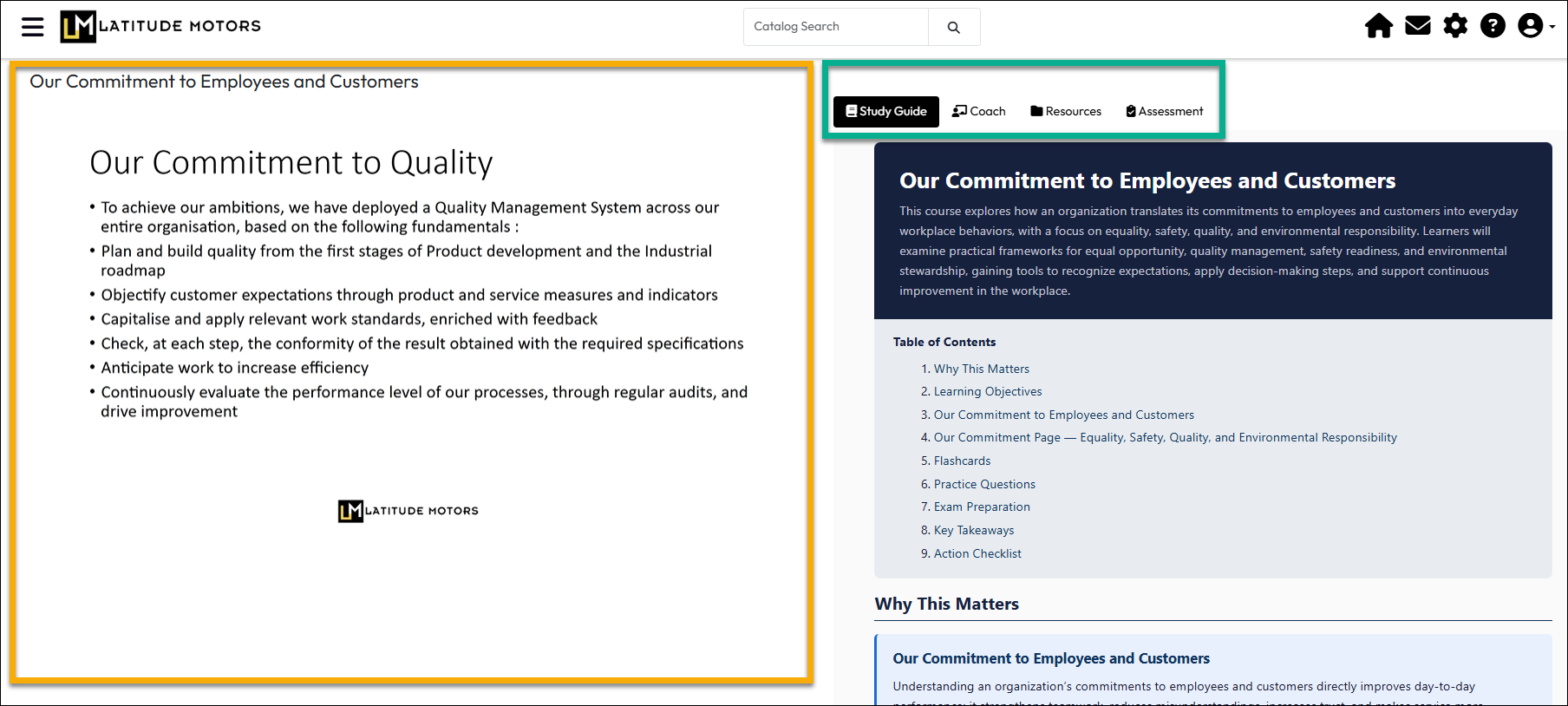
Your training portal administrator can generate additional content for selected self-study types of courses using a generative AI content builder trained solely on the content and resources of the course.  When you enroll in, then launch a relevant course, in addition to launchable content, you will see sections on the right side of the launch page with attached resources and the AI content objects enabled for the course experience.

  • The Study Guide tab displays the current version of the study guide.
  • The Coach tab lets you ask questions about the course content to an AI chat coach. 
  • The Assessments tab lets you take a test to determine whether the course was passed or failed. This is an option enabled by the portal administrator and is an alternative configuration to have self-, manager-, or administrator-verified completion.
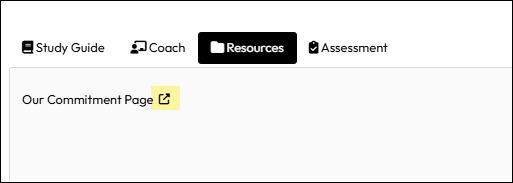
  • The Resources tab lists the course’s attached resources for opening or download.

An example of this is shown below.

The procedure for finding and launching these types of self-study courses is the same as any self-paced course you have been taking. The differences don’t show until you launch the content.
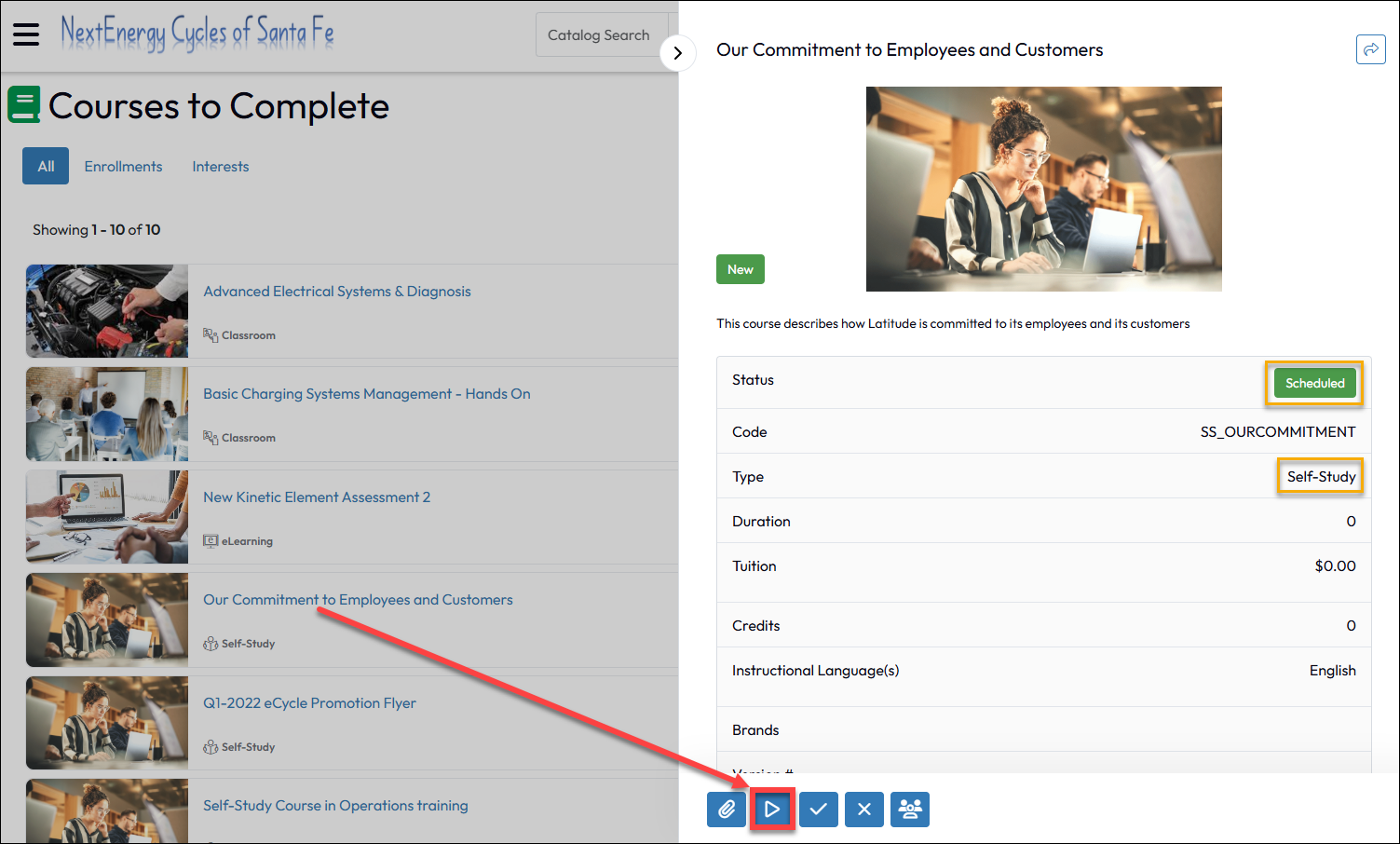
  1. Find the course you are enrolled in via Catalog Search, My Learning, Courses to Complete, or other means offered to you in your portal.
  2. Open the course slide-in and launch the course. 

What you see will depend on how your portal administrator designed the self-study content. It could be traditional self-study content that either launches (video, presentation, PDF) or non-launchable types of content to be downloaded.

  1. The launched self-study window options are shown in the image below.
    • The area on the left is where the primary self-study content is displayed or made available for download.
    • The AI-generated content and Resource list are shown on the right area of the page, depending on how the portal administrator configured the course.

The AI Study Guide

Scroll through the content shown to view content such as:
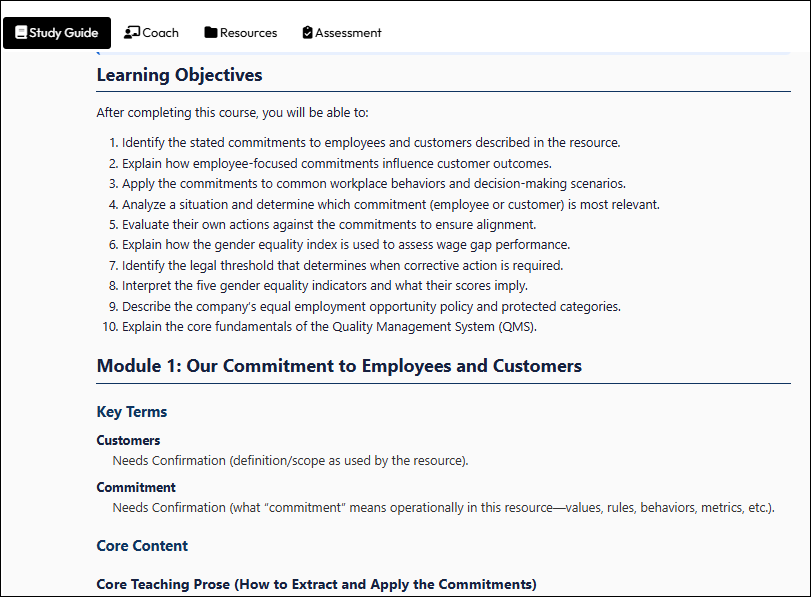
  • Table of Contents
  • Why the Content Matters
  • Learning Objectives
  • Modules based on Content sections
  • Conceptual Summaries
  • Practical Examples and Scenarios
  • Common Mistakes
  • Ideas for actions the student can take to solidify knowledge retention
  • Unscored Knowledge Checks
  • Key Terminology
  • Flash Cards

The Coach Tab

This is an AI Chatbot that only looks at the content of the course and resources, as determined by your portal administrator, to provide answers to your questions. It will only answer questions about the content that were indexed by your portal administrator and if you are taking an Assessment as part of the Self-study, the Coach tool will not be available during that time.

To use this option:
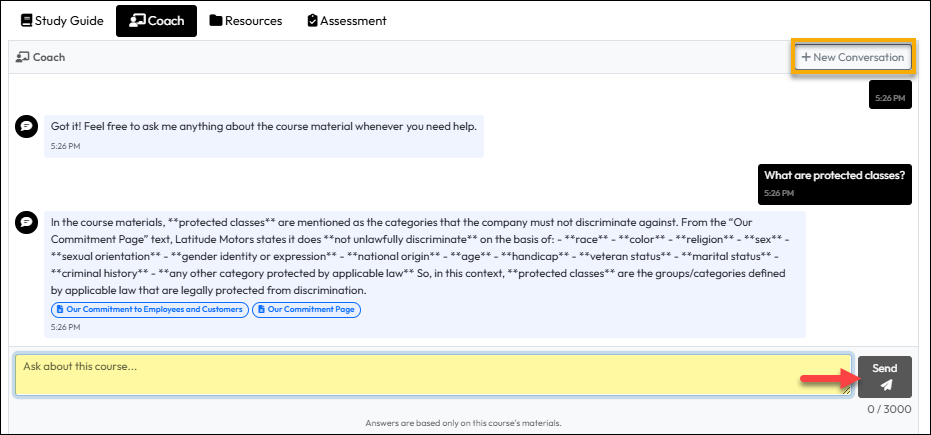
  1. In the Ask about this course… box, enter your question.
  2. Click or tap Send. The Coach will review available content to provide you the best answer. It will also list resource links to source documents when possible.
  3. Repeat as needed.
  4. If you need to clear out the existing information and start fresh, click +New Conversation.

The Resources Tab

If Resources were attached to the Self-Study course and display of them was enabled, you can open the Resources tab to access those resources from a list.
The Assessment Tab

Your portal administrator may have added an Assessment – or test – to the Self Study course to ascertain whether the content was completed and understood rather than have you or your manager verify it. If you have an Assessment tab, you should assume it is necessary to take the assessment in order to complete the course.
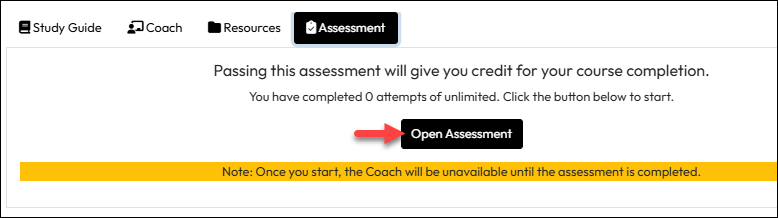
  1. On the Assessment tab, click Open Assessment.
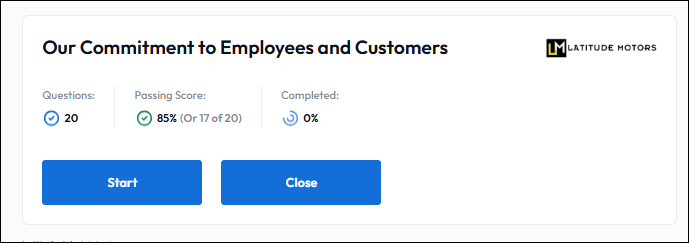
  2. The test will appear in a new tab. Click Start to answer the questions.
  3. After answering all the questions, if you are ready to score your test, click Finish.
  4. A confirmation pop-up will ask if you want to continue. Click Yes to start scoring.
  5. Your results page displays indicating:
    A. Completion Status: Passed or Failed, and the Score Date
    B. Score: Percent and number of correct from the total questions asked
    C. View Details: Click this button to return to the Assessment in Review mode.
    D. Close: Click this button to return to the Course slide-in page.
  6. If you selected Close from the Results page, you are returned to the course slide-in, which will refresh to show your completion status and updated action buttons. Button selection may vary based on the assessment configuration and your past or current enrollment status in the course.

    The image below shows your status, in addition to common actions you may be able to take. This is not a comprehensive list. To learn about an unfamiliar button, hover over it with your mouse to see a tool tip description. 

    A. Status: what your current status is in the course.
    B. Launch: If you have attempts remaining on the assessment, click to launch an attempt. You can see how many attempts are used/available on the slide-in “Attempts” field.
    C. Enroll Others: Available for Managers to enroll their employees in the course.
    D. View Test Results: Returns you to the Results page to review your score and access the View Details option.