Run Report Writer Reports and View Results

If you have access to all or some of the Report Writer-based reports in your portal, you can run the reports, temporarily tweak the standard filters, and review or download the results for more analysis in Excel.

Feature Overview and Requirements

The “Writer” part of the Report Writer is only available to portal administrators – but they can share the reports they create with others at the Role level.

When you have access to a Report Writer-based report, you can:

  • Run the report as is or add/remove standard filters for a particular run
  • Monitor report processing
  • Review results and download for further analysis
  • Schedule it to run on a regular basis and deliver results by email (see Schedule Reports and Send to Others)

To ensure the privacy of results, when someone runs a report, the results are scoped to only include the people and organizations under their purview. 

Step by Step Procedure and Field Description

Run a Report Writer Report

To run a report under the Report Writer report folders:
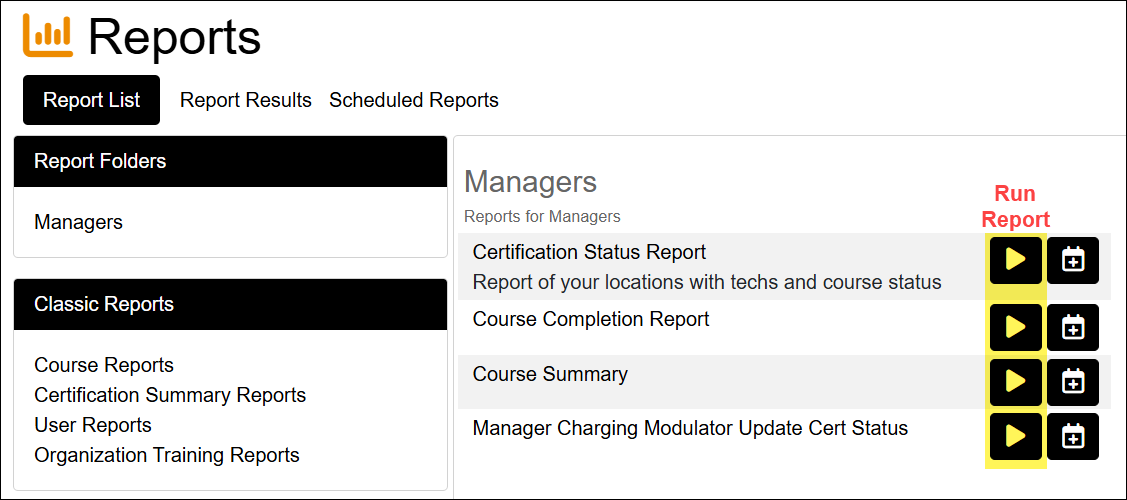
  1. From the Reports page, locate the report you want to run, then click Run Report.
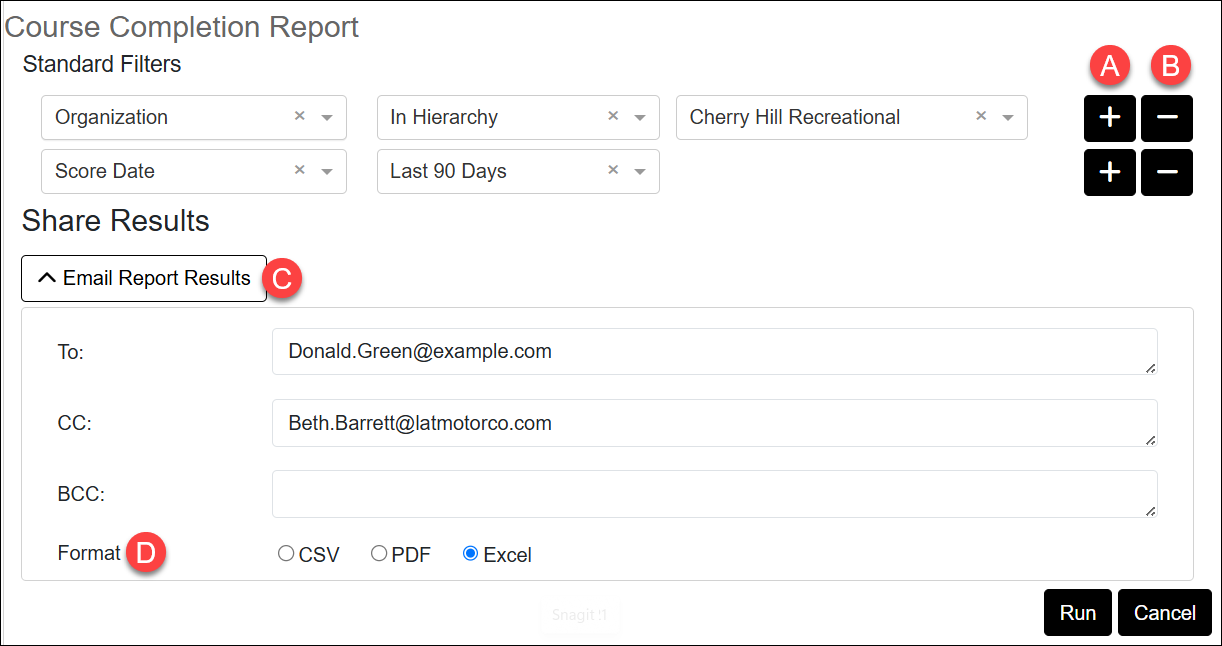
  1. On the next page, you can run the report ‘as is’ or modify the default Standard Filters. The default filters come from the report as designed. Any changes you make here only affect the current run, not the saved report. Use the Add (A) or Remove (B) buttons to change the filters shown. On existing filters, you can change the comparisons and the filter values as needed.
  2. If you want to email the results to yourself and others, expand the Email Report Results section (C), then enter the email addresses.
  3. Choose the output Format for the email attachment (D).
  4. Click Run to execute the report.

View Results

After running your report, you can wait to get an email notification about its status or check directly on the Report Results tab.
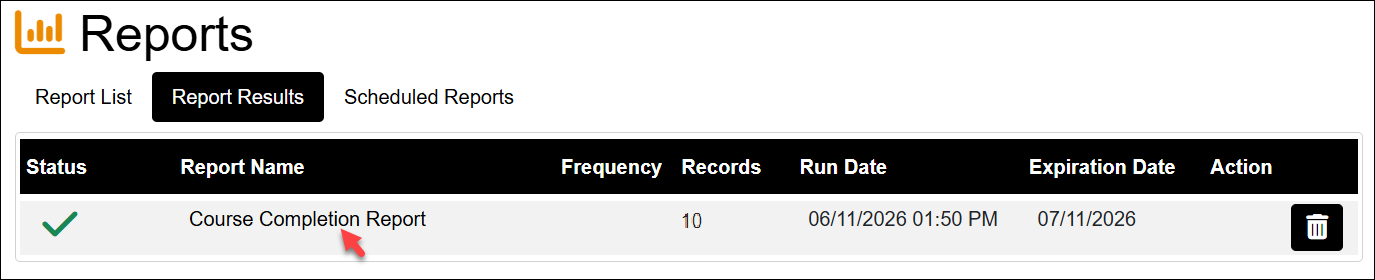
  1. From the Reports page, open the Report Results tab.
  2. Observe the Status column as it works through report processing statuses. A successful run will display a green check when completed and ready for viewing. The Run Date shows the time stamp for running the report and the Expiration Date is set to 30 days from the Run Date.  Report results may be deleted at any time under Actions by using the Delete Result button.
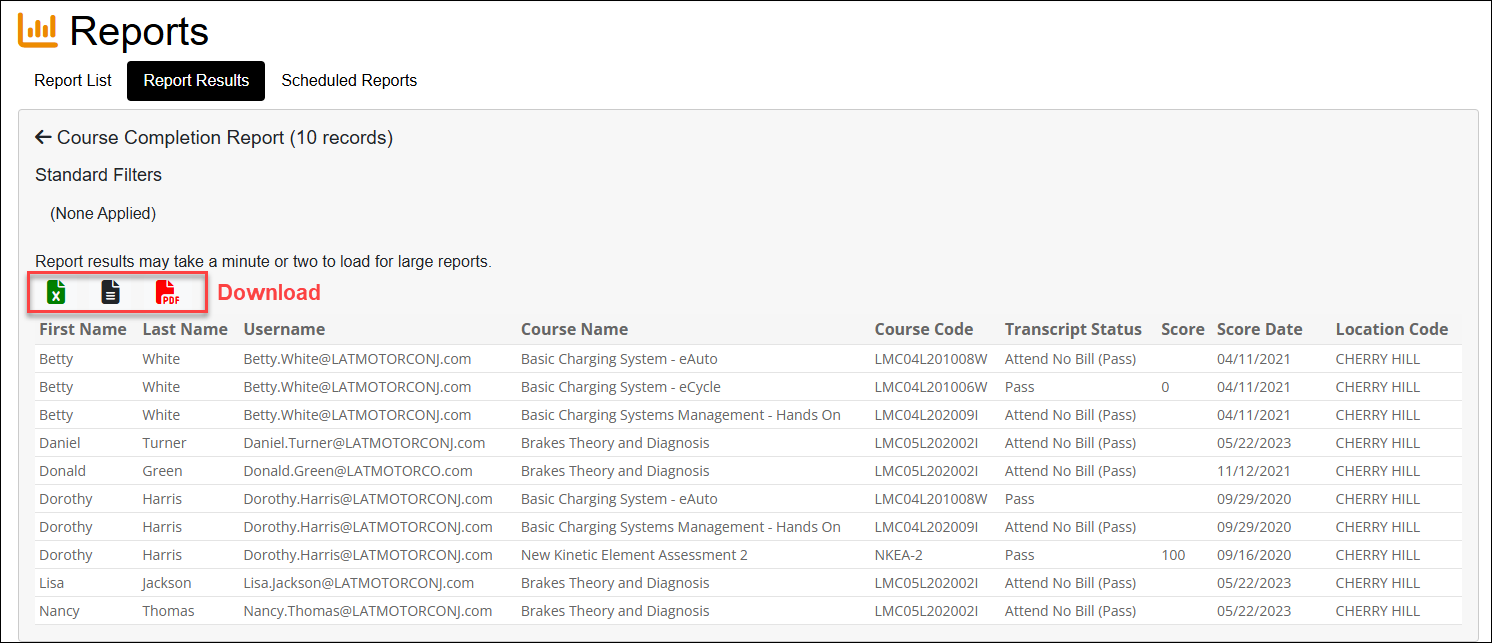
  1. Open the report results by clicking the Report Name. Important to note: 
    • If the data set returned is not too large, it will display results directly on the page
    • If the data returned is too great to display, the LMS will ask if you want to download immediately and skip the online view.
    • Report results are limited to 100,000 lines. If yours shows this, you may be missing data. Run the report multiple times with tighter filters each time to get all the results you need.
  2. To download the results, select the icon for the file type you want: Excel, CSV, or PDF, then when prompted, select the file save location.