Manage Images

Upload images to your LMS for use on HTML pages, your Header Logo, and to customize Course tiles. 

Feature Overview and Requirements

Types of Images

Portal Administrators can manage the images used throughout their LMS. This function allows editing in the sense that you are adding or deleting the images available in your system library. The LMS does not provide the ability to edit actual image files. Modifications to the size, color, contrast, brightness, and other properties must be completed prior to uploading the image to the LMS.

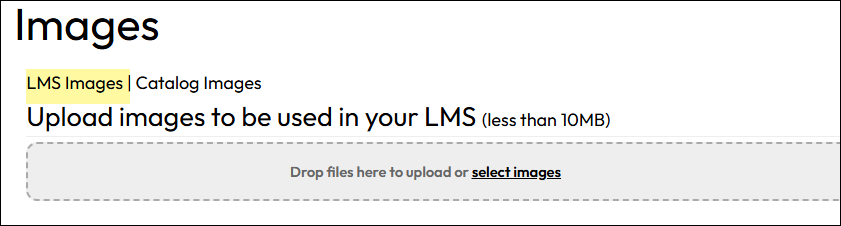
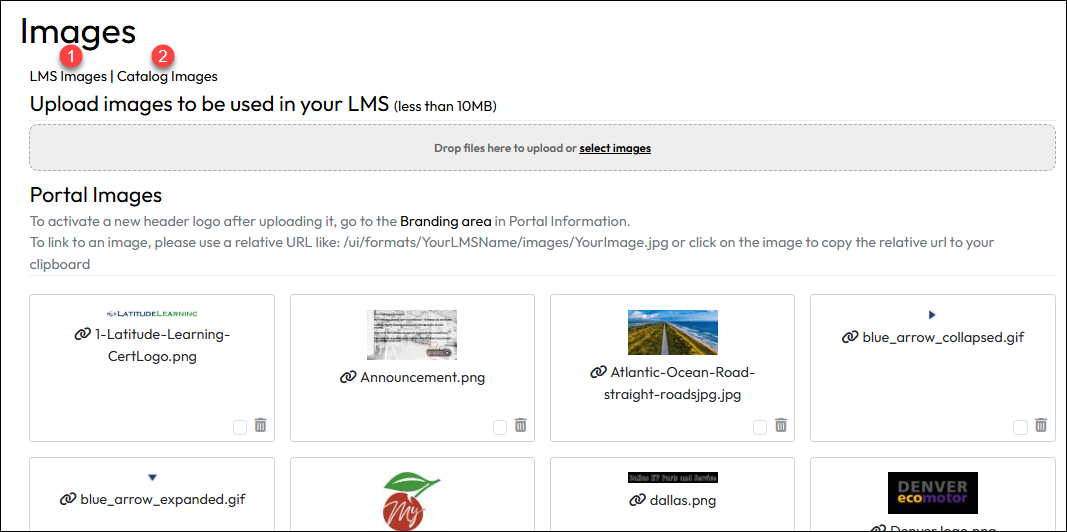
Links at top of page allow you to manage two separate libraries, as shown below:

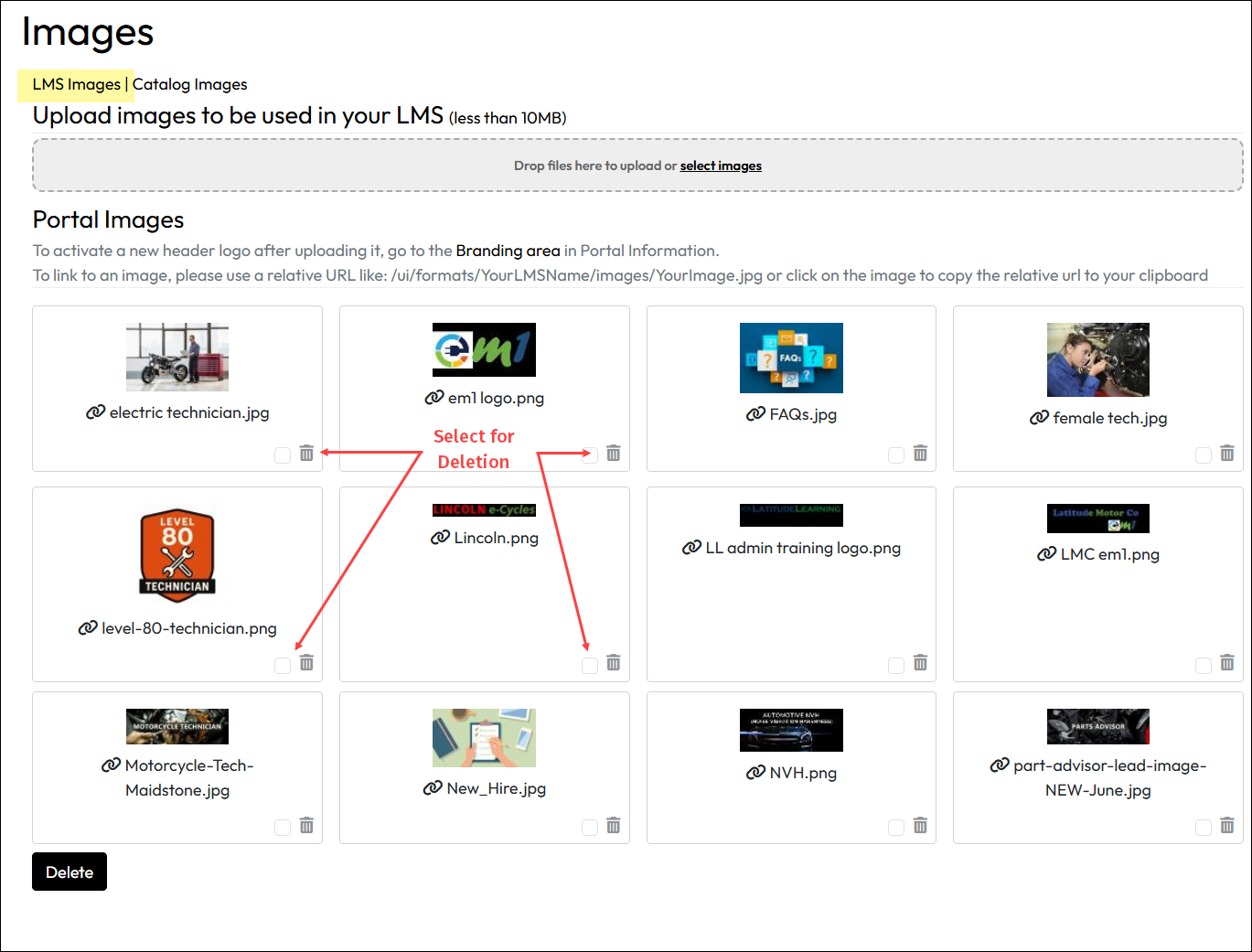
  1. LMS Images — Use these images for your Header Logo, Certificate Logo, and custom HTML content. The Edit HTML page offers a content editor with Image Library tool, and also allows you to insert images using links with relative paths.
  2. Catalog Images — Upload files and associate them with any learning objects in the catalog. Set defaults for each type of item — Assessment, Classroom, eLearning, Course Group, Self-Study, and Virtual Classroom or for Learning Paths and Resources. Associate images to individual objects to see the custom image override its default.

Note: Whenever a portal administrator wants to use an image in the LMS, it must first be uploaded via the Edit Images feature.
Step by Step Procedure and Field Description

Add or Manage LMS Images

Add an LMS Image:

Note:  Images will display on the catalog cards at 194px (W) x 112px (H) and on the slide-in at height of 220px. For best results, use an image ratio of 1.73:1

  1. From the Administration page, select Site Management > Images.
  2. Click the LMS Images tab under the Title.
  3. In the gray file add area, drag and drop the image file or click Select Images to open a selection window. The upload will process immediately.

To delete an LMS image:

  1. From the Administration page, select Site Management > Images.
  2. On the Catalog Images tab, select the checkbox in the bottom right corner of the image by the trashcan icon.
  3. Click Delete at the bottom of the image list of the page.

Add or Manage Catalog Images

The Catalog Image library comes equipped with system default stock images and icons for various learning objects and course delivery methods.

  1. From the Administration page, select Site Management > Images.
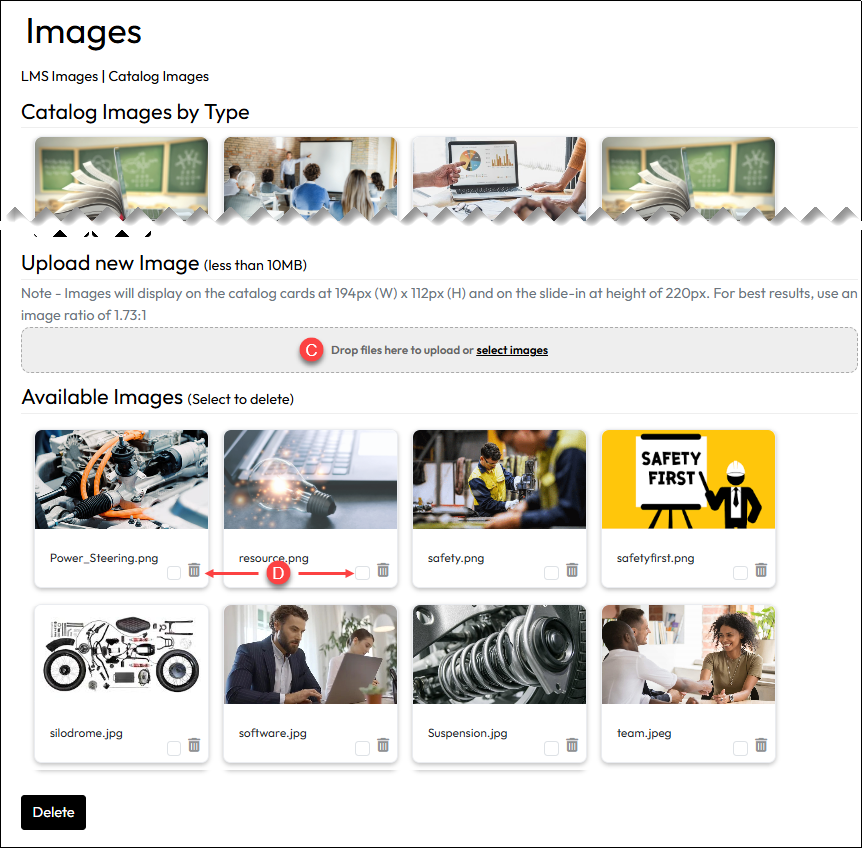
  2. Click the Catalog Images tab under the Title. The currently saved default images for each type of learning object are displayed under Catalog Images by Type.

A. To replace an image with an existing image:

  1. Use the dropdown next to the filename on the image card of the one you want to replace, then select a new image from the list.
  2. If you like the preview and decide to use the image, click Save. If not, click Reset.

B. To view or revert to the system default images or icons:
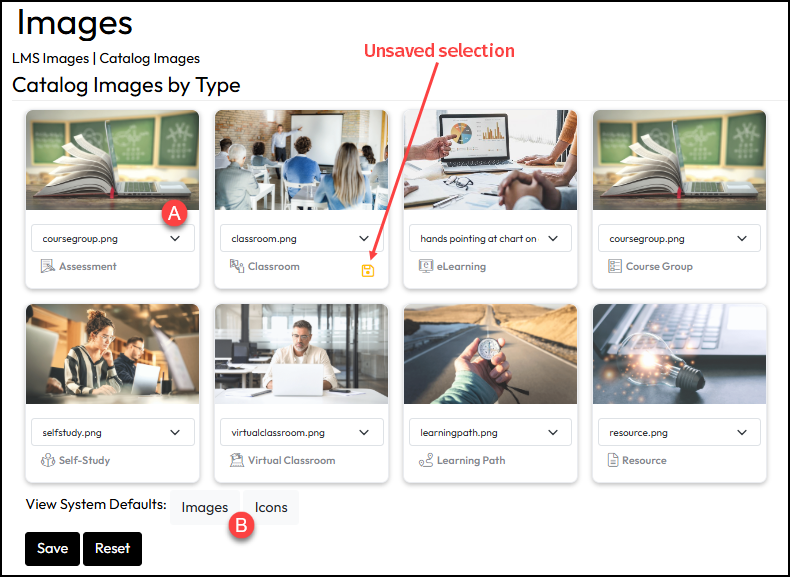
  1. Next to View System Defaults, select Images (to see the system default images) or Icons (to see the system default icons).
  2. If you like the preview and decide to use the images, click Save. If not, click Reset.
    Note: Any image changes you make that are not saved are indicated with a small yellow “Save” icon in the lower right card corner. 

C. To upload a new Catalog Image:

Note:  Images will display on the catalog cards at 194px (W) x 112px (H) and on the slide-in at height of 220px. For best results, use an image ratio of 1.73:1

  1. From the Administration page, select Site Management > Images.
  2. Click the Catalog Images tab under the Title.
  3. In the gray file add area, drag and drop the image file or click Select Images to open a selection window. The upload will process immediately.

D. To Delete a Catalog Image

  1. From the Administration page, select Site Management > Images.
  2. On the Catalog Images tab, select the checkbox in the bottom right corner of the image by the trashcan icon.
  3. Click Delete at the bottom of the image list of the page.

Setting Course Images for Individual Courses

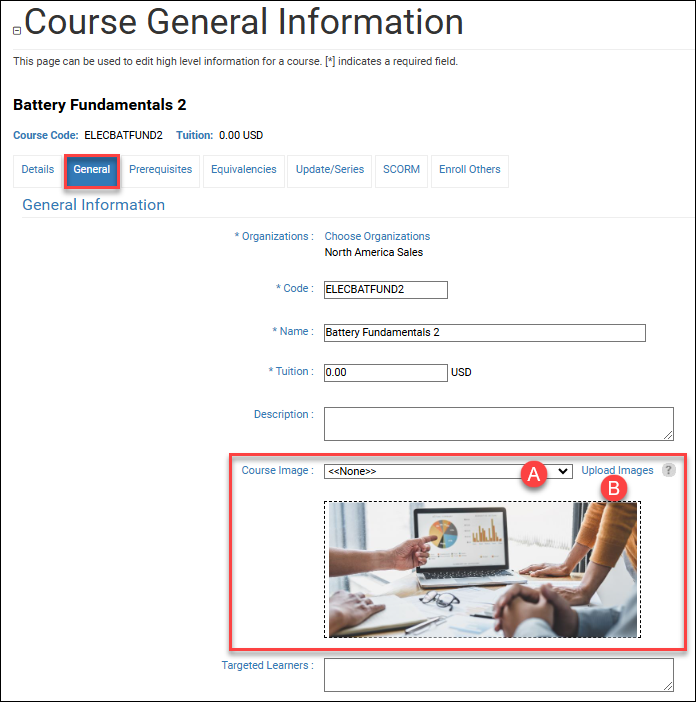
A course’s Details and Course General Information pages include a Course Image field. By default, each course will display its associated “[Course Type] Default” image provided by Latitude for new portals. You can draw special attention and at-a-glance recognition to courses in your catalog by overriding the default with an image from your library.

  1. Open a course record and navigate to the General tab.
  2. Use the Course Image drop-down menu (A) to select a custom image from the library. Or click the Upload Images link (B) to open the Course Image library in new window/tab. Restore the default image any time by selecting “None” from the drop-down menu. “None” means the default, not no image.
  3. Once you have selected the desired image, click Save Course.
  4. Click the Details tab to see your image proportionally centered in “Course Image” field.

Course images will display on course cards at 194 px width by 112 px height. For best results, us an image with an aspect ration of 1.73:1.