
Set Up a Curriculum-Style Accreditation

A Curriculum is a competency-based training program organized into Skill Profiles that define, as a matrix, one or more areas of expertise (Skill Areas) and the varying competency levels within those areas (Skill Levels). 

Feature Overview and Requirements

A Curriculum is a competency-based training program organized into Skill Profiles that define, as a matrix, one or more areas of expertise (Skill Areas) and the varying competency levels within those areas (Skill Levels). They are the key building blocks of any Curriculum. The following is an example of a very simple Skill Profile with multiple subordinate Skill Areas and Skill Levels, per area.

Skill Profile: Mechanic

  • Skill Area: Brakes
    ○  Skill Levels: Level 1, Level 2, Master
  • Skill Area: Powertrain
    ○  Skill Levels: Level 1, Level 2, Master
  • Skill Area: Suspensions
    ○  Skill Levels: Level 1, Level 2, Master

Note: You can use existing Skill Profiles in multiple certifications or curriculums.

Curriculums are attached to Programs, Position Groups, and Skill Profiles. Their requirements also employ rules related to course completion. Elective rules and objectives that consider performance measures are not well-suited for Curriculums.
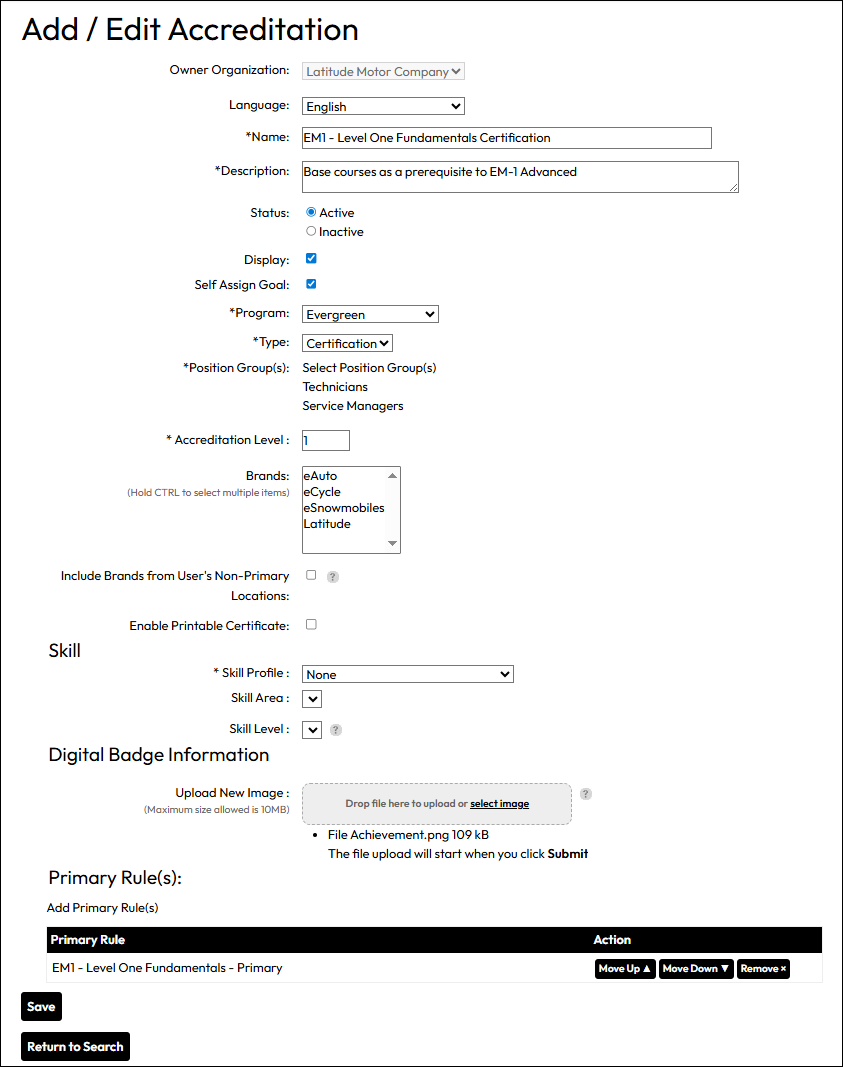
Step by Step Procedure and Field Description

Build a Basic Curriculum

  1. From the Administration page, select Accreditations > Accreditations.
  2. Click +Accreditation. On the “Add/Edit Accreditation” page, enter information in each field as described below. Fields designated with an asterisk are required.
    a. Owner Organization: Display only.
    b. Language: Provide translations for the Name. Default “English” is required.
    c. Name: Enter the official name to display on printable certificates, compliance reports, etc.
    d. Description: Provide brief overview or note important details.
    e. Status: Choose whether the accreditation is Active or Inactive for evaluation.
    f. Display: When left unchecked, this accreditation will be hidden from learners, but still display in administrator tools for reporting and program management purposes.
    g. Self Assign Goal: When checked, the accreditation will be available as a training goal in the Self-Assign Goals wizard and on the student Skills page.
    h. Program: Select the program the accreditation belongs to.
    i. Type: Select Curriculum.
    j. Position Groups:  Click Select Position Groups to open a picker from which you can select the list of eligible user groups.
    k. Accreditation Level: Ordinal used to sort lists in learner’s Certification page. Also determines a user’s “Highest Accreditation Achievement”.
    l. Brands: If your organization has enabled and users Brands, select the brands associated with this particular accreditation.
    m. Include Brands from User’s Non-Primary Location: if enabled, users can achieve an accreditation for brands they are associated with at non-primary location profiles if they belong to the same position group in both the primary and non-primary profile.
    n. Enable Printable Certificate: When checked, learners can print a certificate of achievement from their Training History page.
  3. Skill Section: Under Skill Profile, select the Skill Profile associated with this curriculum. 
    Skill Area: Select the Skill Area represented by this curriculum
    Skill Level: Select the Skill Level associated with the Skill Area.
    Note: The Skill Profiles must be set up prior to use.
  4. Digital Badge Information
    Click Upload New Image to add a downloadable achievement badge that will appear in the user’s training history and on the Accreditation slide-in. Badge Image Requirements:
    • File Format: PNG
    • Aspect Ratio: Square
    • Minimum Resolution: 256 x 256 pixels
    • Optimal Resolution: 400 x 400 pixels
    • File Size Limit: 60 MB
    • Background: Transparent recommended
  5. Primary Rules Section: Click Add Primary Rules to open a picker from which you can select the list of certification requirements. Select and check out to add them to the certification rules list.
  6. Once you have added primary rules, use the Move Up, Move Down, Remove buttons to manage list items and display order.
  7. Click Submit.

What’s next?

Creating the certification-style accreditation establishes learning requirements but it does not automatically assign the requirement to the target students in relevant position groups. To do that, you must create Accreditation Ad Hoc (one time) or Rule-based (scheduled) Goals. 

Learn more about these options:
Ad Hoc Accreditation Goals
Accreditation Goal Rules