Assign Ad-Hoc Course Goals

Ad hoc goals allow portal administrators and managers to create one-time goals assignments for one of more courses. If auto-enrollment is enabled, it can be a way of auto-enrolling users into a course while allowing their managers to track goal progress on the My Team page.

Feature Overview and Requirements

This document explains how to use the Goals page to both review existing goal assignments or to define a new ad hoc course goal. The tab-based wizard guides portal administrators through each step of the goal creation or modification process, providing simple navigation options and ensuring correct configuration along the way.

In addition to assigning goals using the goal setup wizard, it is also possible to automate goal creation by using Course Due Dates if certain configurations and settings are enabled. Both options are discussed below. 

Portal Administrators can enable access for managers and students to assign ad-hoc goals for courses and accreditations. These settings are found under the Administration page > Portal Information in the Goals Configuration section.

  • Self-Assign Goals: enables students to assign goals to themselves.
  • Set Team Goals: enables managers to assign goals to their employees.
  • Waive Team Goals: allows managers to waive an assigned goal for an employee.

Step by Step Procedure and Field Description

View or Modify Existing Goals

To view or modify an existing goal, navigate to the Administration page> Goals. 
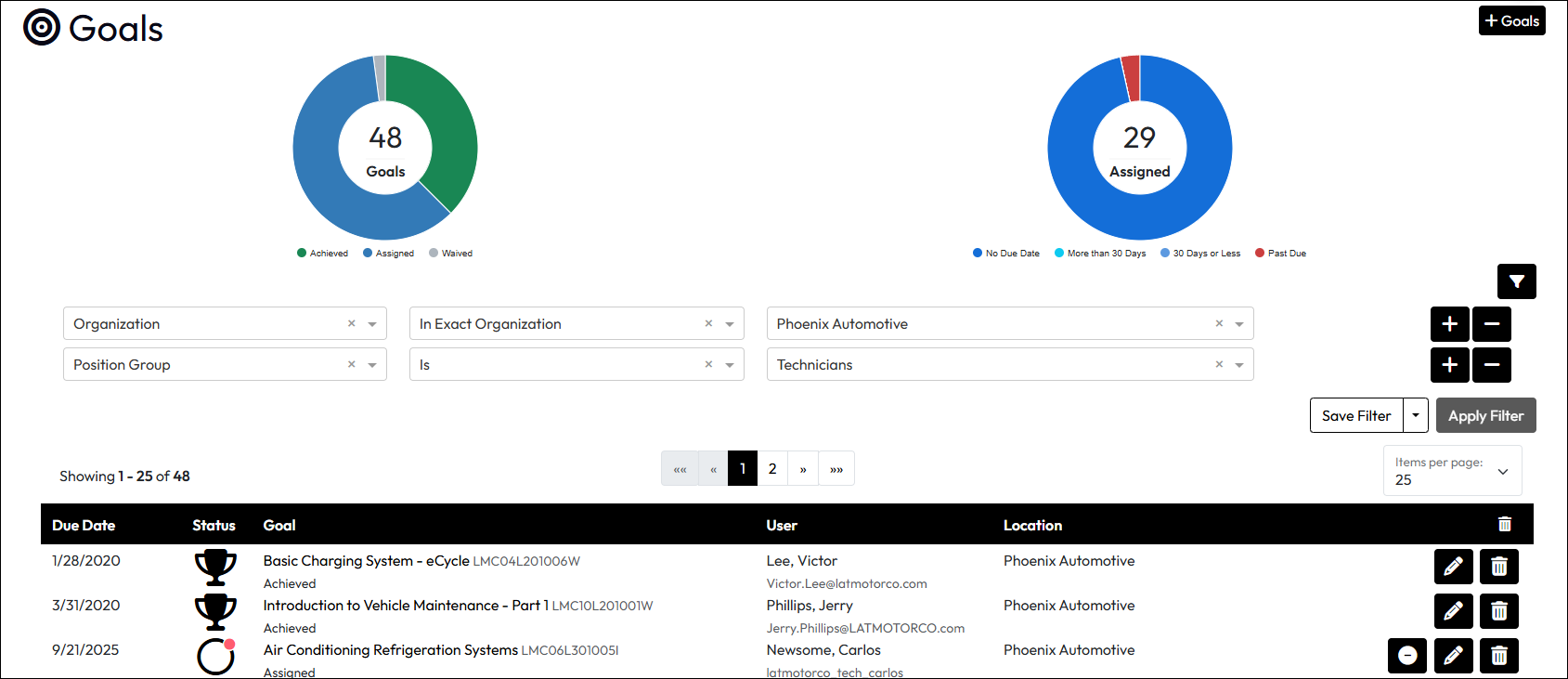
Summary Graphs at the top list the number of records and percent of total is displayed inside each summary graph. Graph results change based on the filters used and the user’s profile organizations and managerial relationships.

Goals – Chart displays all goals by status: Achieved, Assigned, Waived
Assigned – Chart shows percent of assigned goals by due date: No Due Date, More than 30 Days, Less than 30 Days, Past Due

Filters

  1. Click the Filter button (funnel) to expand filters available to restrict results. 
  2. If desired, add Filters. Keep in mind that multiple filters in this area are joined by “AND”. Use caution to ensure multiple filters maintain logical when considering the AND connection. For instance, it is not possible to use Goal Status is Assigned AND Goal Status is Achieved because one result cannot be both.
  3. With filters expanded, click Save Filter to make the current selection of filters the default when opening the page.
  4. Click Apply Filter to execute the selected filter.
  5. If the filter is one used most often, you have the option to click Save Filter and make the current filters the default.

Results List

  1. Expand the number of items displayed per page in the Items per Page field above the list. 
  2. Click column headers to sort the list.
  3. Due Date: The date the goal is due for completion
  4. Status: Click the goal status icon on a goal line item to view assignment details, including the type of goal, the date assigned, which person or rule assigned it, and due date. Statuses include:
    • Assigned (circle icon) = To Do
    • Overdue (circle icon with red dot) = To Do, Late
    • Achieved (trophy icon) = Complete
    • Waived (blocked icon) = Exempt
  5. User: Lists the Name and Username of the user.
  6. Location: Lists the primary profile location of the user.
  7. Action: Buttons for each entry vary by portal configuration, but can include:
    • Waive Goal: Used to exempt a user from completing a goal set by a goal rule. This prevents it from being re-assigned during the next goal rule run.
    • Edit Goal: Expands to show modifiable fields for Due Date, Send Reminders, and Earliest Score Date. Click Save in the expanded area if changes are made.
    • Delete Goal: Removes the goal from the user. This is only permanent for ad-hoc goals. Deleting a rule-based goal will cause it to be reassigned the next time the goal rule runs. If you are unable to delete a goal, you likely do not have the rights to do so.

If you click on a course goal name in the results list, the relevant details slide-in will display on the right side of the page. It will contain information and action options appropriate to the goal and user’s status in the course or accreditation.

Create a Course Goal using the Goal Wizard

To add a Goal Rule, navigate to the Administration page> Goals, and then click +Goal.
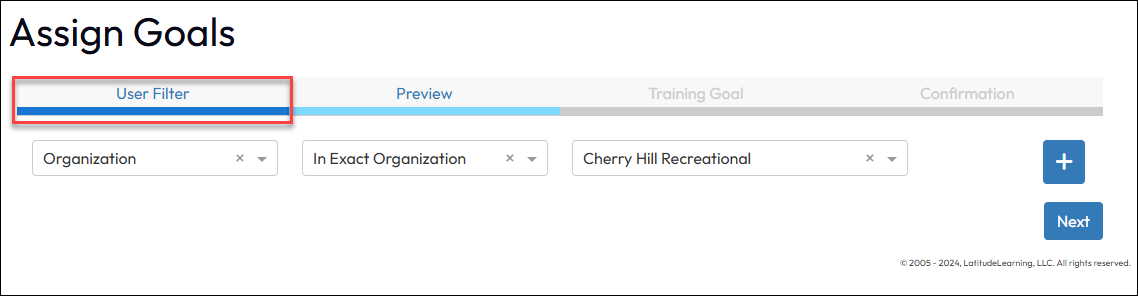
  1. User Filter — Define the criteria that will pull up the users you want to assign the course goal. Create filters to find users who meet the stated selection criteria will be ultimately be assigned the Goal. These statements are separated by an implied “AND” so be careful to confirm the logic of your filters.
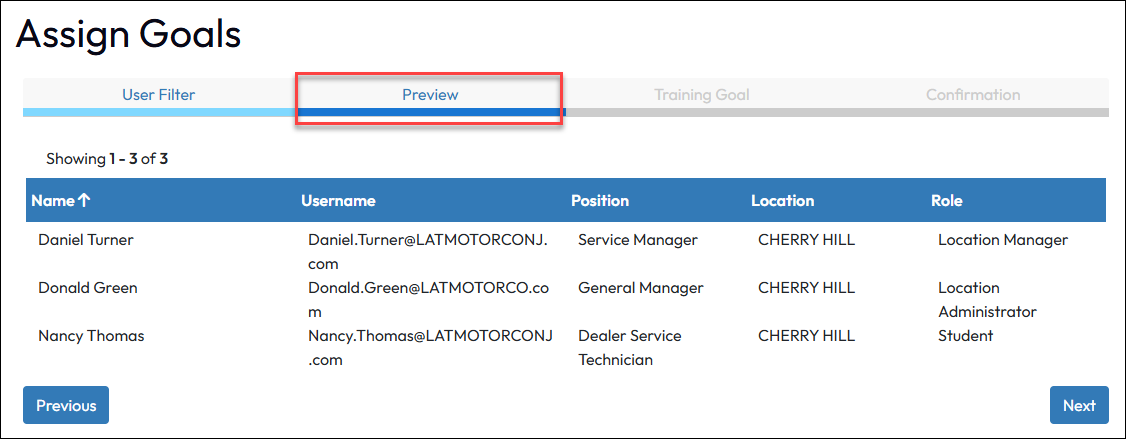
  1. Preview — Displays the current population of users who will be assigned the goal based on the criteria established in Step 1.  Preview the results and click Next to continue. Click Previous to refine user filters and view updated results until the list shows your expected results. 
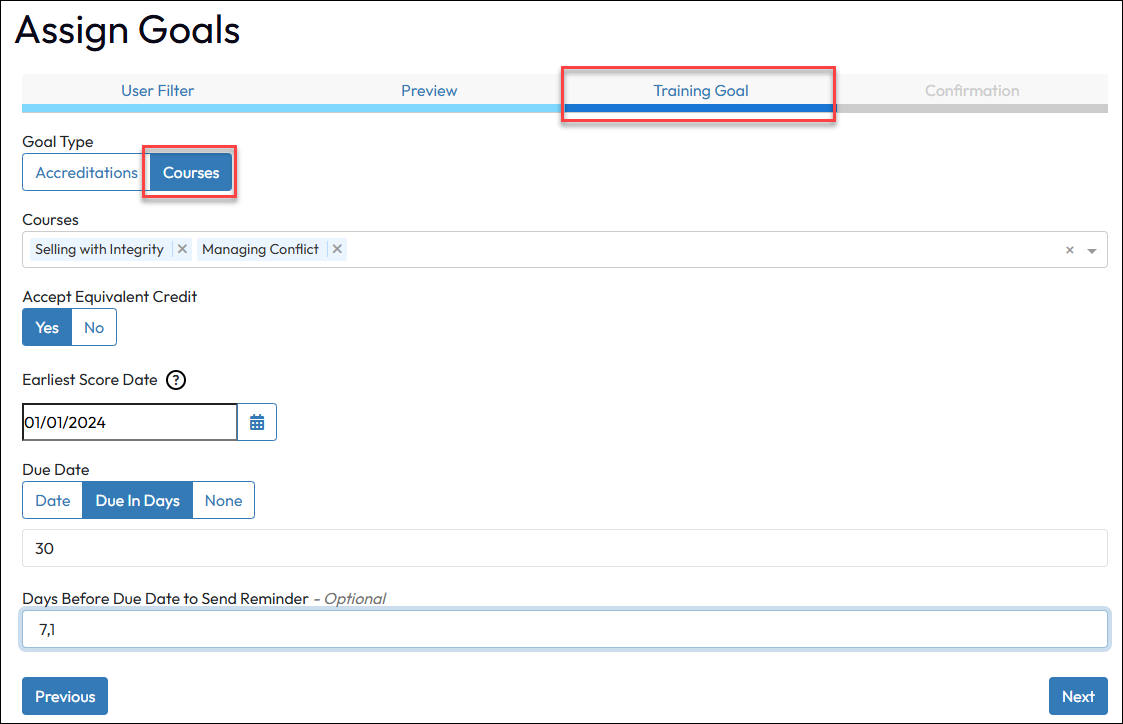
  1. Training Goal — Select a Goal Type = Course and choose one or more Courses which comprise the goal.
    — Pay attention to Earliest Score Date (ESD). Prior credit for the course will not count toward the goal if it precedes this date. By default, the ESD is set to 1/1/2000. It must be updated to enforce a tighter completion window for achievement. Earliest Score Date can be used to force loss of earlier goal achievement for all or some users. For instance, if a requirement for a course is annual and you loaded new content for the next year, setting a Course Goal’s Earliest Score Date to the date you loaded the new content would cause everyone to lose their previous goal credit and they would be re-assigned the goal again to complete the new content. Note that the ability to enroll in the new course is still subject to course enrollment restrictions and in some cases, would be pending transcript expiration.
    — Setting a Due Date requirement will allow graphic indicators and notifications to occur for users and managers when goal completion is past due.
    — Optionally set Days Before Due Date to Send a Reminder message to the assignees.  Entries should be whole numbers representing the number of days, separated by commas. For example: 7,5,1 would initiate reminders 7, 5, and 1 day prior to the due date maturing.
    — Click Next to continue.
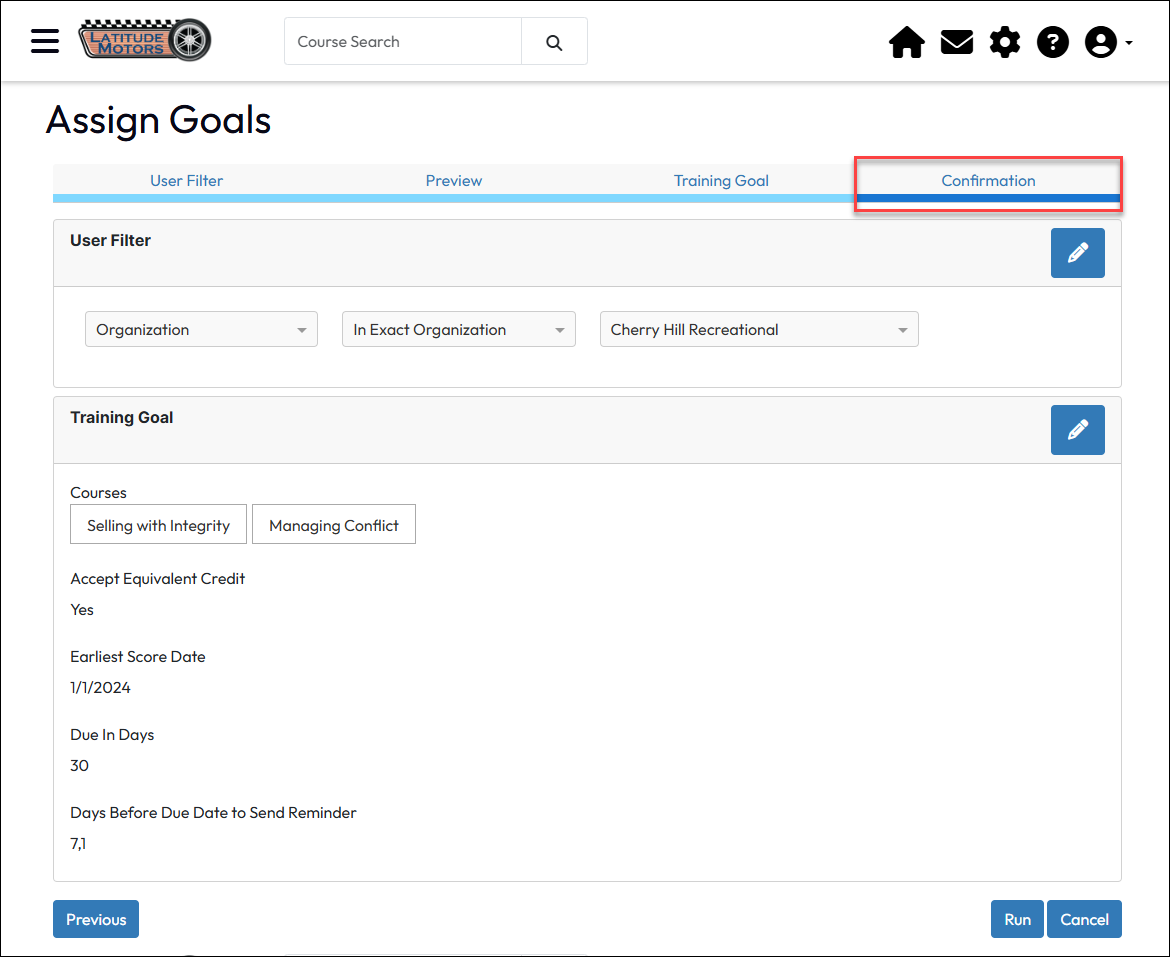
  1. Confirmation — Review and confirm your goal setup. Click the step name or corresponding edit buttons to return to earlier steps and view detailed information.
  2. Click Run to assign the goal to the designated users.

Automate Enrollments based on Assigned Course Goals

Before you start

It’s important to understand that once auto-enrollment based on goals takes place, if a goal is removed from a user through deletion, waiver, or no longer requiring the assignment, the goal can go away, but all enrollments that occurred because of the auto-enrollment remain. 

The enrollments, if no longer needed, must be manually cancelled by a portal administrator or by the user.

You can automate enrollment in courses that are assigned by a goal, regardless of whether it was an ad-hoc goal or from a course goal rule.
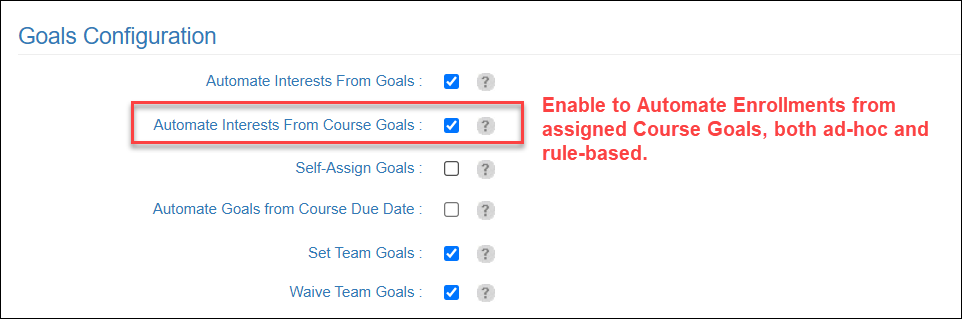
  1. From the Administration page, navigate to Site Management > Portal Information > Goals Configuration section.
  2. Enable Automate Interests from Course Goals.
  3. Click Submit.

After a course goal is assigned ad-hoc or via a rule, interests will shortly thereafter be created for the course for each user assigned. After the interest is created, processing time to turn it into an automatic enrollment will vary depending on how many requests are in the queue and the results of standard eligibility checking. Students will not be enrolled if they are not eligible to take the course due to catalog access, pending prerequisites, and pending approvals. After prerequisites and approvals are met, the process of auto-enrollment will continue.

Automate Course Goals via Course-based Due Dates

You can automatically create goals for courses a student enrolls in if you employ a due date on a specific course and have a certain configuration enabled.

We do not recommend using this option is you are already using ad-hoc and rule-based goals to assign the same course. They work in fundamentally opposite ways: 

  • Ad Hoc/Rule-based Goals start with the Goal assignment and can (if configured) end with a course enrollment. The Goal can have a due date for achieving the requirements established in the goal.
  • In this feature, it starts with a course enrollment and back-builds an ad-hoc goal based on the course due date.

Using both features can cause confusion for users if there is a course due date AND a goal due date:
  • It may cause the user to have two goals for the same course.
  • The goals, because they came to be in different ways, could have two conflicting due dates.
  • The good news is that completing the course once would count toward completion of both goals.
Set Up Automated Course Goals by Due Date
  1. From the Administration menu, select Search Courses and filter to find the desired course. Click the course name to open the edit page.
  2. On the course General tab, scroll down to and expand the Additional Information section.
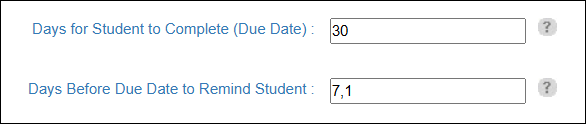
  3. In Days for Student to Complete (Due Date) field, enter the number of days they have to complete the course as a whole number. 
  4. In the Days Before Due Date to Remind Student field, enter the number of days ahead of the due date you want to have a reminder sent to the student. Use whole numbers separated by commas with no spaces. (e.g. 7,5,2 would send reminders 7, 3 and 2 days prior to the Due Date.) This is optional.
  5. Click Submit at the bottom of the page.

Important!

The Days Due setting is NOT retroactive to transcripts that are already created. It only takes affect for transcripts created after the setting is established. 
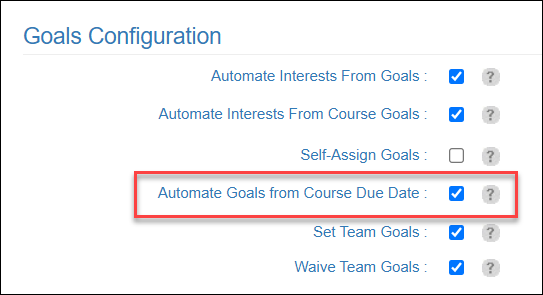
  1. To enable the automatic goal generation, from the Administration page, select Site Management > Portal Information > Goals Configuration section.
  2. Enable Automate Goals from Course Due Date.
  3. Click Submit.

After Goals Are Assigned

If a user is assigned a course goal of any kind, whether they manually enroll or automatic enrollments are in place, they are still subject to eligibility checks before enrollment can take place.  The goal can remain assigned, but the situation preventing enrollment needs to be addressed. It may show as “pending” a variety of situations including:

  • Prerequisites: Enrollment can’t happen until prerequisites are met. 
  • Approval: Enrollment may require approval prior to enrollment.
  • Already Completed: If a course is set to Once Only enrollment and the student has already completed it in the past, the only way to enroll them on a new transcript is to expire the existing transcript.