Distribution Lists for Offering Enrollment

Distribution Groups are used to define rules that control user ability to enroll, or be auto-enrolled, in scheduled course offerings.

Feature Overview and Requirements

By default, when you create an offering for a classroom course, it is available to all users within the Business Units that house the course in their catalogs. You can limit the availability of an offering to a specific subset of users by assigning them to distribution groups. 

This document assumes a prerequisite knowledge of course creation basics. Refer to pages under Userful Links for other aspects of Classroom Course processes.

Step by Step Procedure and Field Description

Custom Distribution Groups

Custom distribution groups are associated with one particular offering, and they are created during the Add Offering process.

To add a Custom Distribution Group:
  1. From the Administration page, select Catalog > Offerings.
  2. Search for the offering to update or click +Offering to add a new one by completing the standard fields, then scrolling down to the Distribution section of the form.
  3. In the Distribution section, complete entries as described below:
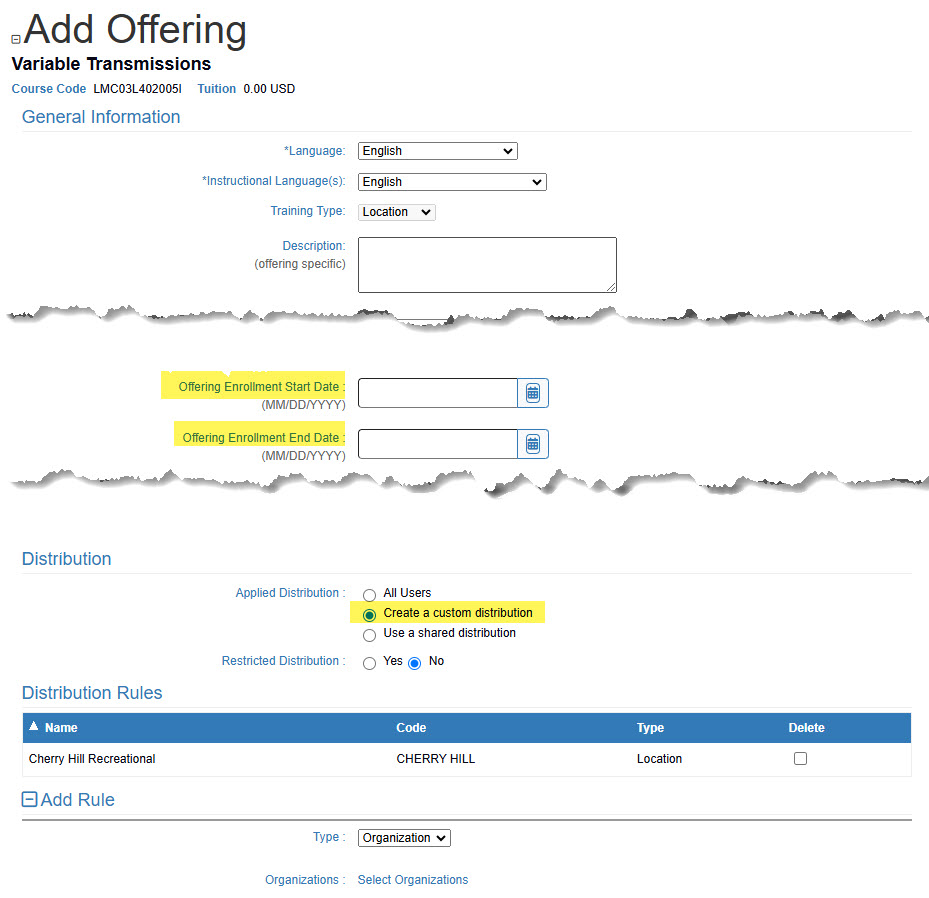
    • Applied Distribution: Use the radio button to select Create a custom distribution.
    • Restricted Distribution: Make a selection based on the desired behavior. Yes prevents any user outside of the Distribution List from seeing the Offering. No allows Location Managers to enroll users who are not on the distribution list. Note: Students not on the distribution list will not be able to view the offering themselves, nor be auto-enrolled.
    • Offering Enrollment Start Date: Indicate the first day you want the offering to be visible to anyone in the distribution list. This setting allows you to delay offering visibility in order to fill earlier offerings. Note that this field is not under the Distribution section, but dates used there will apply to the Distribution.
    • Offering Enrollment End Date: Indicate the day on which the offering will no longer be visible to users on the distribution list. They will not be able to enroll in the offering after this date. Note that this field is not under the Distribution section, but dates used there will apply to the Distribution.
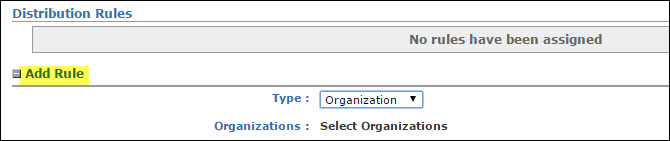
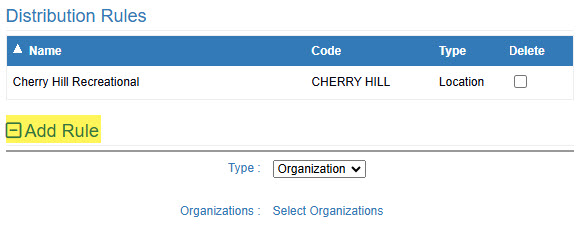
  1. In the Distribution Rules section, define the rules (by user, organization, and/or facility) that determine user membership in a distribution group. To set up a new rule, click Add Rule, and then complete entries as described below.
  • Type: Select User, Organization, or Facility as the starting point for selecting group membership. The next field changes dynamically with the Type selected.
  • Users/Organizations/Facilities: Click Select [Users/Organizations/Facilities] to open a picker that allows you to search and select the members of your group. You can add more than one rule if needed to assemble the correct distribution list.
  • Rules display in the Distribution Rules section. To delete a rule, select the Delete check box next to the rule.
  1. Complete the rest of the Offering Detail form as necessary, and then click Submit and Continue.Note: Once you create the offering, you can edit the distribution from the offering detail page under the Distribution tab.