Whether you are setting up your LMS for the first time or considering a refresh for your existing portal, LatitudeLearning has a number of ways for you to present or display your training programs and learning objects to your students or employees. Here are just some of the options available.
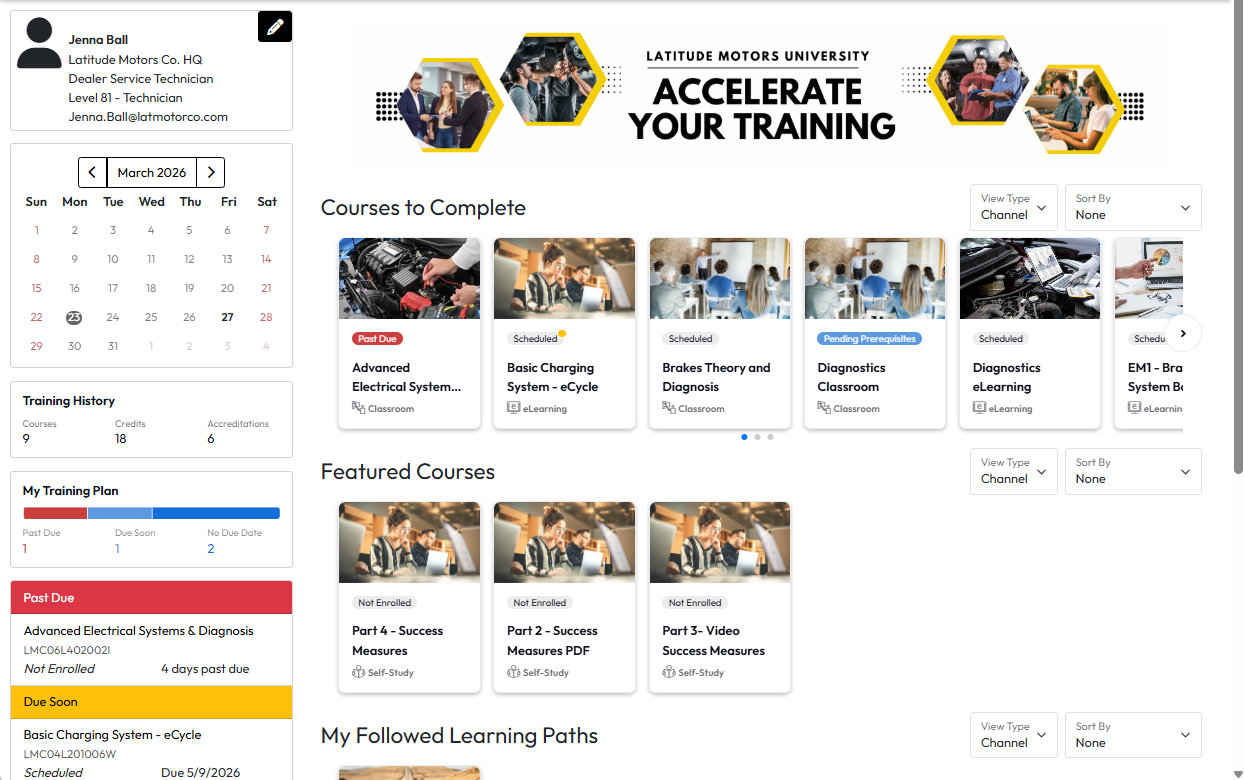
The LatitudeLearning® My Learning page enhances the student experience within our responsive LMS interface. It offers users a dashboard, customized by their portal administrator, which can display their LMS profile, activity summaries, and learning channels, along with an optional section for customized HTML content and messaging.
The My Learning page illustrated below features three key areas that can be configured by portal.
Additionally, the page can be tailored for Organization and Position Group branding, providing a unique experience based on organization or role. Specially-branded or not, the My Learning page is one of the best options to consider when setting your Login Landing page or Home page because it can be made to include almost everything a learner needs to see in one handy place.
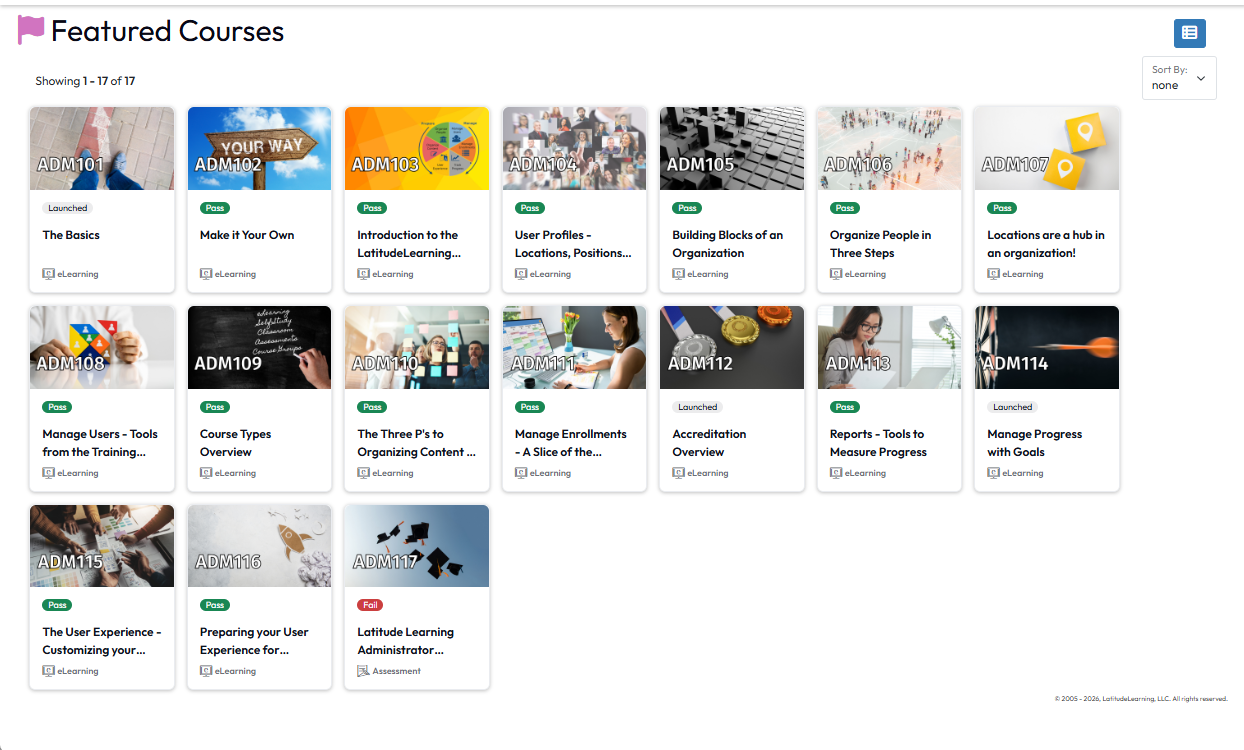
Portal Administrators can create Featured Course lists that are specific to various organizational levels – while featured, they remain displayed even if the student has completed the courses. These can serve a number of purposes, from promoting new courses for the organization to keeping a permanent list of the most important courses for them. It’s up to the customer!
Students in organizations that have a Featured course list will see a Featured Courses icon on their Navigation menu and they can switch between an image-based Tile View and a compact List View using a button in the upper right corner.
A commonly-used way of not just presenting training to users, but requiring them to complete it, is to assign coursework using course goal rules.
These rules allow a portal administrator build a query that selects learners who should get the goal, establish the learning requirements, and schedule the rule to run on a regular basis or on-demand to regularly review the user base and assign the goals to those who require it but have not been assigned yet.
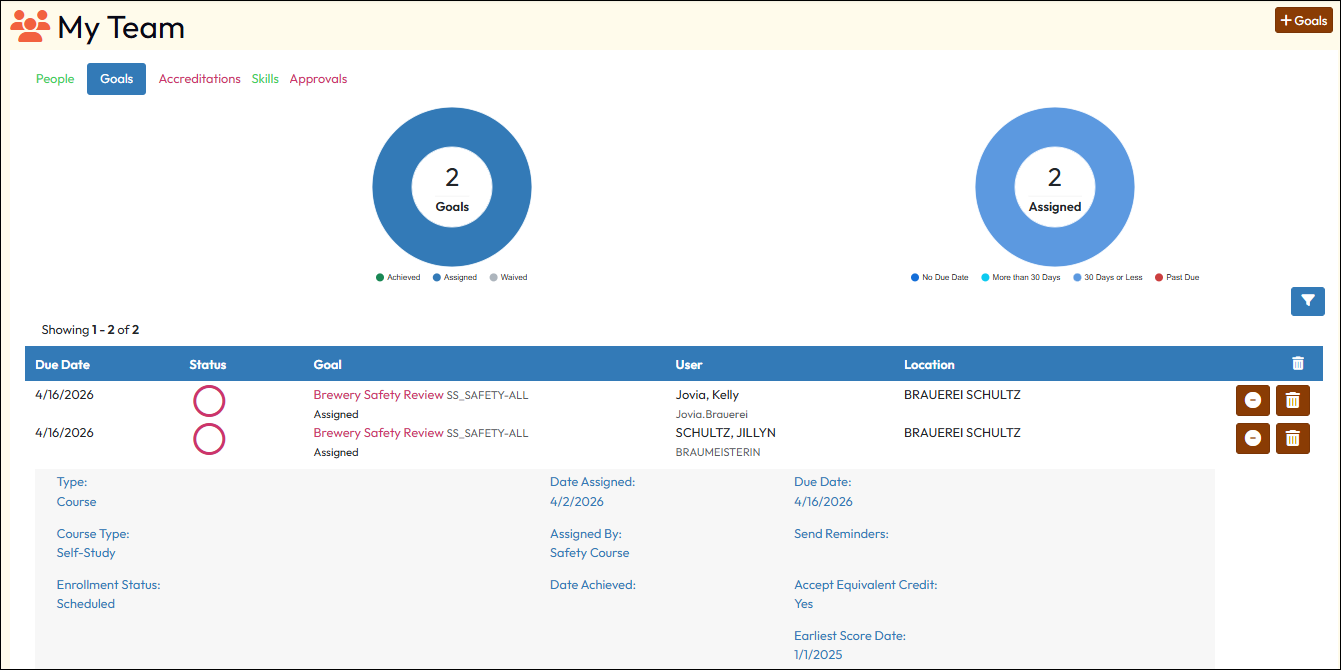
Goal status can be visible to the learner on My Training Plan, My Learning, and in other areas of the system. It is also available to their managers on My Team and through reporting. When due dates are associated, the goals are visible to learners and managers as in progress, coming due, and past due.
Enabling a couple of settings in your portal can cause these goals to auto-enroll the learners in the required courses – saving you precious time in managing enrollments. The view below is what a manager might see from the My Team page.
Similar to Course Goal Rules, portal administrators can use Accreditation Goal Rules to automatically assign certifications and curricula to user populations that meet the requirements for inclusion, primarily through their membership in a relevant position group.
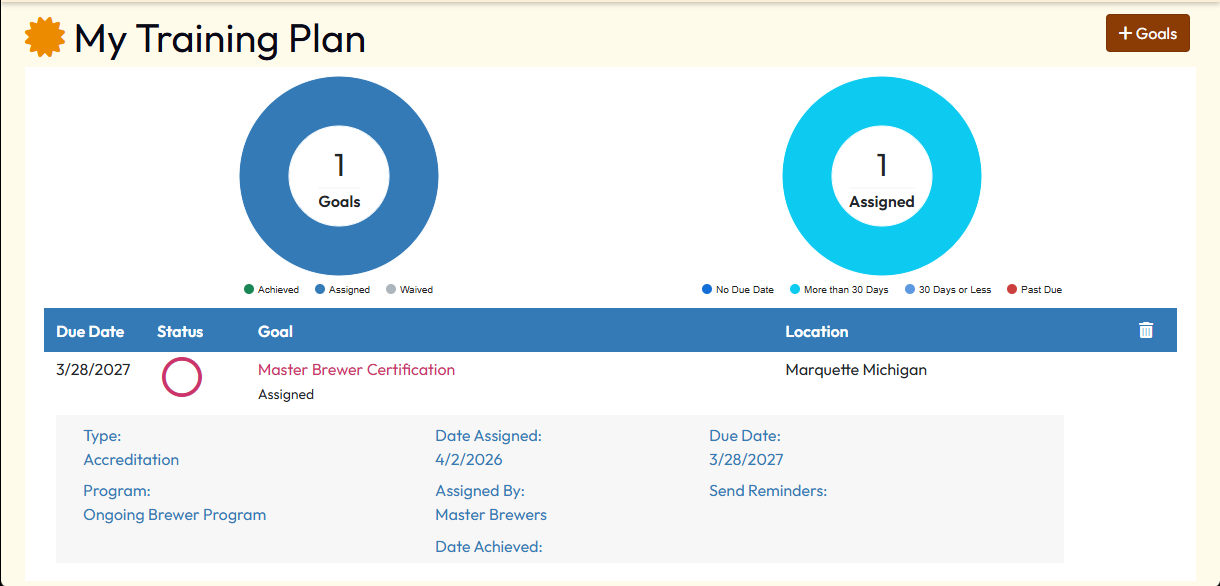
Goals are the only means of assigning accreditations to a learner. While they can achieve an accreditation by meeting all the requirements in a passive manner, a goal rule stands out to them and can be displayed on their My Learning page, Courses to Complete (if configured to do so), and on their My Training Plan page. They can clearly see their requirements and whether they are on track or overdue in accomplishing their goals.
These are also visible to Managers on My Team, making it easy to track progress on team and individual learning efforts. Accreditation goals can also be set to automatically enroll student in the relevant courses to make managing learning programs for the portal administrators easier.
The view below is what a learner would see from their My Training Plan page, which lists all their goals.
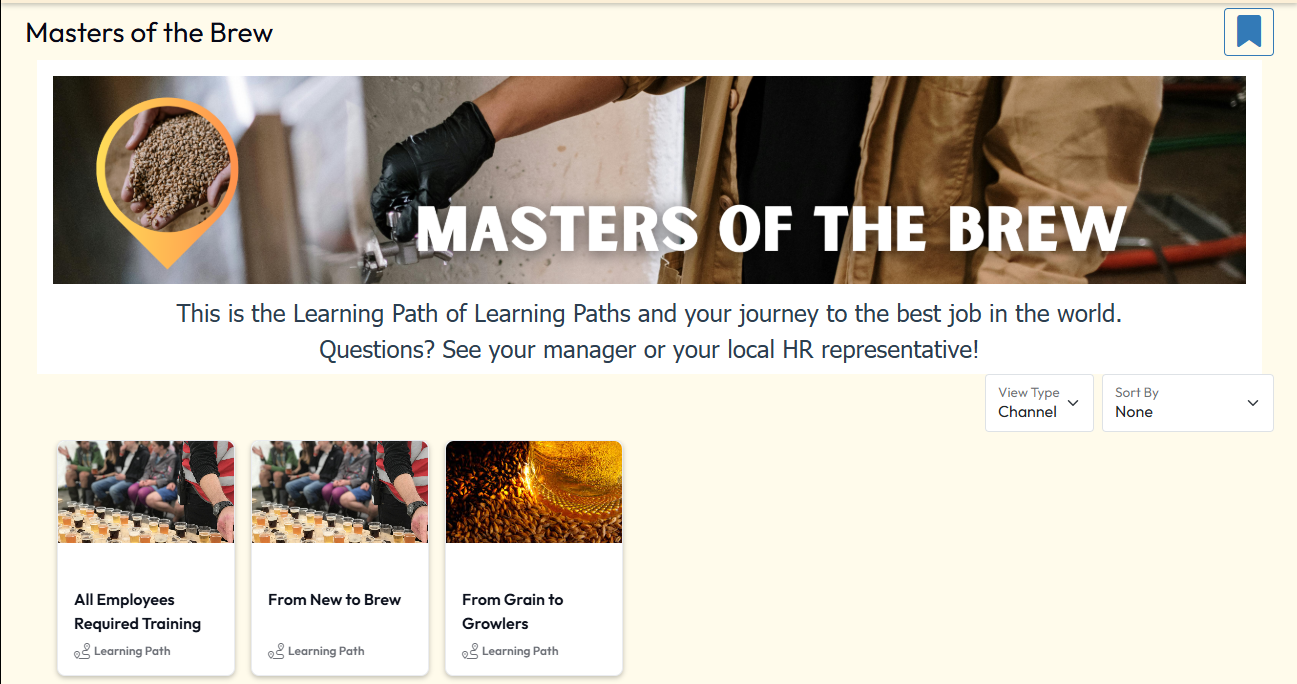
A Learning Path within the LMS is a specially branded, dedicated page showcasing a collection of courses that the LMS administrator has organized for learners. This presentation can be accessible to all users or limited to specific catalogs, organizations, or job roles. These learning paths offer a tailored perspective on the Course Catalog and are not tied to accreditations, goal assignments, or automatic enrollment options. While learners can view and enroll in courses from the learning path, the path itself cannot be designated as a goal or included in an accreditation.
Bonus! The ability to use custom HTML in Learning Paths gives customers an endless array of ways to creatively make a learning path “their own”! Learners can mark a learning path as “followed” and if available as a channel on their My Learning page, it will appear there for easy access.