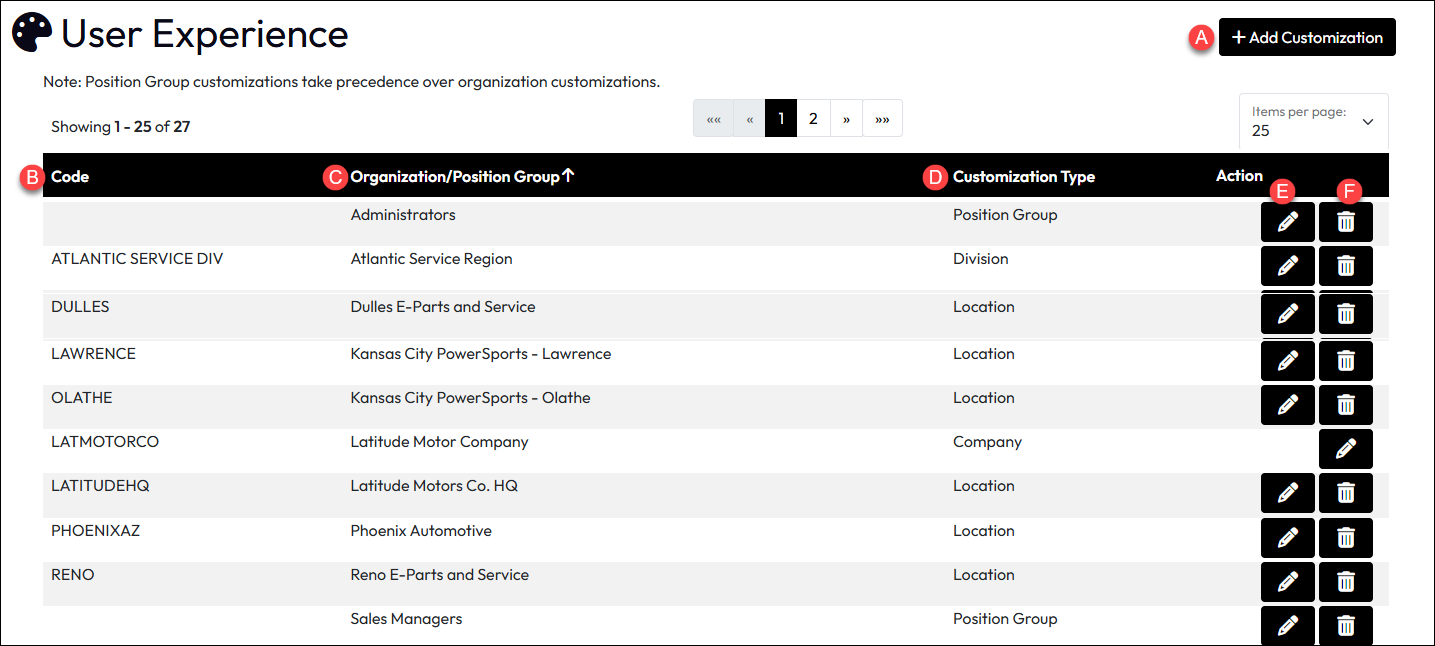
The User Experience (UX) Customization page gives portal administrators the ability to manage all branding and visual elements from a single place in the LMS.
It consolidates all portal-level, organization-level, and position group-level customization settings. This includes customization of elements such as What’s New, My Learning, Left Navigation, Login, Registration, Stylesheet, Header Logo, Certification Logo, and Learning Path – similar in effect to the original Branding options, but improved and easier to manage.
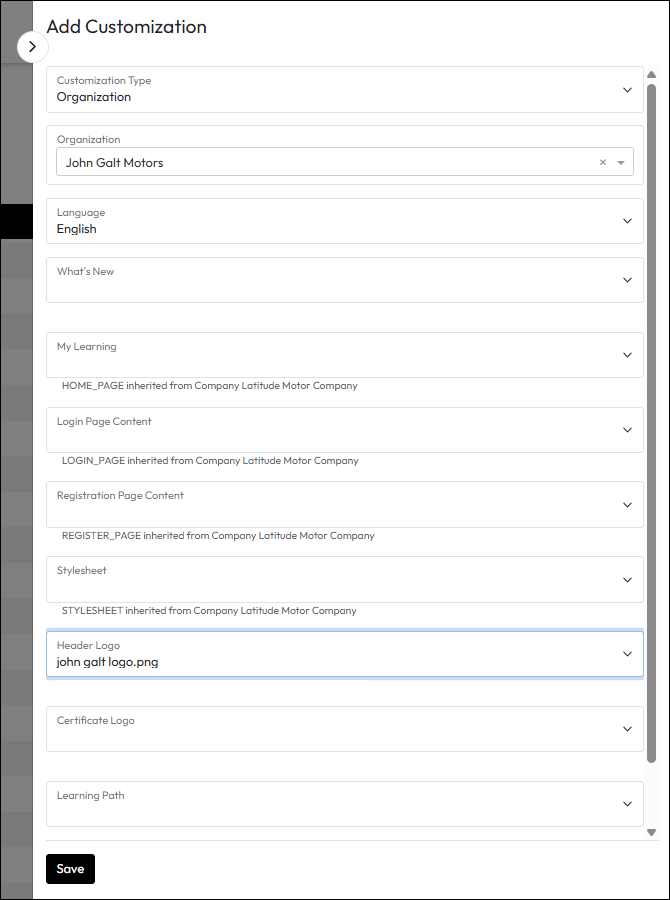
From this page, Administrators can add new UX Customizations or edit existing ones. When modifying portal, organization, or position group settings, the page will display both inherited elements and those explicitly defined for the selected entity. Administrators can easily update individual elements using drop-down selections.
For organization-level customization, the add/edit interface will show the parent organizations for context. Similarly, for position group customization, the interface will display all positions included within the group.
At this time, the Branding section of the Portal Information page and the Branding tabs on Organization and Position Group settings is retained, but we recommend customers begin using the consolidated page going forward. These tabs and sections may be deprecated at any time.
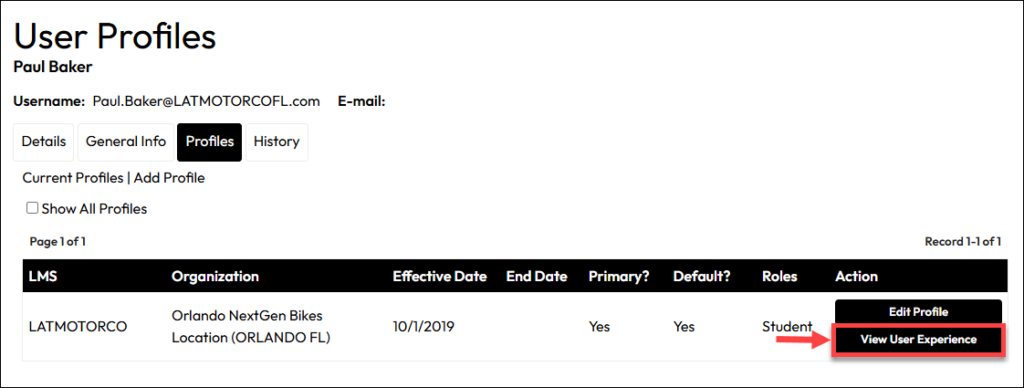
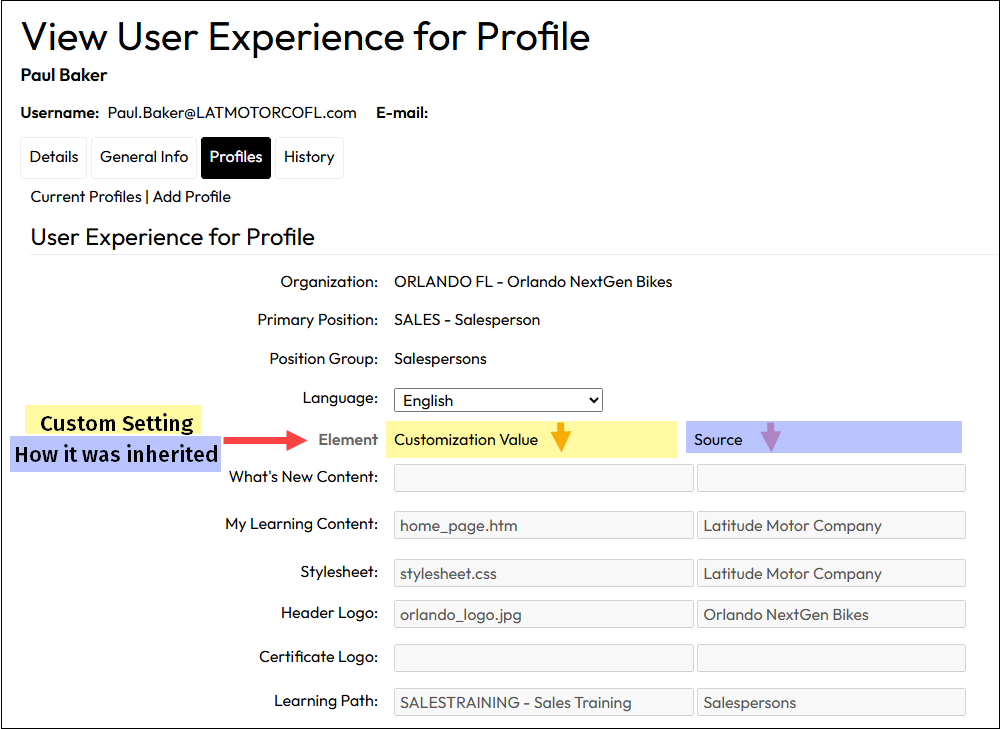
Built in tandem with this page, there is also an option available in User Search results to View User Experience Customizations. This makes it easier for an administrator to see how a specific user is inheriting the branding that they see.
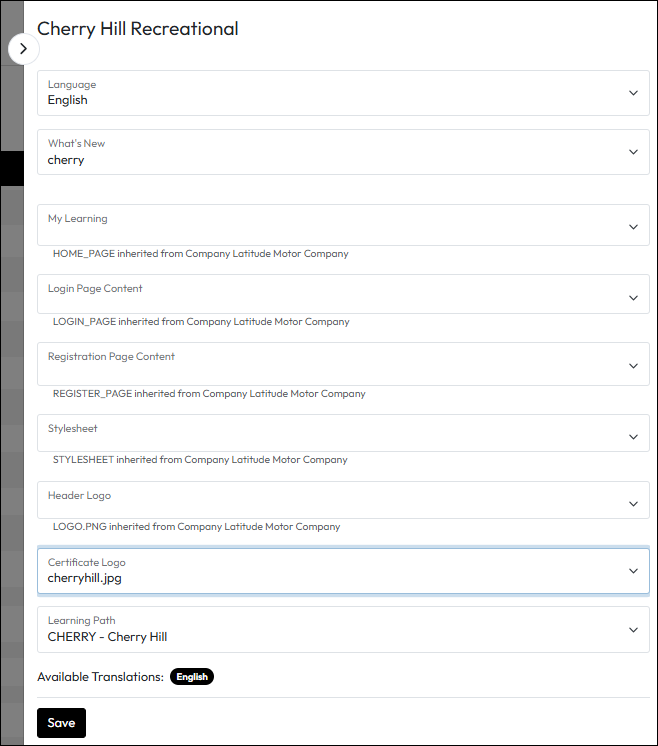
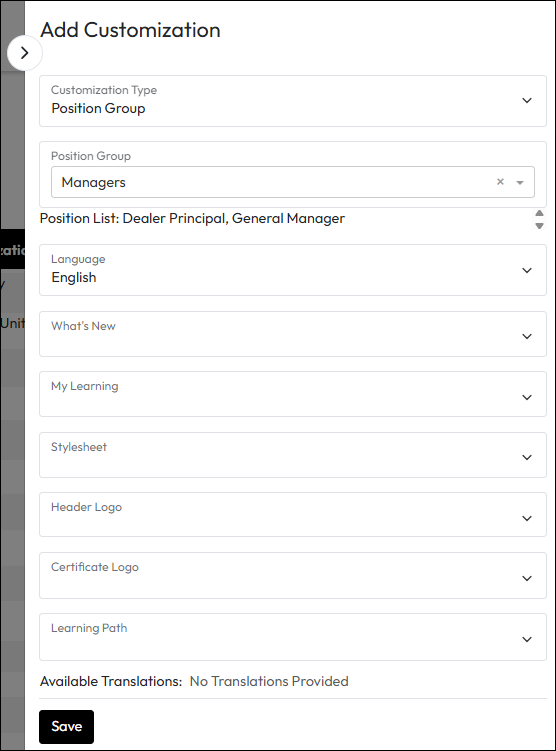
When you need to understand why a particular user is seeing a certain user experience, it can help to see how they are inheriting branding and customizations in one place. The View User Experience option under a user’s Profiles tab can do just that. If the selected profile is:
To view a user profile customization settings: