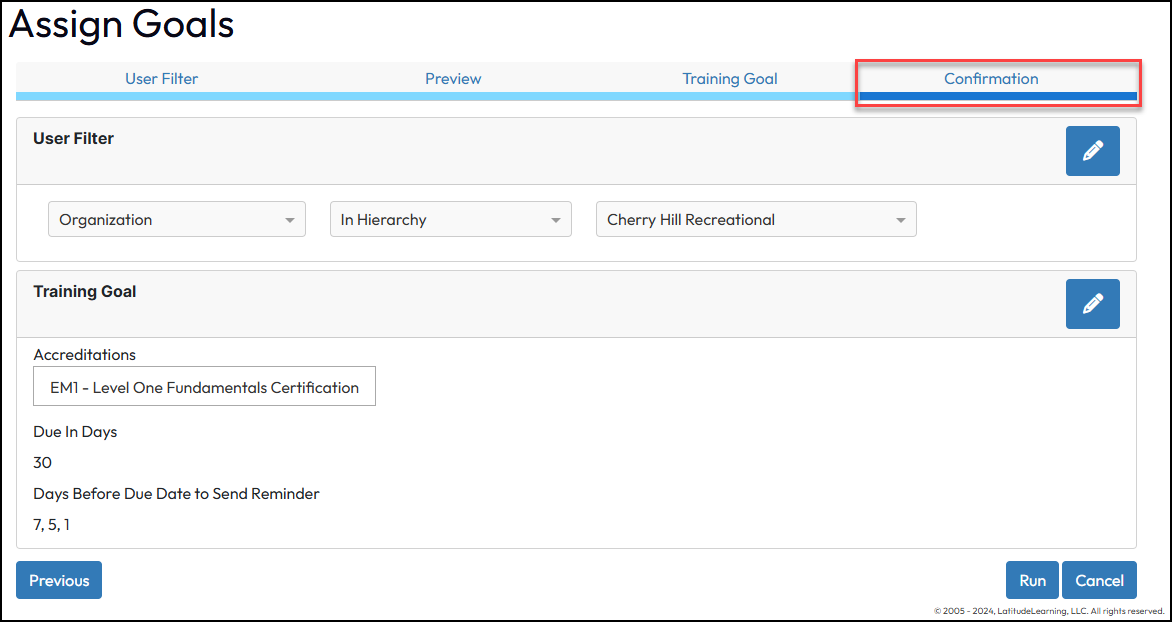
This document explains how to use the Goals page to both review existing goal assignments or to define a new ad hoc accreditation goal. The tab-based wizard guides portal administrators through each step of the goal creation or modification process, providing simple navigation options and ensuring correct configuration along the way.
Portal Administrators can enable access for managers and students to assign ad-hoc goals for courses and accreditations. These settings are found under the Administration page > Portal Information in the Goals Configuration section.
Important
Setting goals of any kind for an accreditation requires that the assignees meet the requirements for eligibility. If users are selected for the goal, but do not qualify based on the position groups, brands, or other restrictions set on the accreditations involved, they will not be assigned the goal.
To view or modify an existing goal, navigate to the Administration page> Goals.
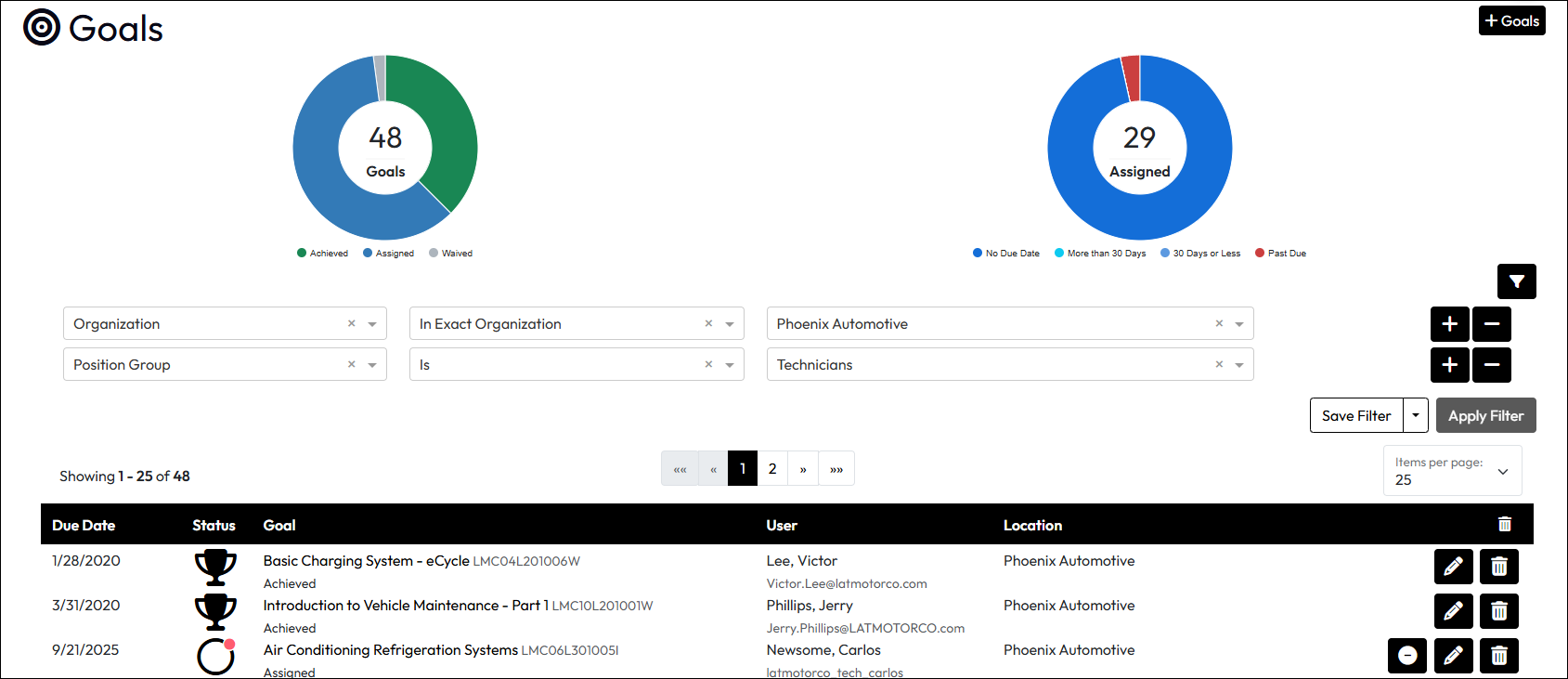
Summary Graphs at the top list the number of records and percent of total is displayed inside each summary graph. Graph results change based on the filters used and the user’s profile organizations and managerial relationships.
Goals – Chart displays all goals by status: Achieved, Assigned, Waived
Assigned – Chart shows percent of assigned goals by due date: No Due Date, More than 30 Days, Less than 30 Days, Past Due
If you click on an accreditation goal name in the results list, the relevant details slide-in will display on the right side of the page. It will contain information and action options appropriate to the goal and user’s status in the course or accreditation.
To add a Goal Rule, navigate to the Administration page >Goals > Goals, then click +Goal.
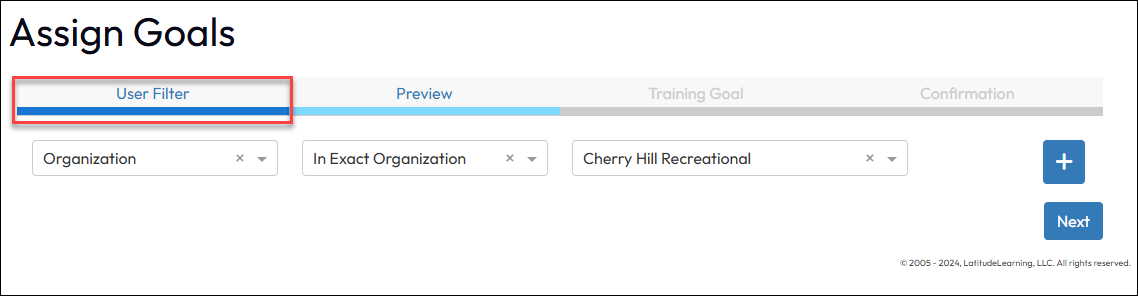
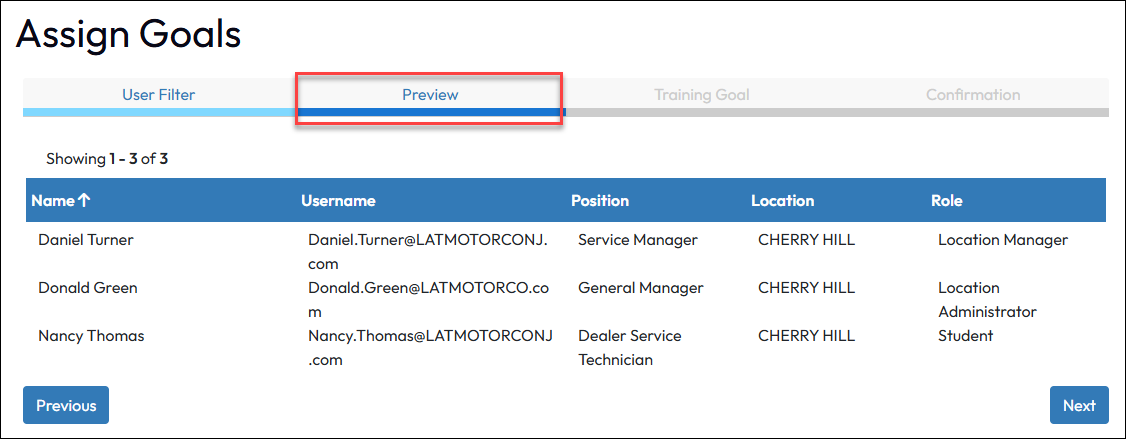
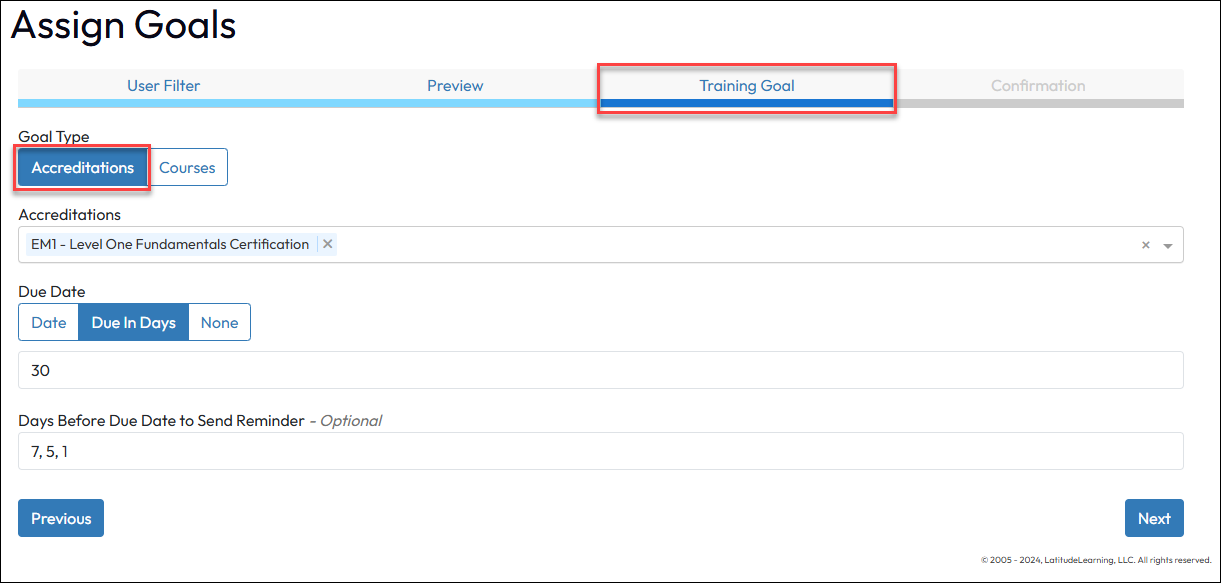
Before you start
It’s important to understand that once auto-enrollment based on goals takes place, if a goal is removed from a user through deletion, waiver, or no longer requiring the assignment, the goal can go away, but all enrollments that occurred because of the auto-enrollment remain.
The enrollments, if no longer needed, must be manually cancelled by a portal administrator or by the user.
You can automate enrollment in courses that are assigned by a goal, regardless of whether it was an ad-hoc accreditation goal or from a accreditation goal rule.
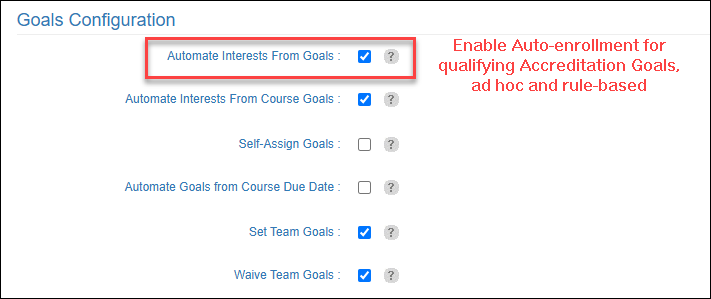
After an accreditation goal is assigned ad-hoc or via a rule, interests will shortly thereafter be created for the courses for each user assigned the accreditation. After the interest is created, processing time to turn it into an automatic enrollment will vary depending on how many requests are in the queue and the results of standard eligibility checking. Students will not be enrolled if they are not eligible to take the course due to catalog access, pending prerequisites, and pending approvals. After prerequisites and approvals are met, the process of auto-enrollment will continue.
After Goals Are Assigned
If a user is assigned an accreditation goal of any kind, any manual or automatic enrollments are still subject to eligibility checks before enrollment can take place. The goal can remain assigned, but the situation preventing enrollment needs to be addressed. It may show as “pending” a variety of situations including: