
The need to switch profiles will not affect many users in the LMS. It primarily impacts those who have multiple profiles at various organizations and possibly across several organizational levels. It is a more important skill to understand for portal administrators, lower level administrators, and managers.
The primary way to identify a potential need to switch profiles can be answered by considering a couple of statements or questions:
Other things such as viewing how customizing organizations’ or position groups’ user experience through branding may require you to switch profiles or impersonate others who are affected by the customizations, but in those cases the need to do so is more obvious.
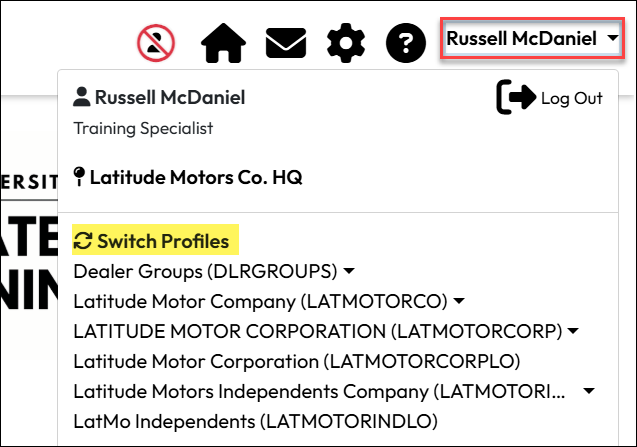
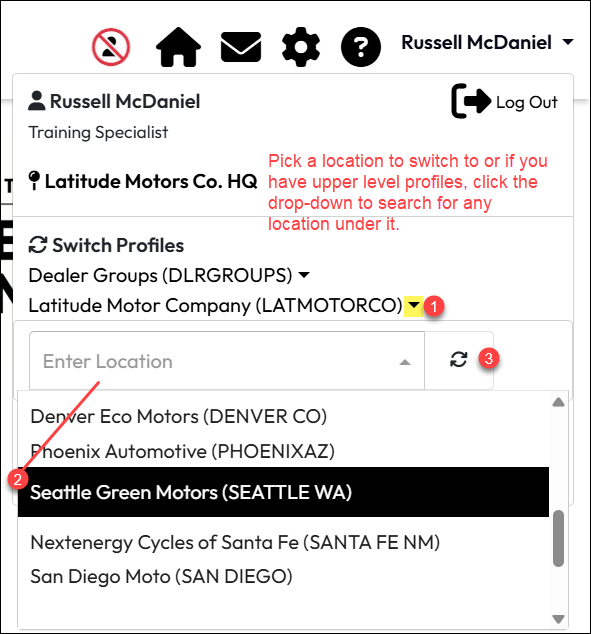
Regardless of the reason you may need to switch profiles, the process is the same and easy to do.
When setting up or editing a course, some of the fields you can configure are actually Business Unit (BU) specific. When adding a new course, all the organizations you add to it will take on the settings you establish when you save it, which may be different from the defaults. If you add new organizations at a later date, they may take on the default settings instead of the settings you made on the original list of organizations.
If you want to remove an entire Business Unit from a course, you may also find you cannot do so until you switch to a location in that Business Unit.
Fields that can be set differently by Business Unit include:
Example: A course is shared with Business Units “US” and “EMEA”. If you are logged into your default profile location under Business Unit “US” and you want to change the remove the EMEA Business Unit from the course, you need to switch your current profile to a location in BU “EMEA” to do so.
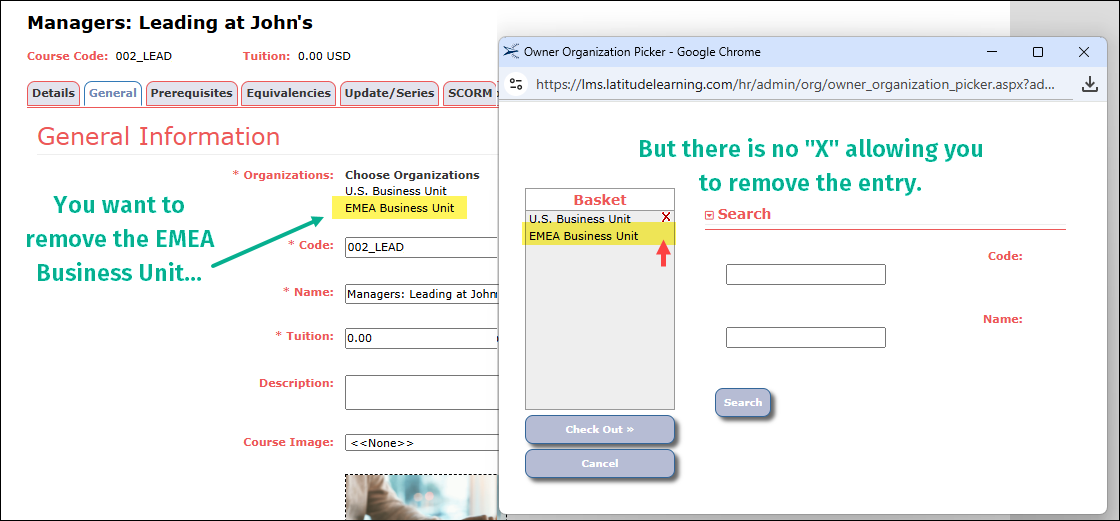
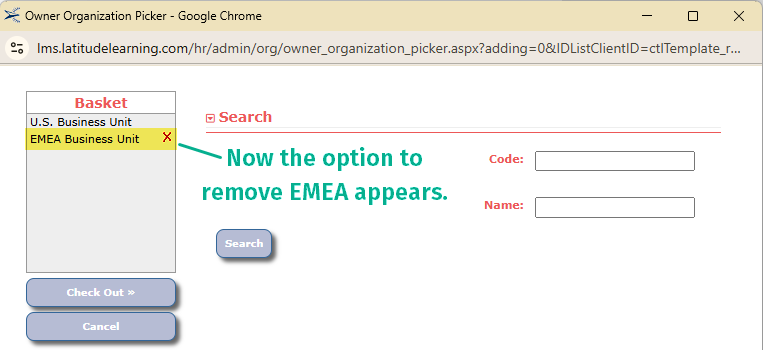
By switching to a profile in any location under the EMEA Business unit, you can return to the course organizations list and find the “X” to remove it from the list.
If you work across several locations as a manager or administrator, depending on how your profiles are set up, you may have a situation in which you are can see the people under your primary profile location, but not others who report to you in a second or third location. If attempts to filter in My Team or other features does not yield the results you expect, you may need to switch profiles to another location view the users in question.