
Import Minimum Training Requirements

Minimum Training Requirement data identifies the minimum number of users required in a location to meet skill profile component requirements.

Feature Overview and Requirements

Minimum Training Requirement (MTR) data identifies the minimum number of users required in a location to meet the requirements associated with a skill profile component. The default global MTR are set in a skill profile. The MTR Import tool will override the global settings and set them specifically for designated locations.

As locations vary in size and scale, through the MTR import, an administrator can define the MTR per location, ensuring training requirements are proportionally aligned to a location’s size and resources.

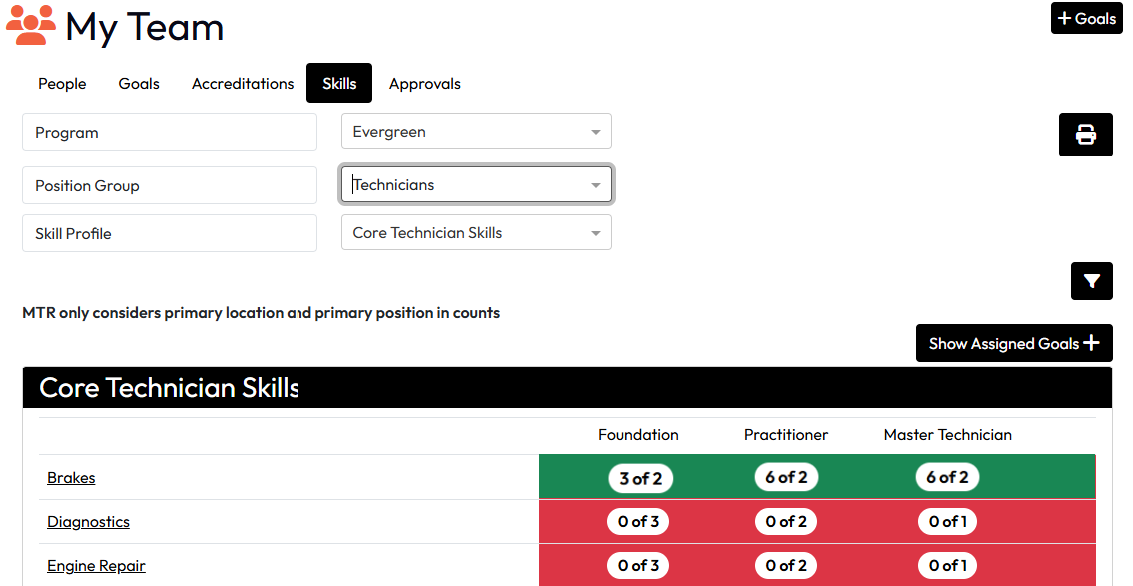
This tool enables an administrator to use an import control to load the data in the LMS. The data will populate the location’s minimum training requirements. The requirements are displayed in a manager’s MyTeam-Skills matrix, shown when the skill area is selected. The requirements and attainment levels are designated in the skill matrix.

Corresponding cells in the My Team Skills Matrix are color coded, as shown in the example below.

  • Red means no users have contributed to meeting the Minimum Training Requirement.
  • White means at least one user has contributed to meeting the MTR (the actual number will be shown in the cell).
  • Green means the Minimum Training Requirement is met.

The “# of #” notation is the number of people who’ve successfully contributed to the MTR versus the number required. When contributors exceed the requirement, it correctly shows the first number larger than the last.
Step by Step Procedure and Field Description

Import Minimum Training Requirements
  1. Prepare the import file using the guidelines above and providing valid data in each column. The file can be found at any time from the MTR import page online help in the LMS or in the Useful Links section of this page. Do not change the column header names. Make sure the data you use is valid data in the LMS.
    • Skill Profile
    • Skill Area
    • Skill Level
    • Location Code
    • MTR Value
  2. Save the file in .CSV format. The filename should not contain spaces or special characters except for an underscore (_) or hyphen (-). 
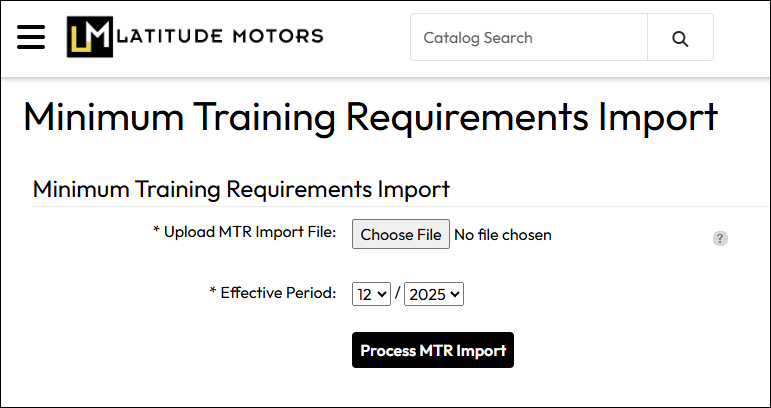
  3. From the Administration page, select Accreditations > Minimum Training Requirements Import.
  4. On the Minimum Training Requirements Import page, under Upload MTR Import File, click Choose File, then select the file to be imported.
  5. For the Effective Period, select the month and year these MTR requirements become effective.
  6. Click Process MTR Import.
Confirming Success

LMS Messages are available to notify the person who processed the import of its success or failure. 

  1. On the Administration page, go to Site Management > System Messages.
  2. The messages related to the MTR Import process are:
    MTR Import Completed: The file imported was successful.
    MTR Import Failed: The file imported failed to load.