
Certificate of Completion

When administrators create courses or certifications, they establish whether or not a Certificate of Completion is available to students who successfully complete the requirement. They can modify this course or certification setting at any time. Therefore, not all courses or certifications you complete may provide the option to print or view a certificate.

Feature Overview and Requirements

For Students:

Download Your Certificate of Completion

From the Navigation page, click the Training History icon. Note: This function requires Adobe Reader or a similar .pdf reader program. (Download free: Adobe Reader)

Training History Page

By default, the Training History page displays your course and certification transcripts in completed status.
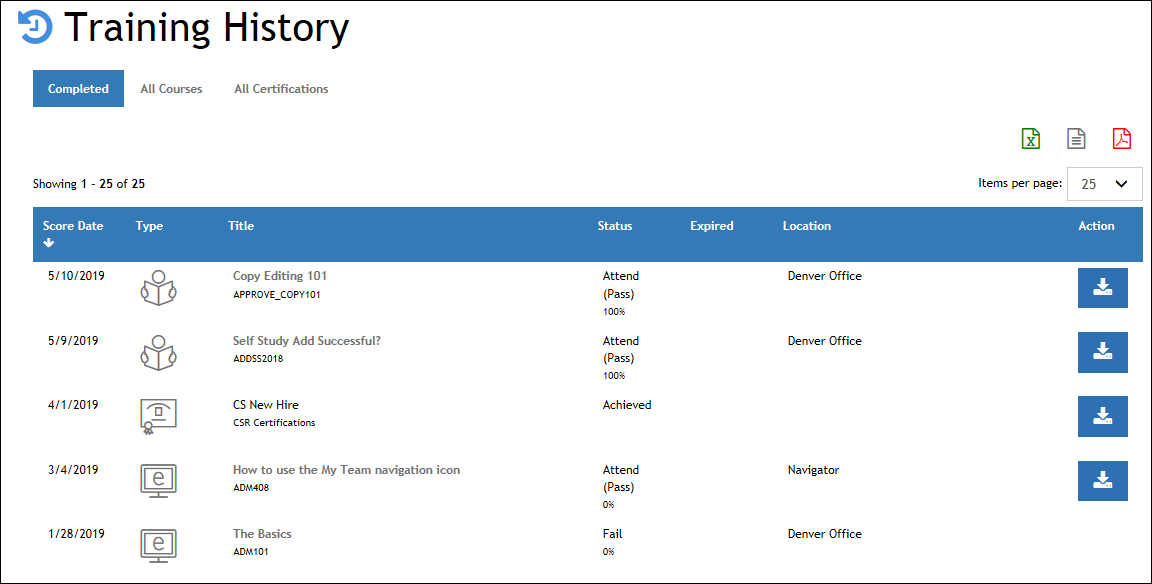
  • Click the transcript Type icon to expand the listing and view history details.
  • Click the action button to download a Certificate of Completion.

Determine if a certificate is available. 

Before you take a course, you can determine if it will provide a Certificate of Completion.

  1. Search for the course. For instructions on this functionality, please review this document: Locate and Enroll in a Course
  2. Once you locate the course, click on the title to open the Course Details page.
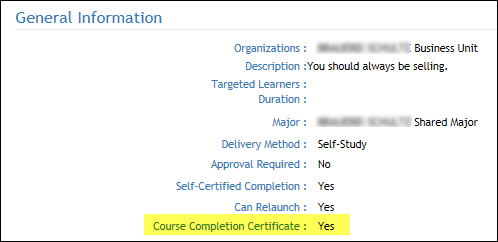
  3. If the Course Completion Certificate indicator is set to “Yes”, you may print or view the Certificate of Completion upon your successful completion of the course.

For Portal Administrators

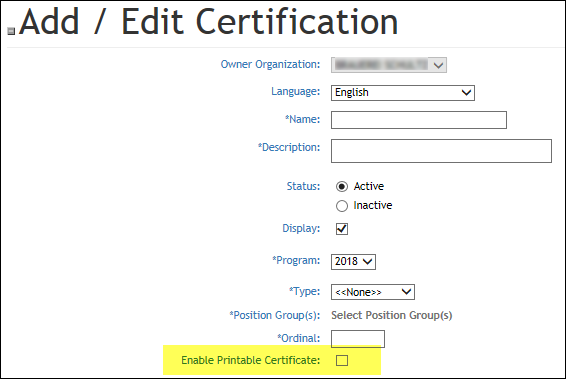
Portal Administrators can add a Printable Certificate option for Certifications from the Administration page under Accreditation>  Accreditations > +Accreditation If creating a new accreditation or check to see if an existing Accreditation provides a Completion Certificate by searching for and reviewing an Accreditation under Accreditation> Accreditations.
What will be printed on a certificate:

Whether your LMS uses the default standard certificates provided by LatitudeLearning or has engaged Latitude to customize them, it is important to understand what you can expect to print on a certificate. Some key points to know:

  • LMS Administrators can customize their certificates with a logo from the Administration page under Site Management > Portal Information > LMS Branding. All other customizations require paid development effort by Latitude ClientCare.
  • Currently the certificate display process does not support the option to provide separate certificates by user preferred language or other variables. By default, all certificates are US English-based.
  • Static information on the certificate is provided in English. This is information such as headings, labels, and other texts that do not vary by certificate.
  • Dynamic information on the certificates is pulled in depending on variables such as the course or certification name, the user name, dates, etc. These fields will display information based on the user’s preferred language and will display the texts that the LMS administrators have provided as translations for particular field, such as Course Name, in that language. In the case of completion dates, the date format will be that of the selected language, such as dd/mm/yyyy for European languages rather than mm/dd/yyyy for US English. This means that in the current design, static texts would be in English, while dynamic information could be pulled in from an alternate preferred language resulting in mixed language on the certificate.
  • If you request a custom certificate, it is important to relay special language requirements and other desired behaviors to Latitude ClientCare before development work begins. After it is completed, testing language behavior is critical during the warranty period. After warranty, charges to correct the behavior could be warranted.
  • Portals with customized certificates that have passed Warranty with user acceptance may incur operational support charges for any new changes to the certificate that are not a result of a software assurance issue.

For Managers: Accessing Employee Completion Certificates

Managers and administrators may access employee/student completion certificates and download them on the My Team – People page, by clicking the History icon under the Actions column next to the appropriate person in the list. This expands offers access to the user’s Training History  and the Download  options on that page. The download option appears the same as it would under the Student view.