
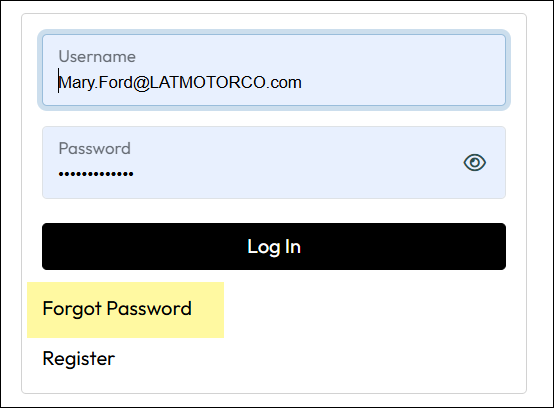
The LMS sets a six attempt limit on failed logins to your account before locking it. If you don’t recall your password, click Forgot Password under the Login button. After the fifth unsuccessful attempt, the Log In button is replaced by the Reset Your Password button.
Once your account is locked, you must contact your portal administrator or designated IT/LMS support staff to unlock it. Do not contact LatitudeLearning for a new password or lockout unless you are a Portal Administrator for your portal. For security reasons, it is not Latitude’s policy to make changes to user login security without the approval of an official portal administrator.
Note: If your organization uses two-factor authentication, please review the Using Two Factor Authentication document under Useful Links to learn how to get access to the LMS.
Warning
If your organization uses Secure Sign-On (SSO) you should not have access to reset your password in the manner described on this page. When using SSO, you do not see the standard LMS login page. Please contact your portal administrator or IT Support staff for guidance on password changes for SSO.
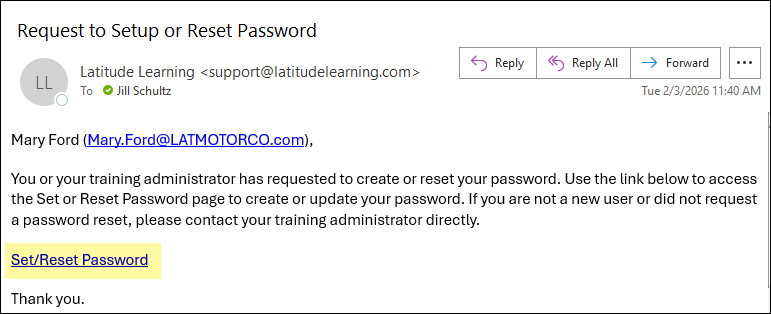
Password Change Reset Link Expiration
After requesting a password reset link or being sent one by a manager or administrator, the length of time the link is valid is variable.
Password Requirements
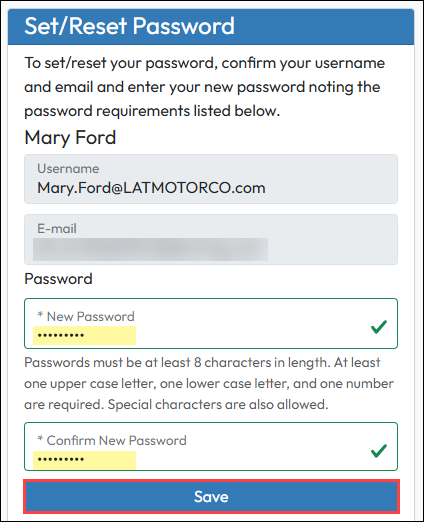
Passwords must be at least 8 characters in length. At least one uppercase letter, one lowercase letter, and one number are required. Special characters are allowed.
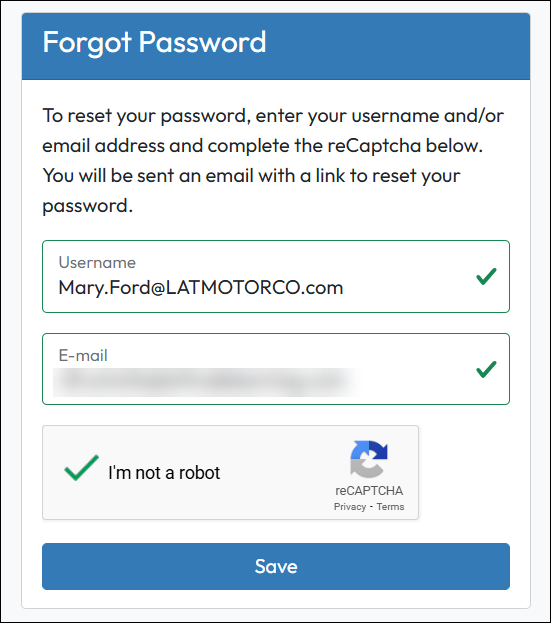
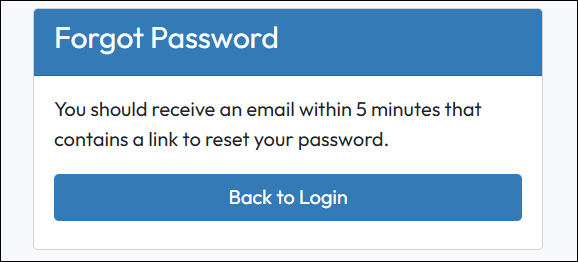
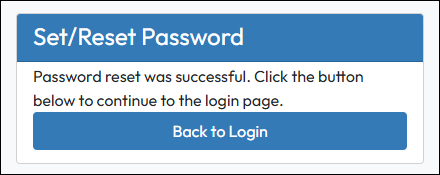
If you do not remember the password to your LatitudeLearning® LMS account or if you have reached your fifth login attempt, you will need to initiate a password reset:
It is a good practice to change your LMS password regularly to protect your information and training history. If the portal administrator has enabled the Account feature for your use, you can change your password and other select account information on demand. If it has not, you must contact your portal administrator for assistance.
Using the Login Page Password Reset process is necessary if your portal administrator does not allow Account access to students.