
Using the Training Schedule

Instructors can view their upcoming teaching assignments using this instructor-dedicated calendar.

Feature Overview and Requirements

This page displays the logged in user’s current teaching assignments and is only available to Instructors. It also only displays if they have at least one offering assigned to them in the future. The Training Schedule shows the courses an instructor is currently scheduled to teach, as well as dates and times, facilities, and how many seats are being used versus the maximum allowed.

Note

Visibility of this feature is dynamic. If an Instructor has no scheduled teaching assignments, the option will not appear on the Navigation menu until an assignment is made.
Step by Step Procedure and Field Description

Use the Training Schedule

  1. From the Navigation menu, select Training Schedule. If it is not visible, you do not have teaching assignments at this time or your portal administrator has not enabled this feature for your portal.
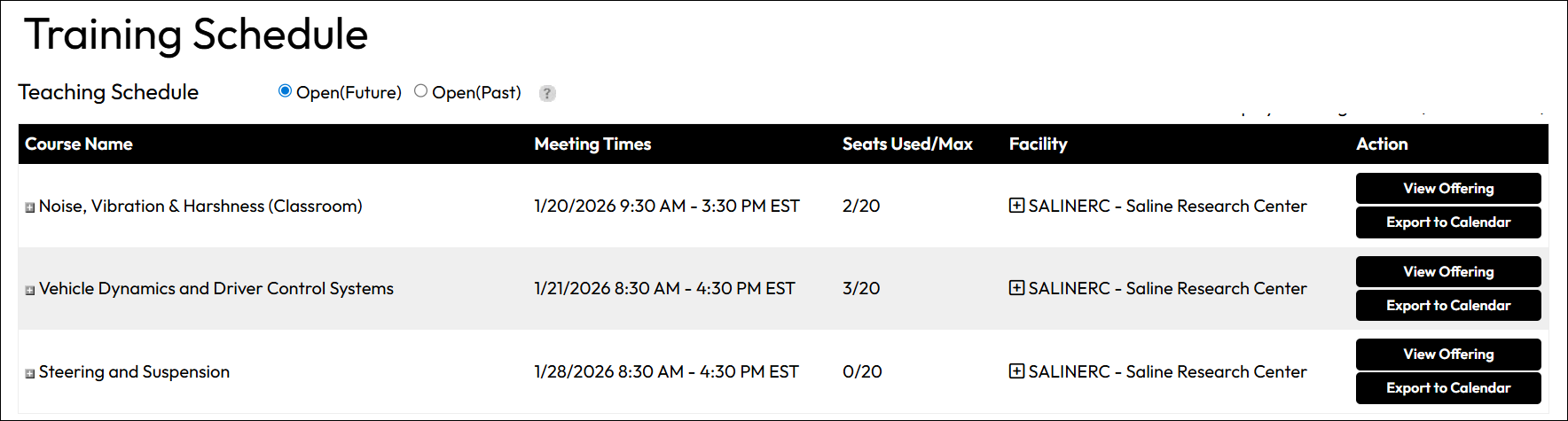
  2. On the Training Schedule page, you have the following options, visible in the image below:
    •  Teaching Schedule (selector): Select Open (Future) to see upcoming assignments or Open (Past) to see assignments for past offerings that are still open. 
    • Course Name: Lists the name of the course you are scheduled to teach.
    • Meeting Times: Lists the Meeting Times of the session for a particular course/date.
    • Seats Used/Max: Shows the current number of people enrolled versus the maximum allowed.
    • Facility: Identifies the facility at which the session is being held.
    • Action: Select View Offering to see details about the offering and take further actions, as needed, such as enrolling additional students or managing the roster. Select Export to Calendar to download an .ics file to import into your calendar.