
Manage the Learning Assistant Chatbot

Portal administrators can include/exclude portal course and resource content to be used by the Latitude AI Learning Assistant chatbot, a feature they can enable to help their learners find learning content.

Feature Overview and Requirements

The Learning Assistant is an AI-driven chatbot which can learn from your courses and resources to help your users get questions answered about the included content. Portal Administrators can decide which content to include or exclude from what the Learning Assistant uses to respond to your learners. This information will help you manage and teach your AI Learning Assistant. The only content accessible to the AI chatbot is that which you have purposefully vetted and included. It does not reach outside the bounds of your organization’s LatitudeLearning LMS.

Content Indexing

Indexing means compiling information and making it readily available for finding it later.  The content you select for indexing and training the chatbot varies in detail by the content type:
  • Courses: Only searches and indexes the content in the course code, course name, and course description. It does not index the course content, making it important to include good information in your course description for courses you want to include in the Learning Assistant’s repertoire.
  • Resources: In addition to the resource name, the content inside the resource for files and pages is scanned and included in the index. The content targeted by link-style resources is not scanned for indexing.
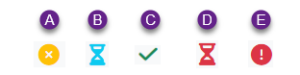
Indexing Status Key

  1. Not indexed
  2. Pending Indexing
  3. Index Complete
  4. Pending Index Removal
  5. Failed Indexing

Step by Step Procedure and Field Description

Filtering the Content List

You can filter the items in the content list to make it easier to find and take action on the items displayed. They are separated into sections based on whether they filter all items, or specifically courses or resources.
  1. From the Administration page, select Site Information > Learning Assistant.
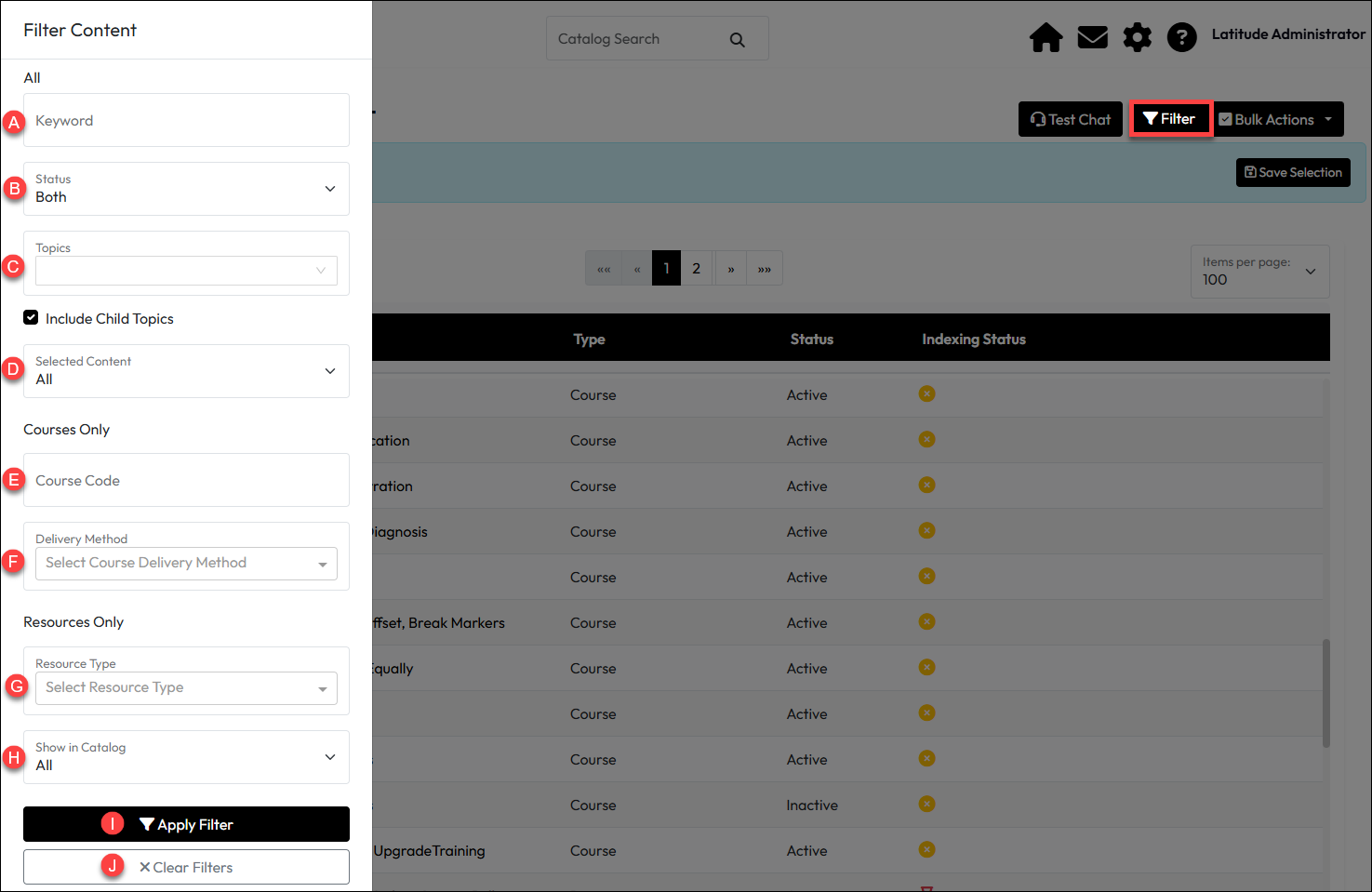
  2. Click Filter in the upper right corner to expand the filtering slide-in.
  3. Use the filters shown below, as needed, to construct your preferred results list.
    1. Keyword: All Section. Filter by keywords entered here that will look for courses and resources containing those words in their code, name, and description.
    2. Status: All Section. Filter for items that are Active, Inactive, or Both
    3. Topics: All Section. Filter based on specific topics tied to the course or resource.
      Select the Include Child Topics check-box if you want any parent level topics selected to also pull the items with child topics relevant to that parent.
    4. Selected ContentAll Section. Use to filter by content that has already been “selected” (indexed or attempted to have been indexed) in the first column (Yes) or not selected (No). 
    5. Course Code: Courses Only section. Enter a specific Course Code. Only one can be used at a time and must be manually entered.
    6. Delivery Method: Courses Only section. Select one or more delivery methods to filter.
    7. Resource TypeResources Only section. Select the type of resource to filter.
    8. Show in CatalogResources Only section. Select Yes to show resources that are displayed in the Catalog and No to display those which are not. All to get both settings. 
  4. Click Apply Filter (I) to execute the filters selected. Click Clear Filters to start over.

Content Indexing or Index Removal

Indexing content means including it in the data that trains the chatbot to support people’s questions and helping it find the answers more quickly.  To include or exclude content from the Learning Assistant’s knowledge base:

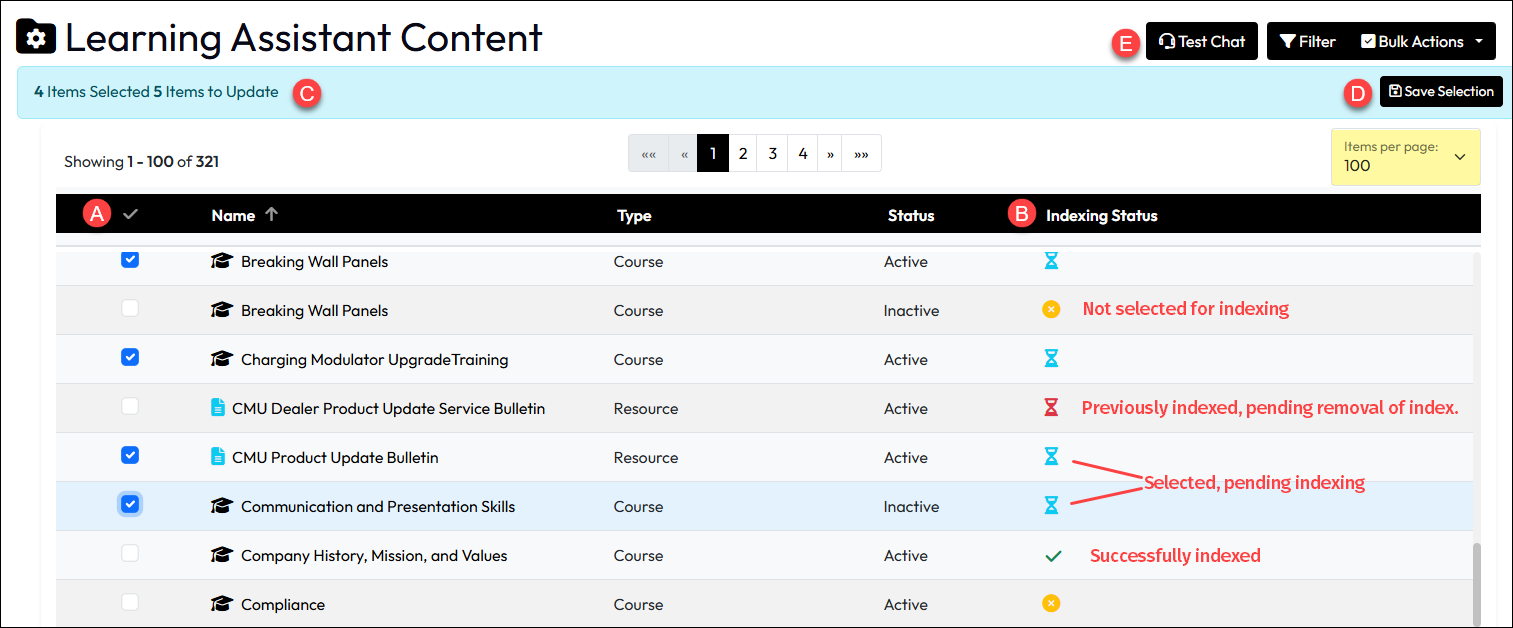
  1. In the full or filtered list of content check or uncheck a box (A) to the left of the entries you want to include or exclude. The Indexing Status (B) will display a blue hourglass to indicate “Pending Indexing” for items you checked. It will show a red hourglass under Indexing Status to indicate “Pending Index Removal”.
  2. After items are selected or de-selected, you can review the Items to Update (C) status in the blue bar at the top. This shows the number of items “selected” in the check box column and the number of items “To Update”. Numbers may vary because items to remove from indexing are not “checked”.
  3. To process the updates, click Save Selection (D) from the blue bar. As processing takes place, items will update under Indexing Status. 

At any point, you can use the Test Chat button to jump out to the Learning Assistant page your users would see and test questions to see how the results appear. If necessary to improve the results, you can update the content with better descriptions, titles, or in the case of resources, the actual content. Changes to an indexed item will cause it to update.
Enable the Learning Assistant in Your Portal

Displaying the Learning Assistant to your learners is simple, once you have some content indexed to give them results to common questions or information queries they might pose to the chatbot. Remember, while setting up your indexed content, you can use the Test Chat button on the Learning Assistant Content page to access the hidden Learning Assistant page your learners would use. This allows you to test searches and questions they might, ensuring that they have a good experience when you do enable the tool on your Navigation menu.

When you are ready to enable the Learning Assistant for your learners:
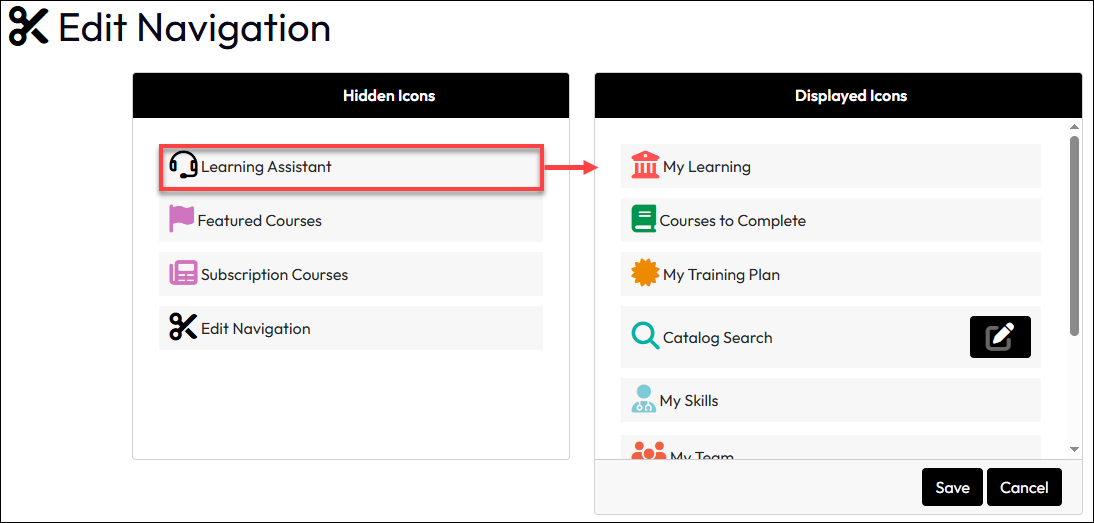
  1.  From the Administration page, select Site Management > Navigation Setup.
  2. Find Learning Assistant in the Hidden Icons column, then drag it to the Displayed Items column. 
  3. Drag and drop it into the display order you want it to appear on the Navigation menu. 
  4. Click Save. It will then be available to your learners on the Navigation menu.