One of the most basic tasks to understand in the LatitudeLearning LMS is how to enroll yourself or your learners into the courses they need to take or want to take. There are a number of ways to accomplish enrollments – both manually and automatically. This page is just an overview of the options. You’ll find detailed support for all of them on other support pages. First, some things that are important impacts on enrollments of any kind!
The successful ability to enroll or enroll others, regardless of whether it’s manual or automated will always depend on some key enrollment or eligibility restrictions, including:
The most basic and available form of enrollment is manual enrollment, including self-enrollment by a learner, or the use of “enroll others” functions by managers, instructors, and administrators.
Learners with access to the Catalog via Search Catalog on the Navigation menu or from the Header search box can enroll themselves in courses from the Enroll or Launch buttons on the course slide-in page. They may also find assigned courses to enroll in (if no auto-enrollment took place) from a number of pages, including My Learning and My Goals.
Which option you see depends on the type of course it is. Some use Enroll, then Launch as separate steps. Others Enroll and Launch as part of the same action.
Managers, Instructors, and Administrators can enroll others in self-paced courses as long as the learners fall under their purview. A trick for determining this is to go to My Team – People and remove applied filters. This will display the people who directly and indirectly reporting to the manager and therefore, are available to them for enrollments if there are no impediments to prevent it. Enroll Others appears on a course slide-in page if the logged-in user has the rights to enroll other people. The button is highlighted in the image below.
Just as they can enroll others in the self-paced types of training, Managers, Instructors, and Administrators can enroll others in scheduled offerings of instructor-led courses – either in-person or webinar types. When using Enroll Others from a course slide-in page for a classroom course, they can select from scheduled instances of the course or add employees to the interest list if no offering is available.

Administrator-level users with access to the Administrative version of Course Search can also use Enroll Others from the Results List as shown below.
The LatitudeLearning LMS offers several options for enrolling learners in courses automatically, within the limitations of enrollment restrictions in place in the portal.
Series are courses joined together in predecessor and successor relationships. They can serve to auto-enroll students into a set of courses that are configured to allow interests. If there are no approval or pending prerequisites to stop auto-enrollment, when the student enrolls in one of the series courses, the remaining courses are enrolled in automatically.
The auto-enrollment will still happen after any approval or prerequisite conditions are met. When a student enrolls in a course that is part of an established Series, but requires approval or prerequisite training, the courses wait on the “Interest List” until the auto-enrollment is possible.
By using prerequisites in conjunction with series, an administrator can also control the order in which courses are taken. As noted above, after each prerequisite is met, the next course automatically moves from the interest list to the enrolled status.
Scheduled classroom offerings include a setting which allows auto-enrollment into the offerings which allow it for a particular course. Examples of when this could take place include the course being part of a course or accreditation goal or being in a series.
The classroom course must be set to allow interests in the catalogs for which auto-enrollment is desired. When offerings are scheduled for the course, any offerings that should be considered for auto-enrollment must be set to allow it on the Auto Enrollment option.
Once established, barring any obstacles to auto-enrollment, if a learner has a requirement that includes a relevant classroom course, when the interest is created, the system looks ahead for open offerings up to 45 days out, by default, and chooses one in which to enroll the learner.
When courses or accreditations are assigned to users via Ad Hoc Goals or Goal Rules, portal administrators have the ability to set them to automatically enroll in all the relevant courses which allow it. Accreditation goal rules offer even more automation by automatically assigning the goal to the right people prior to auto-enrollment (if enabled).
On the administration page for Portal Information, there are two settings that control auto-enrollment for courses and the course in Accreditations, as shown below.
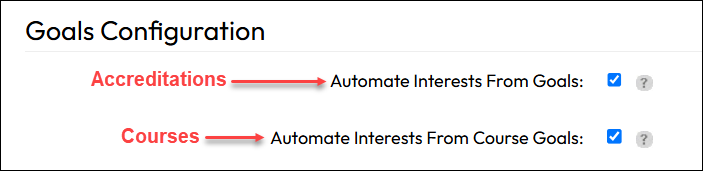
Courses involved should be set to Allow Interests.
When an auto-enroll enabled goal is assigned, the system creates a temporary interest record. The interest processor running in the background finds the interest and then the request goes through normal enrollment eligibility checks. It enrolls people in courses where there are no impediments to enrollment. Courses pending prerequisites or approvals wait on the interest list until the need is satisfied. Courses that are part of an elective Accreditation rule will not be auto-enrolled and will be shown awaiting manual enrollment.
(update the Blog section below to use specific tags related to the document being created/edited.)