All LMS users can search available resources if they are made visible by the organization’s LMS Portal Administrator:
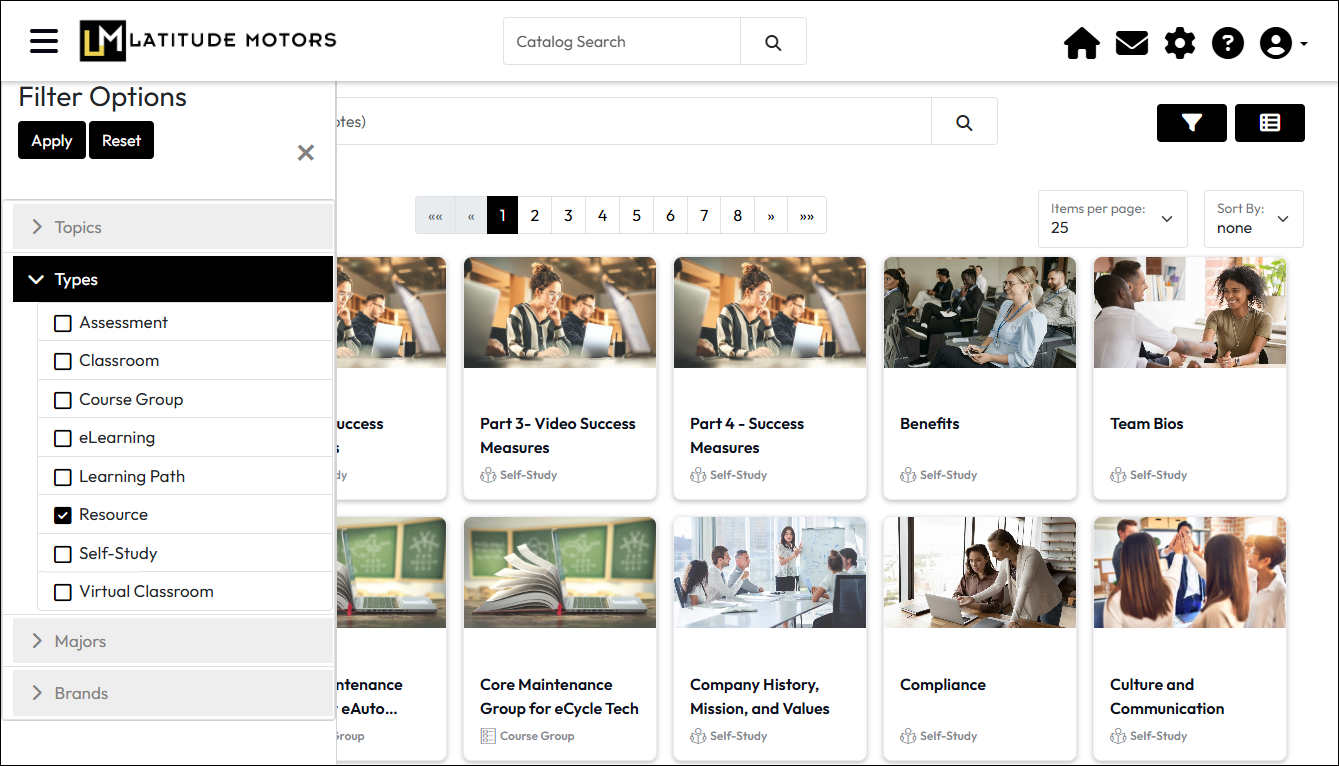
Portal Administrators can build a catalog of resources customized to their training needs by uploading content (e.g. PDFs, Word, Excel, MP4, WAV) to the LMS and/or providing links to objects such as websites, videos, and more. These educational materials can then be shared with the student community via the Catalog Search function and via links within specific courses.
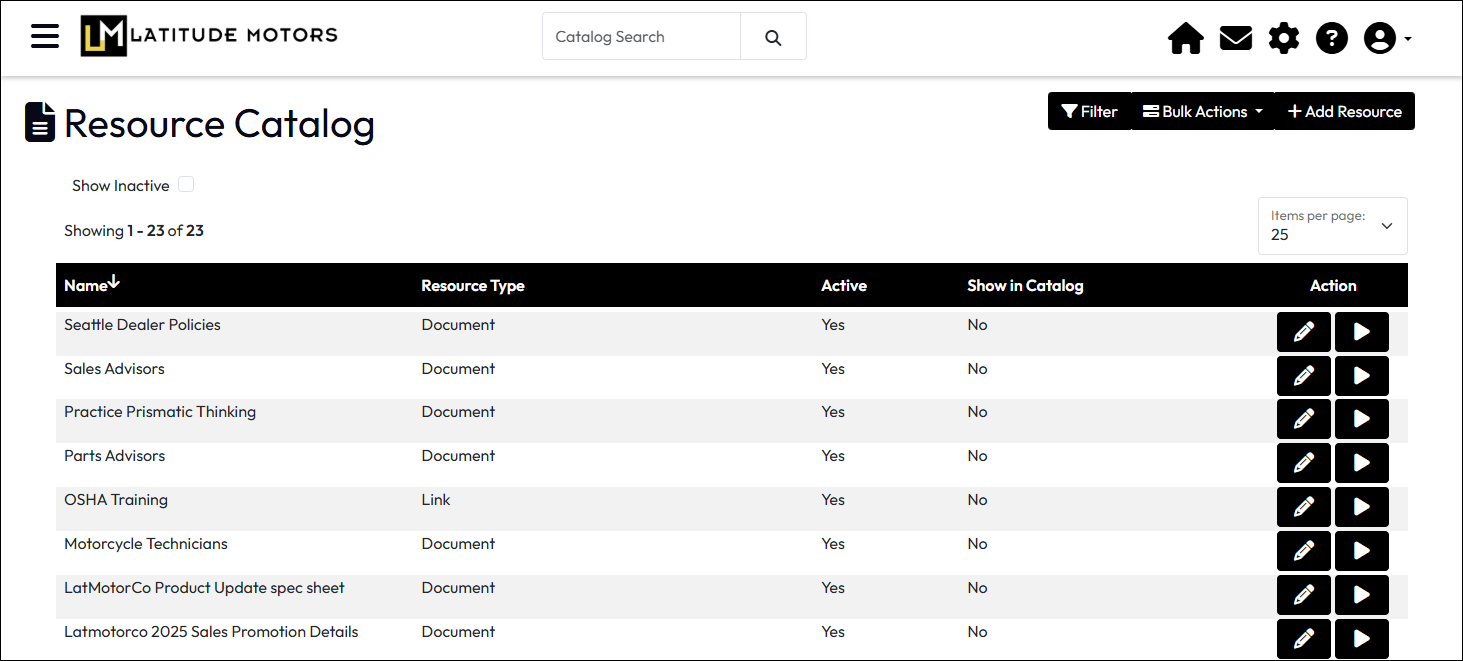
To manage Resources, from the Administration page, navigate to Catalog > Resources. This page allows access to resource additions and maintenance of existing entries.
Some of these are discussed in more detail below. Letters in parentheses refer to the labeled features in the image below.
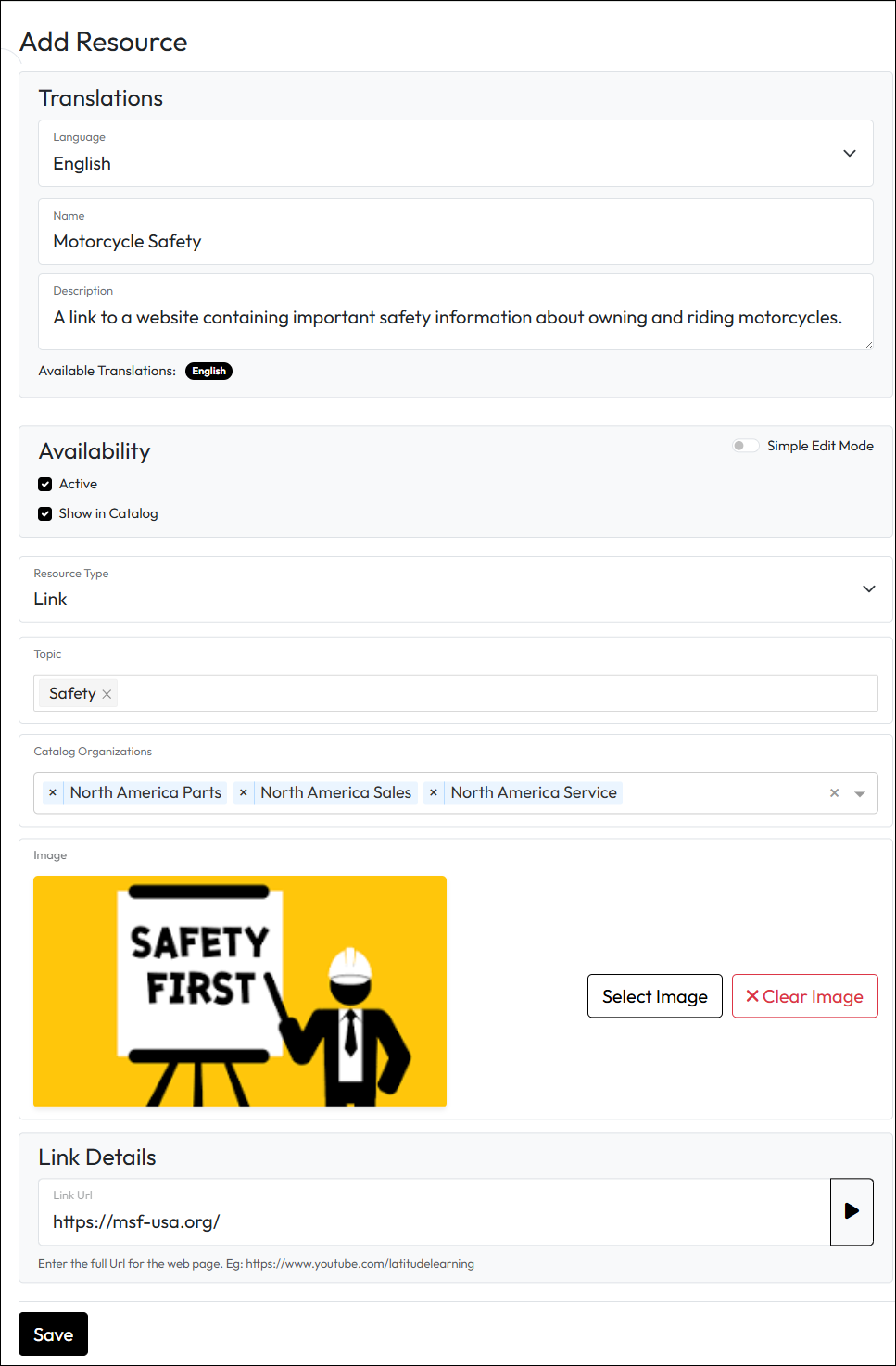
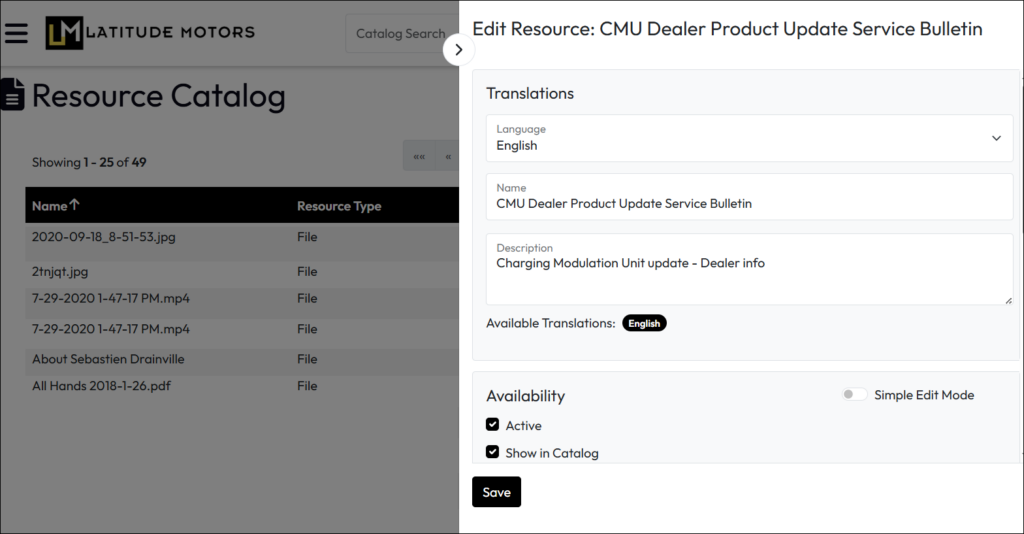
Portal Administrators can edit a resource and provide replacement content as needed.
Click Save.
Note About Resource Types
It is now possible to change the Resource Type of an existing Resource.
On the Edit Resource slide-in of the Resource Catalog, you can use the “Resource Type” drop down to change the type of resource. This could have downstream effects depending on how the resource is being used and what its original type was.
If changing from a File type resource to a non-File type resource, the original file will be deleted when you change the type and save the resource. If the resource is used as a source in any Self-Study course AI Tools, you may see warnings regarding impacts to the course.
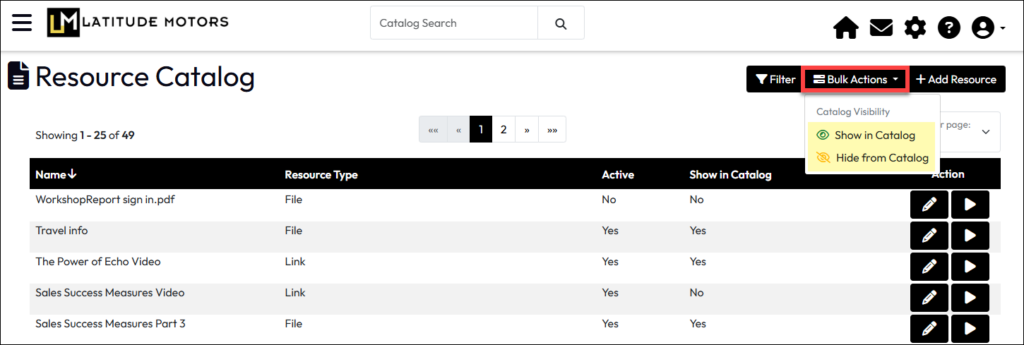
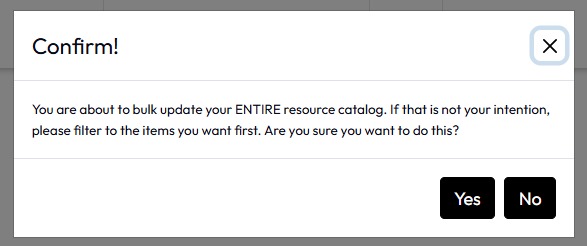
In addition to editing catalog visibility by individual resource, Portal Administrators can user filters to do so in bulk. Bulk Actions (E) works on the list of resources in the current view.
Note
AI Study Guides generated from Self-study resources are themselves not included in the Resource library. They must be edited from the Self-study course AI tools.