
Whether you are a new client planning your implementation or a portal administrator in a live portal, knowing your options for providing convenient, yet secure access to the LMS is important.
This page will discuss the primary options available for managing credentials, resetting password, and more, including:
Links to detailed documentation about most of these options can be found under Useful Links.
Password management for those in a portal administrator role often takes place as part of the effort to either manually add new users or edit their existing accounts. From the portal administrator perspective, initial or subsequent support for manual password reset occurs on the Add User or Edit User pages.
From these pages, the portal administrator can either:
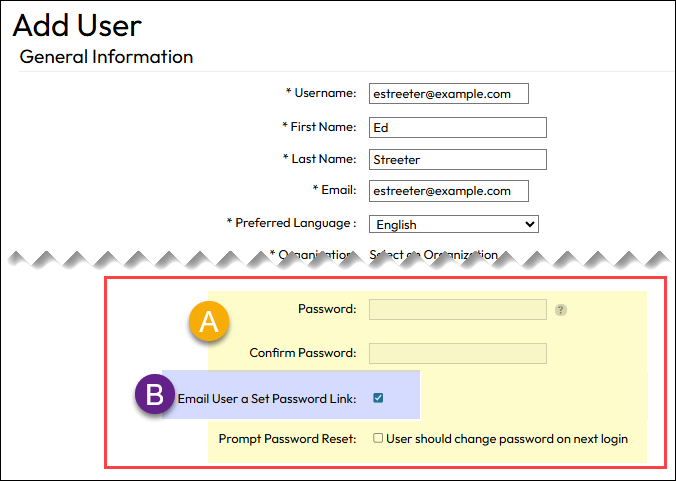
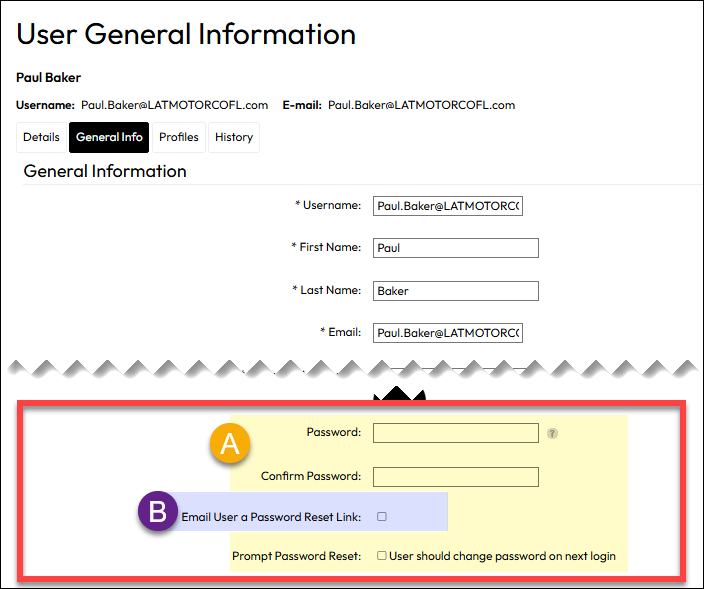
This option may not be used if your organization uses a Single-Sign On integration with LatitudeLearning.
Learn more: Add and Edit Users Manually
Two Factor Authentication (2FA) helps registered LMS users get to their home page by presenting challenge questions that are difficult to answer without deep personal knowledge of the user. Once enabled, the LMS login page will offer a new link, Forgot Username. This option is enabled at the portal level for all users. Upon first login after making the setting change, they will be prompted to choose challenge questions and answers. This feature can help not only when someone forgets a password, but also if they forget their username.
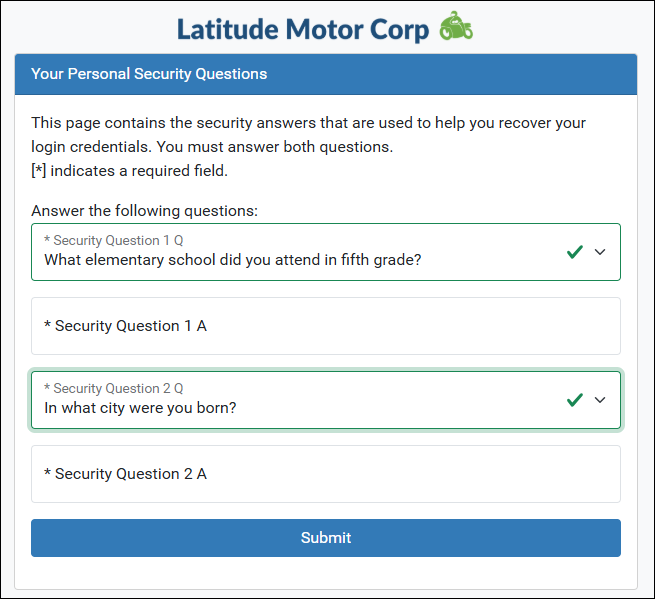
Learn more: Two Factor Authentication
User import is an easy way to add up to 1000 users at a time if you aren’t using SSO or an HRIS feed. To facilitate the new users’ first access, the User Import process requires portal administrators to establish the same temporary password for all imported users with an option to require they change it upon their first login.
The system creates a user group of all those imported to facilitate the use of Announcements in communicating login information.
If using the user import process to edit users, there is an option to reset all the relevant users’ passwords to the default set at import.
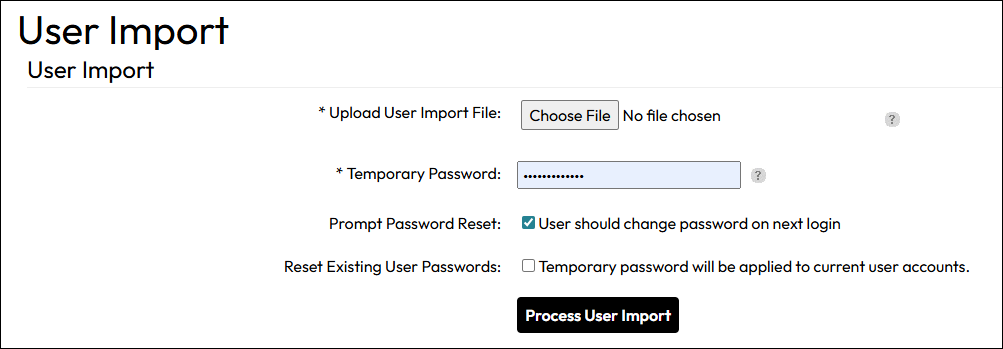
Learn more: User Import
The Manage Users feature allows a portal administrator to delegate user management tasks, including password resets, to the lower level roles Administrator and Location Administrator. What they are allowed to do is managed by the portal administrator – from those simple password resets to letting them perform full user addition and maintenance – so the experience is yours to design to match your business needs.
User update capabilities are scoped to the people in the purview of the Location Administrator under the selected location and positions they are allowed to assign a user are controlled by Portal Administrator configurations.
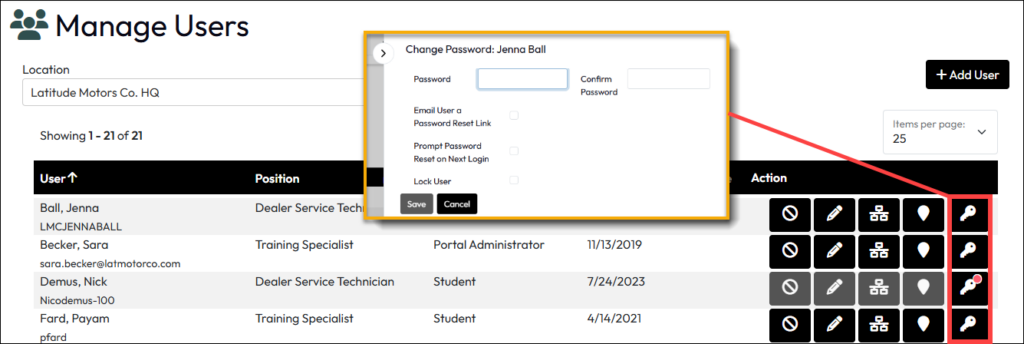
Learn more: Delegate User Management
For organizations in which user account and credentials maintenance is not behind an SSO or maintained in any other manner outside of the LMS, users can request a password reset from the LMS login page. This will send them an email with a link that allows them to reset their password and log into the system.
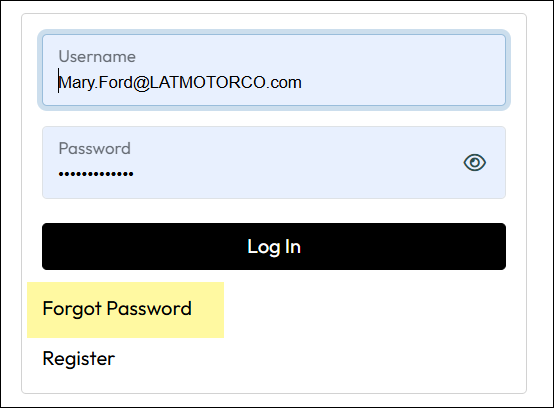
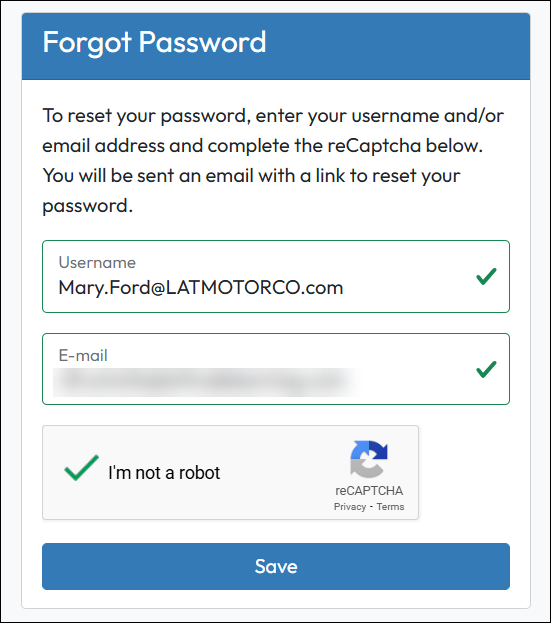
Learn more: Student Password Reset
Customers have the option to work with Latitude to enable SSO for managing user access. This works differently from all the other options and means that users do not use the standard LMS login page. Password management falls outside the LMS unless the user is an administrator who for some reason needs to be able to login outside the SSO.
If your organization is interested in exploring Single Sign On options, contact Latitude Support or your Latitude account manager to learn more.