Add a Lesson-Based Self-Study Course
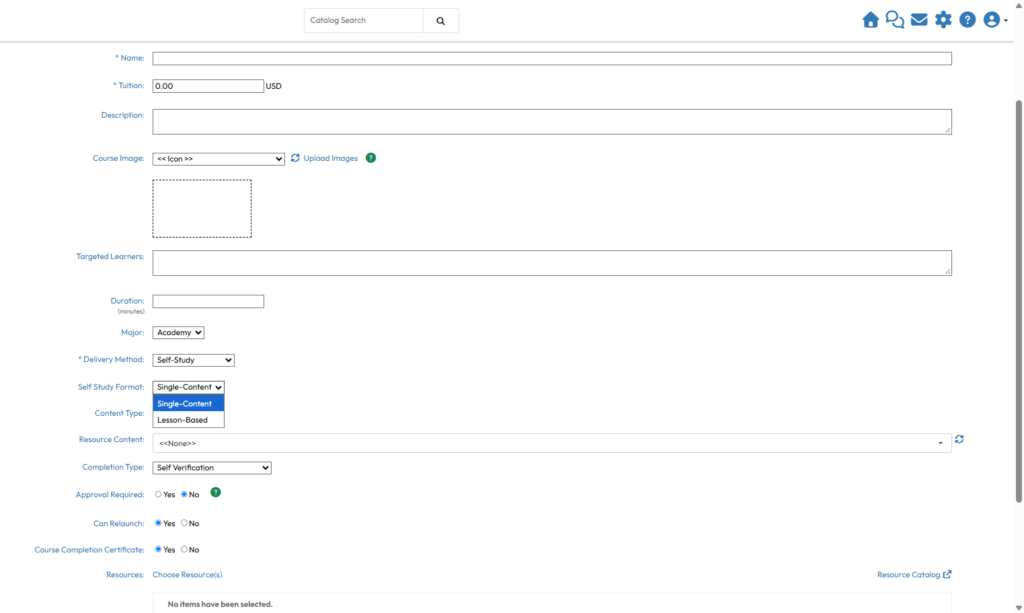
When creating a Self-Study course, select Self-Study as the Delivery Method, then choose one of two course formats:
- Single-Content: Organizes the course around a single learning resource.
- Lesson-Based: Organizes the course into multiple lessons, allowing administrators to structure training into separate learning segments. Lesson content supports File resources containing MP4 videos and Presentation resources.
The course format determines how learning content is organized and presented to learners.
Note: For Lesson-Based courses, only MP4 video files are supported when using the File resource type. Other file formats cannot be used as lesson content.
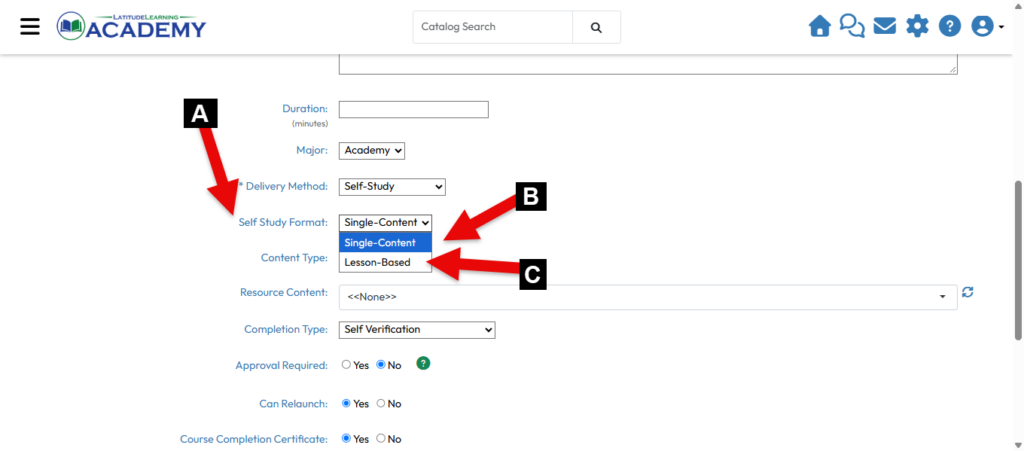
A – Select Self-Study as the Delivery Method
B – Select either Single-Content or
C – Choose Lesson-Based as the Course Format.
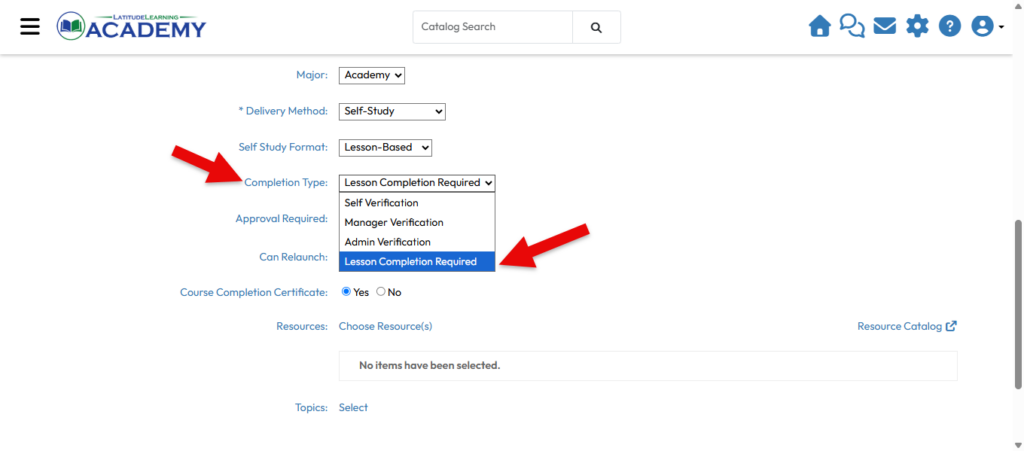
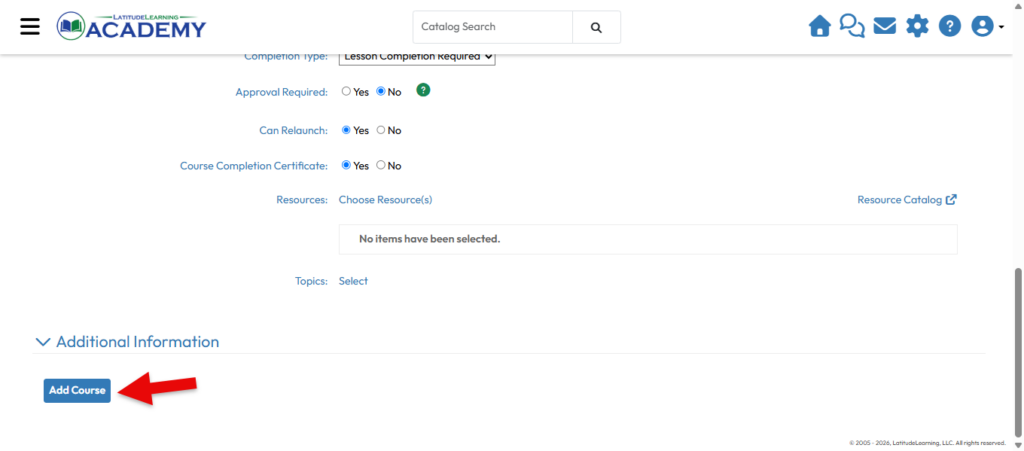
If you select a Lesson-Based Self-Study Delivery Type for your course you will now have a new Completion Type to choose from – Lesson Completion Required.
Complete the remaining course fields and select Add Course to save the course.
After selecting Add Course, a confirmation dialog appears.
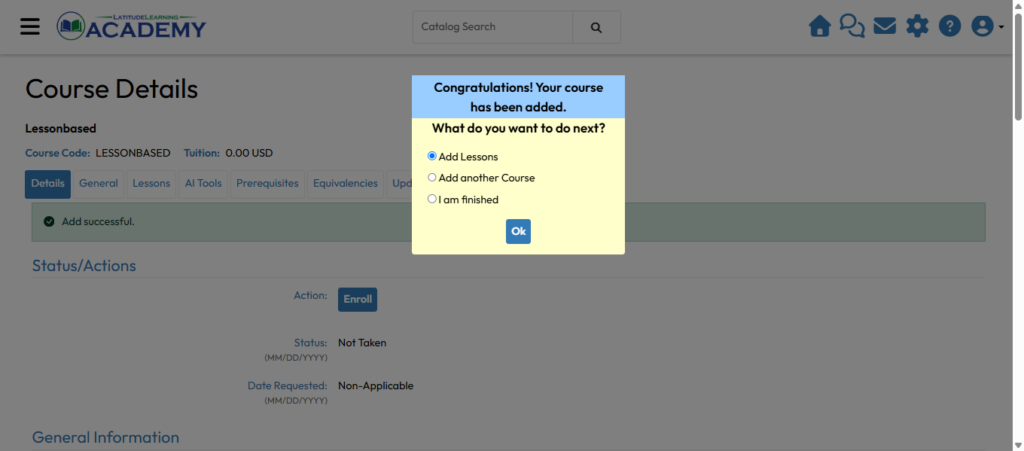
Select OK to continue to lesson configuration.
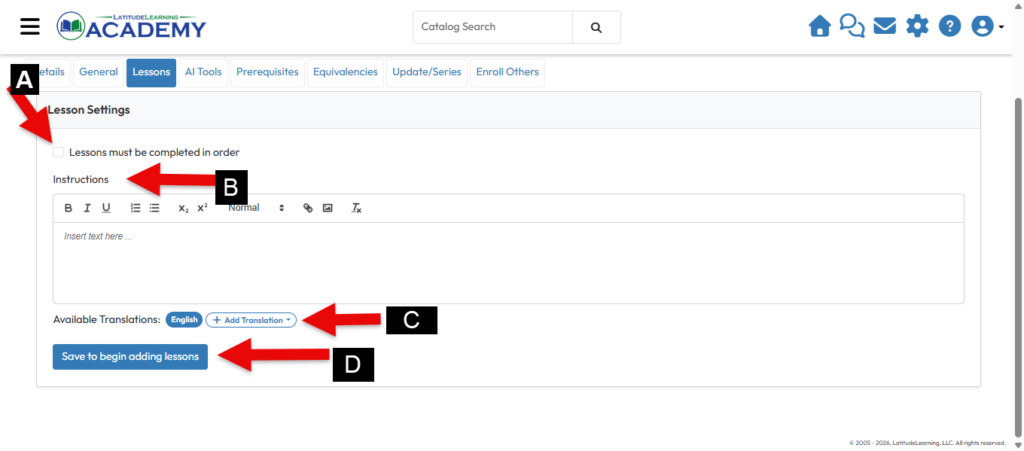
A – Lesson Order: Select the checkbox if learners must complete lessons in order.
B – Instructions: Enter instructions relevant to the lesson-based course.
C – Lessons may be individually translated, including the referenced video. Once choosing a new translation on the lesson User Interface (UI), you may choose a different video resource as well as entering translated text. This allows wholly translated videos, or reusing a video with translated name and description of the lesson, to suit your needs.
D – Save: Save the lesson settings to continue.
After saving the lesson settings, the Add Lesson button becomes available.
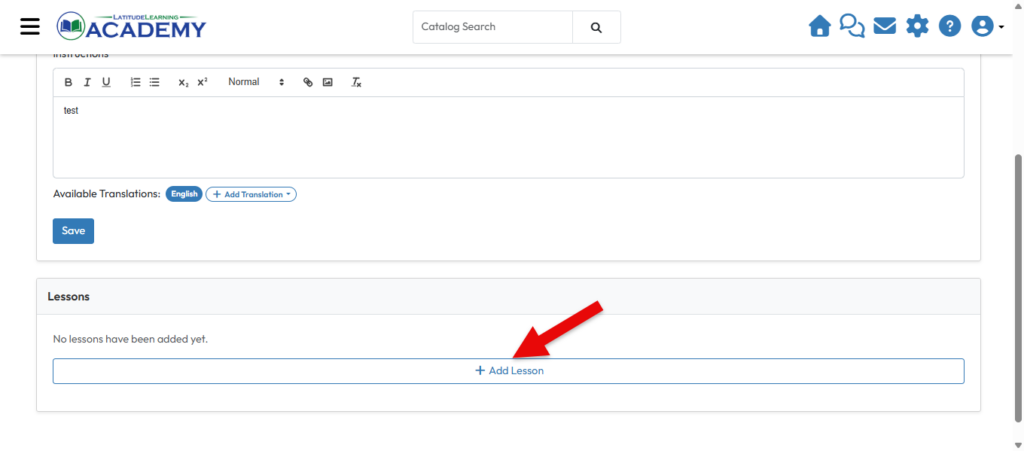
Add and Configure Lessons.
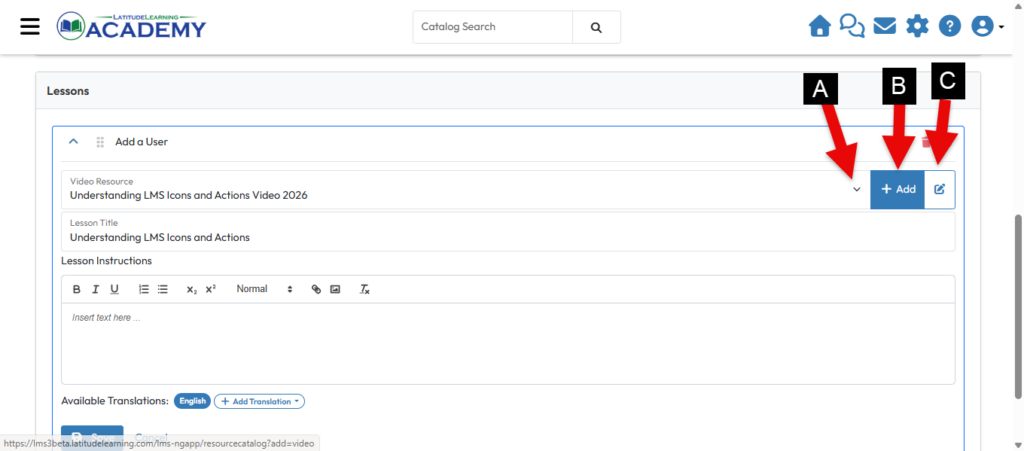
A – Select Resource: Choose an existing MP4 File resource or Presentation resource from the resource list.
B – Add Resource: Upload an MP4 video as a File resource through the LMS Resource Catalog if the resource has not already been added.
C – Edit the Existing Resource you are currently working with
Enter or revise lesson instructions and manage translations as needed.
Select Save to save the lesson.
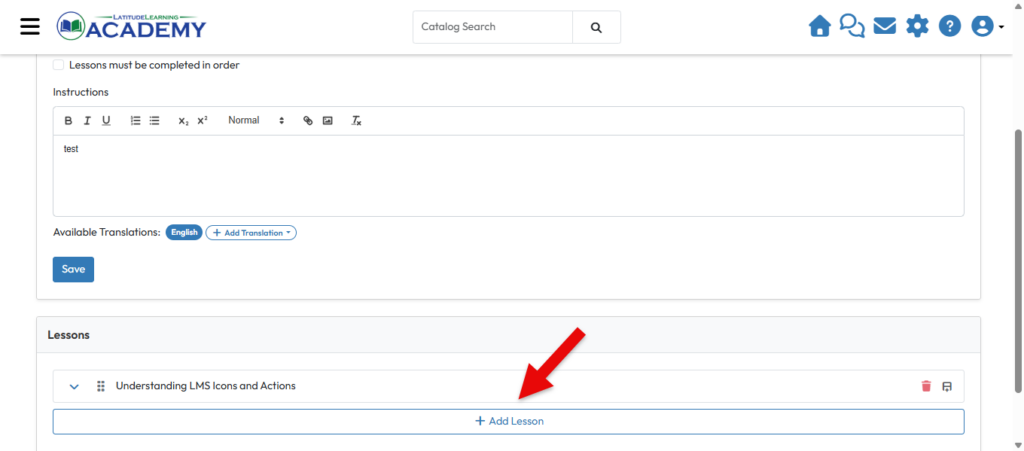
Select Add Lesson to create additional lessons. Repeat the process until all lessons have been added.
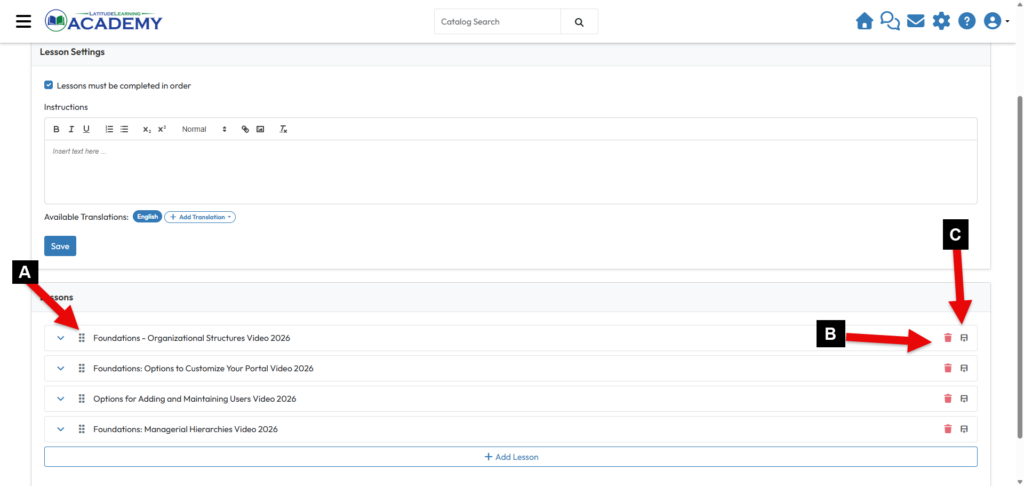
You can now adjust, edit or delete any of your lessons if you’d like.
A – The dotted handle allows you to drag the lessons into any order you’d like.
B – Allows you to delete the lesson
C – Allows you to insert a lesson immediately after that one
You can also change from a Single-Content Course to a Lesson-Based Course and vice versa. For example, if we were to change this course that currently has 4 lessons to a single content course, we’d go back to the general tab and under Delivery Method, change Lesson-Based back to Single-Content.
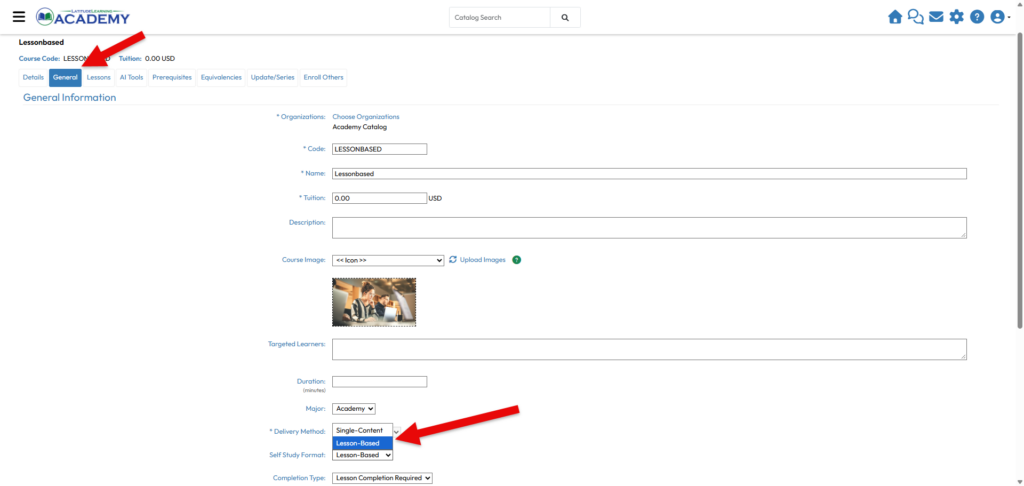
You will receive a warning message prior to making the switch.
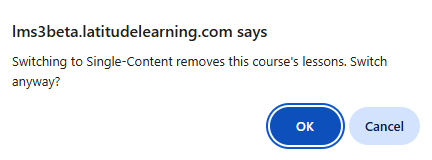
Once you hit ok and save your course, all of your Lesson-Based content as well as the Lessons tab will be removed.
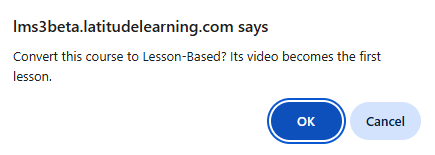
If you choose to convert your course from a Single-Content Course to a Lessons-Based you will also receive a warning message alerting you that your video will be come the first lesson and your lessons tab will return after you save the course. Remember, lesson-based courses are only for video based resources as this time.
After saving the course, use the AI Tools tab to configure available course-level AI features, as appropriate. For details, see the Configure Self-Study AI Tools support article: