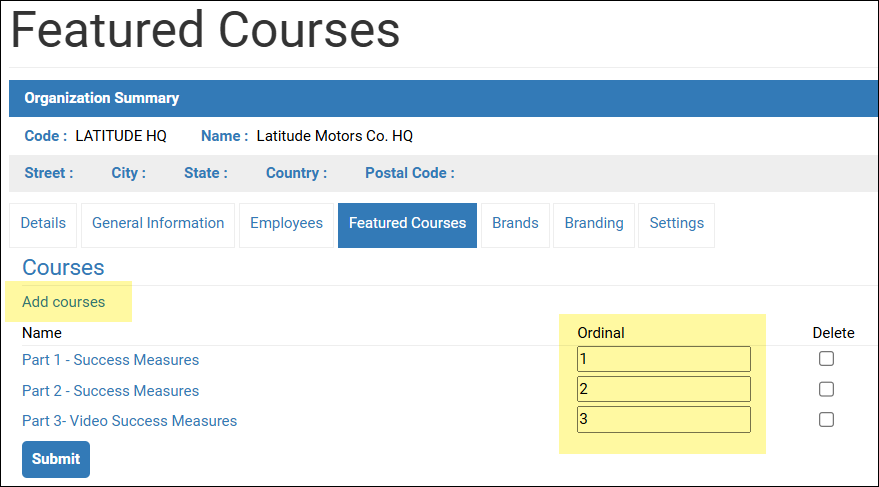
Portal Administrators establish Featured Course lists from the Course or from the Location:
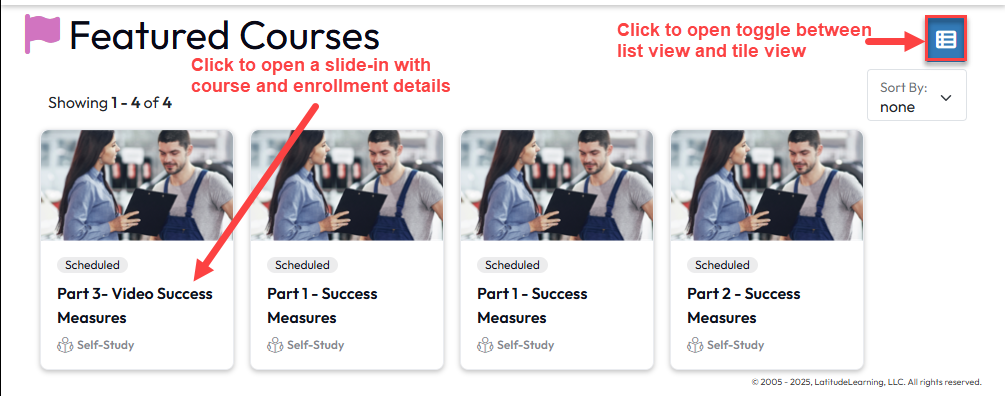
Once courses have been featured at a given Location, students will see the Featured Courses icon appear on their LMS Navigation page. Rich with images, course details, user enrollment status, and action options, the default course tile view helps you promote these important training opportunities. A button in the upper right corner of the page offers the option to toggle between the image-based Tile View, or the compact List View.
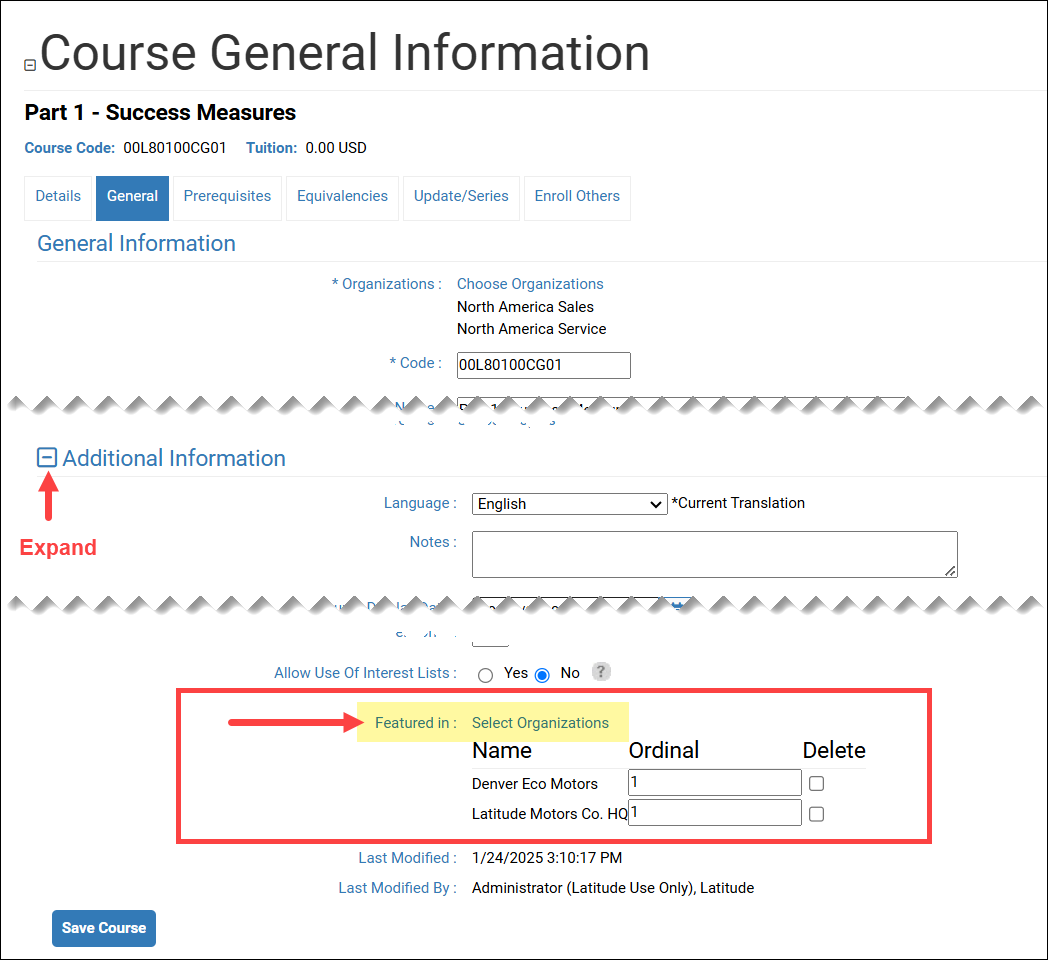
To set up a featured course from the Edit Course Details page:
To set up a featured course from the Organization Details page, you must first create and save the course. Once the course is created: