
- Administrators
- Instructors
- Managers
- Students
- LatitudeLearning Academy
- Release Notes
- Sign In
This page allows Portal Administrators to create and maintain Resources using the following options from the Resource Catalog feature:
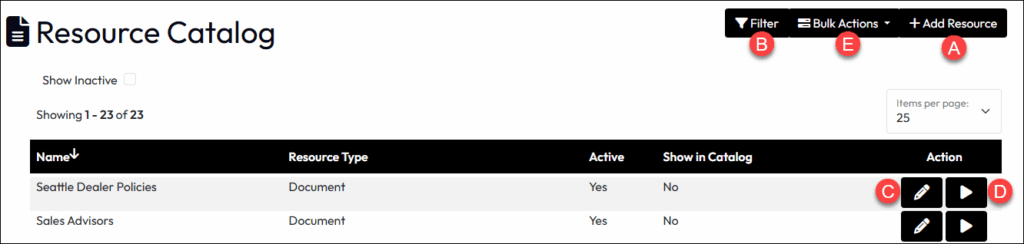
A. Add Resource: Opens a slide-in with fields for adding a new resource as a File, Link, Page, or Presentation. Presentation resources allow administrators to create narrated training videos using scenes, background images or video clips, narration scripts, and AI narrator voices. Options include setting a resource as active or inactive and determining whether it appears in the Catalog.
B. Filter: Opens a slide-in on the left side to filter the Resource list down to specific entries.
C. Edit Resource: Opens a slide-in allowing administrators to update an existing resource. For Presentation resources, administrators can access the presentation editor to manage scenes, background images or videos, narration scripts, AI narrator voices, and transitions.
D. Launch Resource: Downloads or launches the selected resource based on its resource type. Presentation resources can be viewed as narrated videos after the presentation has been generated.
E. Bulk Actions: Allows bulk addition or removal of resources from the Catalog based on the displayed list, whether full or filtered.
Toggle the sort the displayed list of resources by clicking the header column titles. Full processes and field descriptions are available in Manage Resources link under Related Support.